Prompt Templates
Prepare structured prompts that students apply with one click — no prompt engineering required.
Overview
Prompt Templates let you set up ready-made AI conversation starters for your students. Each template has a title, a description, and the prompt itself, and can include variables that students fill in. Advanced options let a template act as a bot with its own system prompt. When you turn on sharing for a template, students in your live class sessions get it in their chat automatically.
There is also a public template library where you can discover and import templates created by other educators, or publish your own.
For walkthroughs, watch the tutorials below.
How to Access
- Go to the Teacher Portal
- Click Prompt Templates in the sidebar
Creating a Template
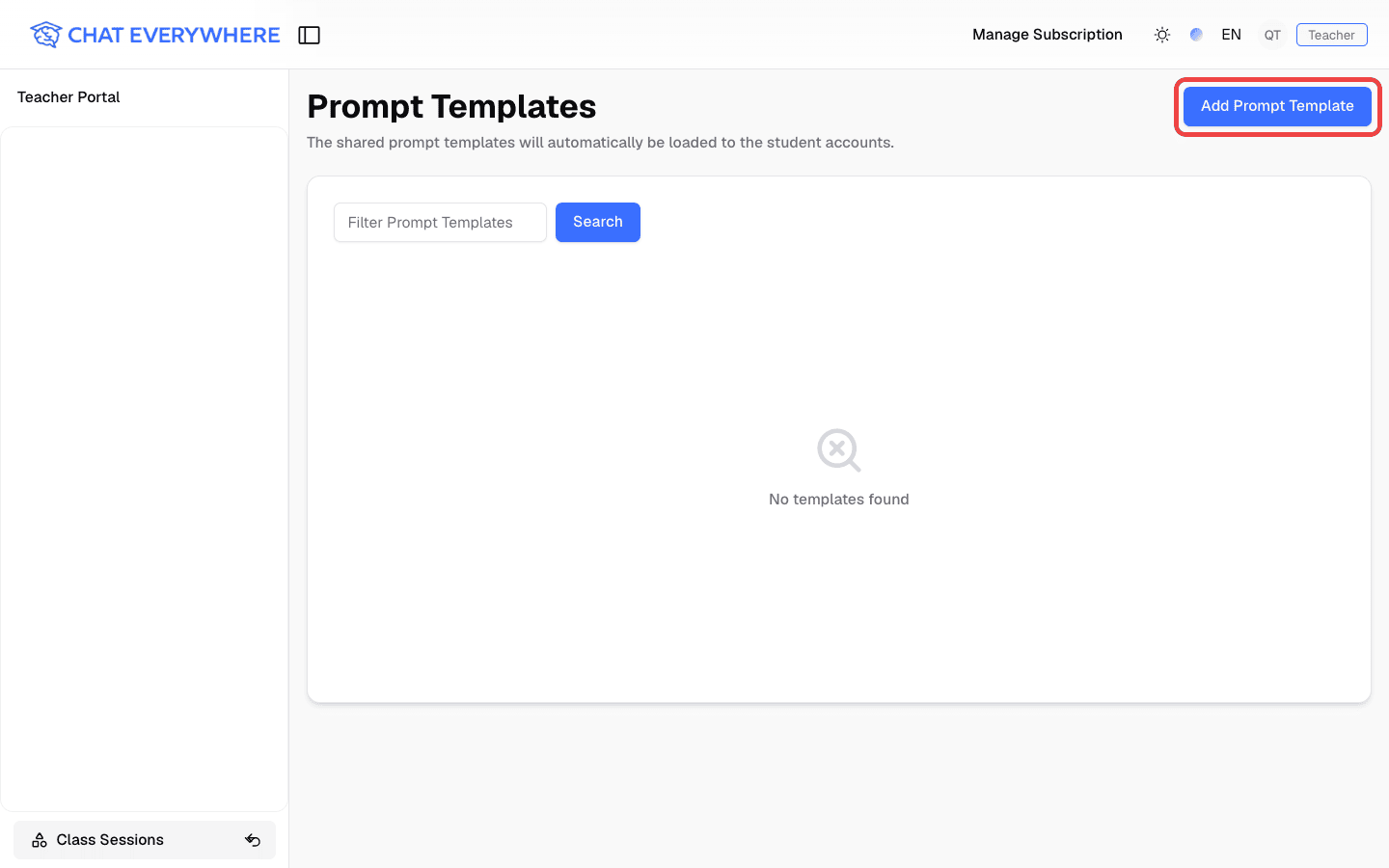
- Click Add Prompt Template
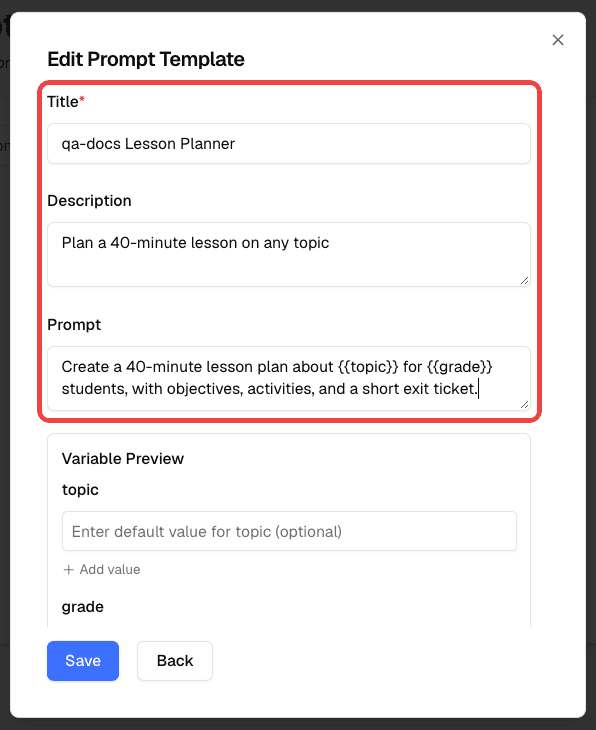
- Fill in the template details:
- Title — A clear name students will see (for example, “History Essay Brainstormer” or “Science Lab Report Helper”)
- Description — A short summary of what the template is for
- Prompt — The text that is applied when the template is used. Add
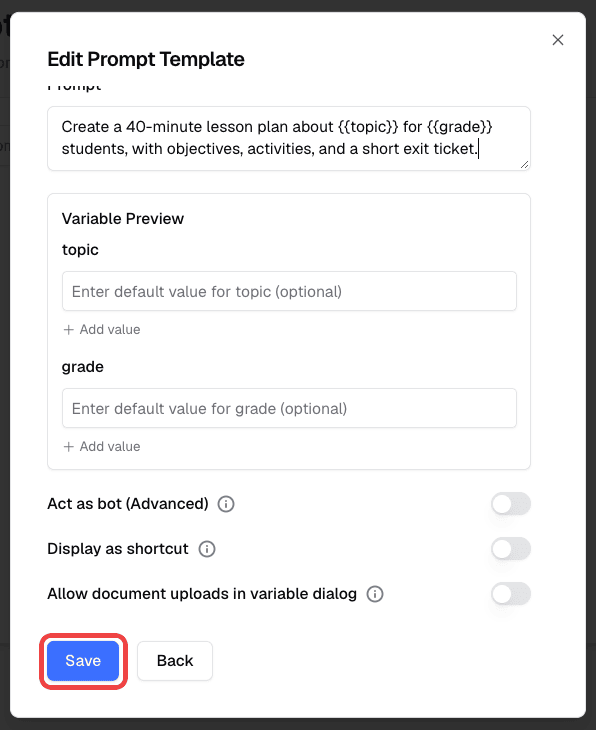
{{variable}}placeholders for details students should fill in - Act as bot (advanced, optional) — Turn the template into a bot and write a Bot system prompt that tells the AI how to behave. For example: “You are a writing coach. Help the student brainstorm thesis statements for a history essay. Ask guiding questions instead of giving direct answers.”
- Display as shortcut (optional) — Show the template as a shortcut in chat
- Click Save
The new template appears in your template list and in the template picker in chat.
Tips for writing prompts and bot system prompts:
- Be specific about what the AI should and should not do
- Describe the AI’s role (tutor, debate partner, writing coach)
- Include any constraints (“only discuss topics related to chapter 5”, “respond in Spanish”)
- Keep instructions concise — a few sentences usually work well
Organizing Templates
Use the search bar on the Prompt Templates page to find a template by name. Templates you import from the public library appear in the same list, where you can view or remove them.
Template Variables and Shortcuts
Use {{variable}} placeholders when a template needs students to fill in a topic, role, level, or other detail before the conversation starts.
- In the chat input, type
/to open the available templates and select one - Fill in the variables in the dialog that opens, then click Submit
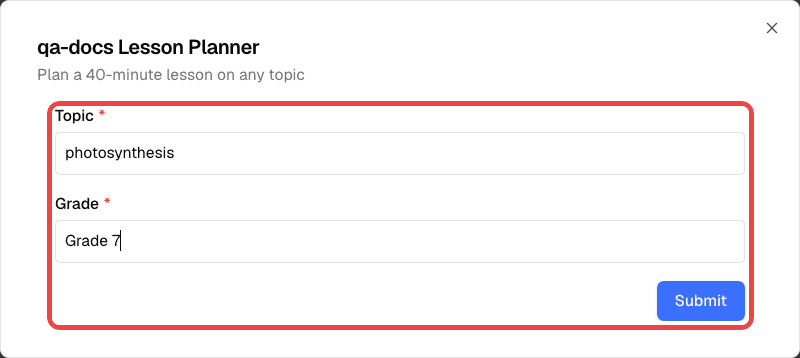
- The prompt, with your values filled in, is sent as the first message of the chat

Sharing Templates with Students
Sharing is controlled by a switch on each template:
- Open Prompt Templates in the Teacher Portal
- Find the template and turn on the switch in the Status column
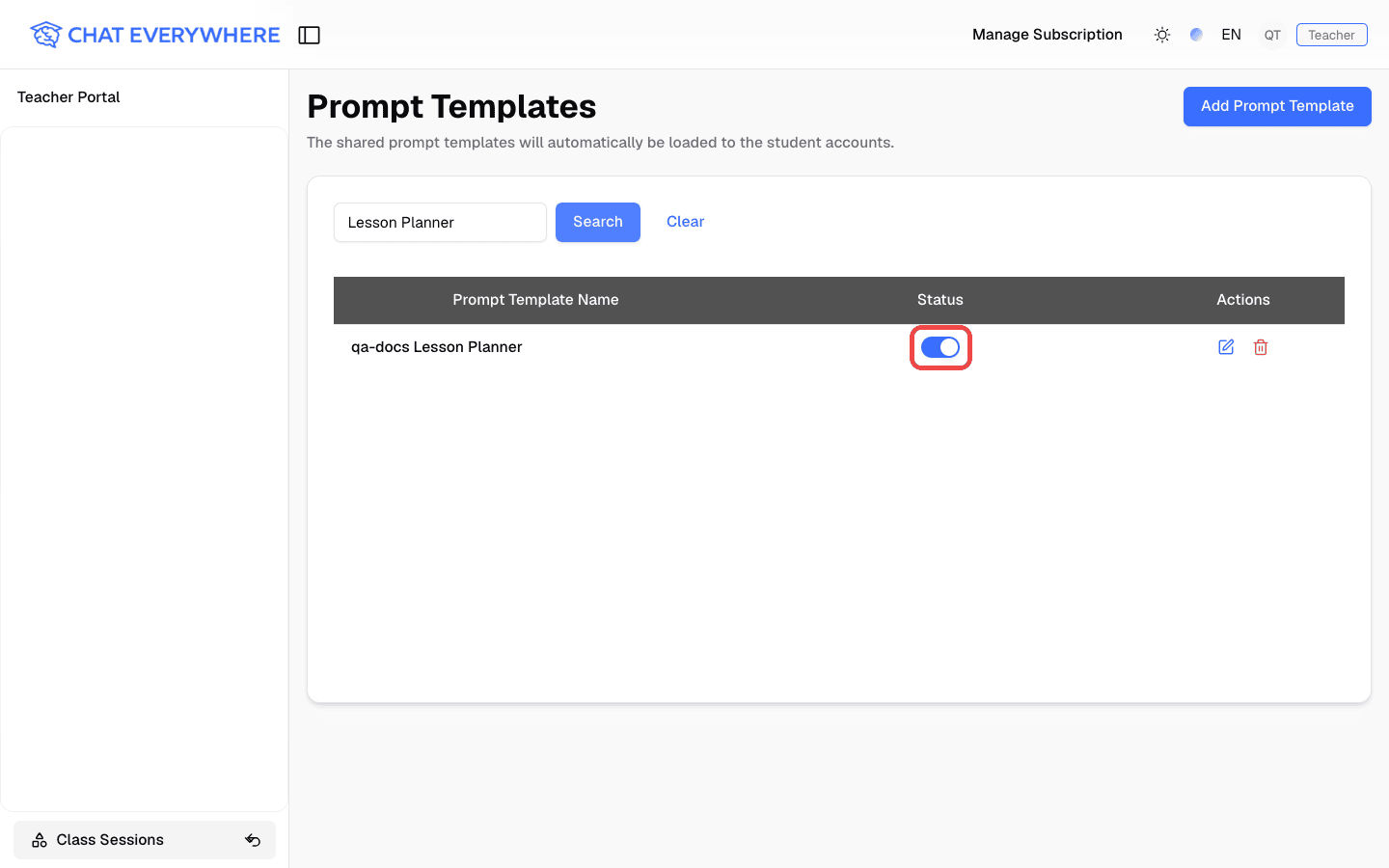
- Students in any of your live class sessions get the template in the prompt template list in their chat and can start from it right away
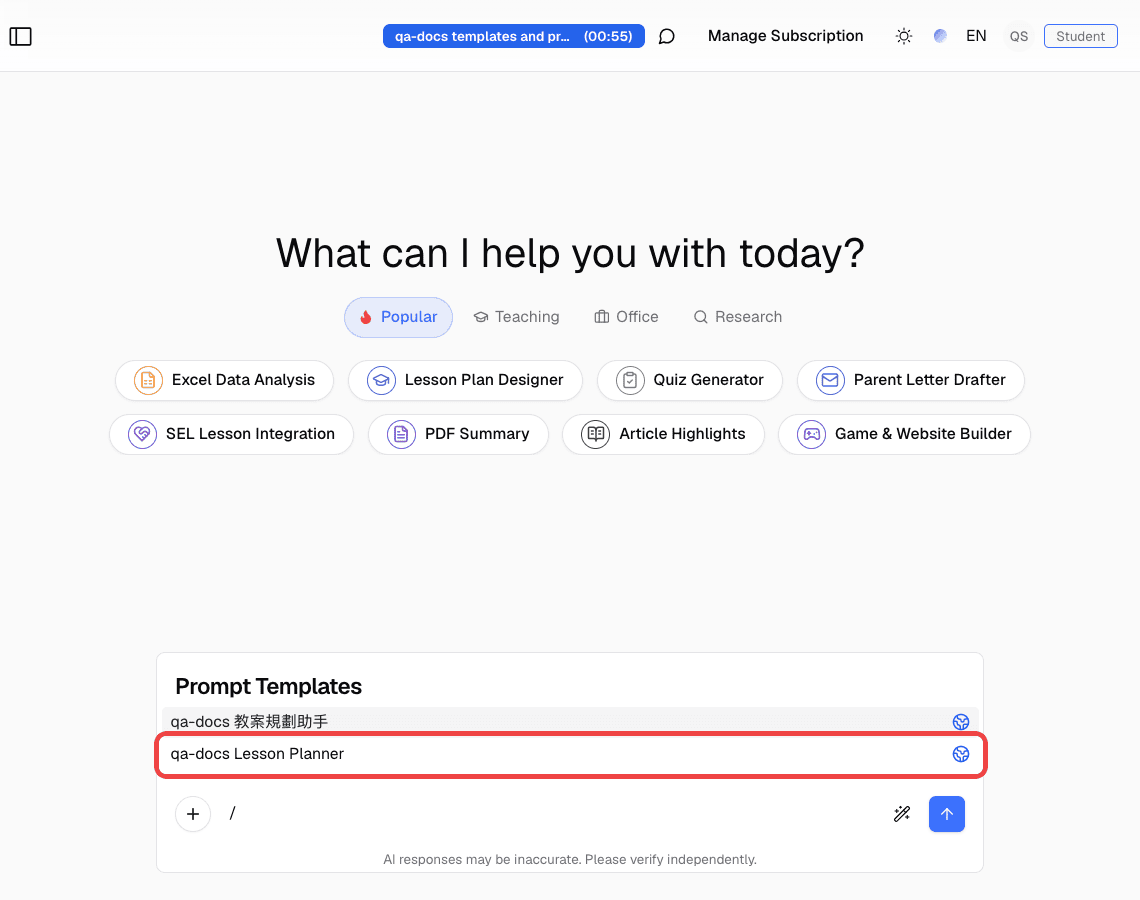
- To stop sharing, turn the switch off
A shared template stays shared across sessions until you turn the switch off. Students don’t need to write their own prompts — the template handles the setup.
The Public Template Library
The public template library is a collection of templates shared by educators across the Chat Everywhere community. You can search by keyword, browse by category, and see each template’s import count and sharer. Anyone can browse the library.
Import a Template from the Library
- In the sidebar, click Other Features and choose Template Library

- Search by keyword or choose a category to find a template
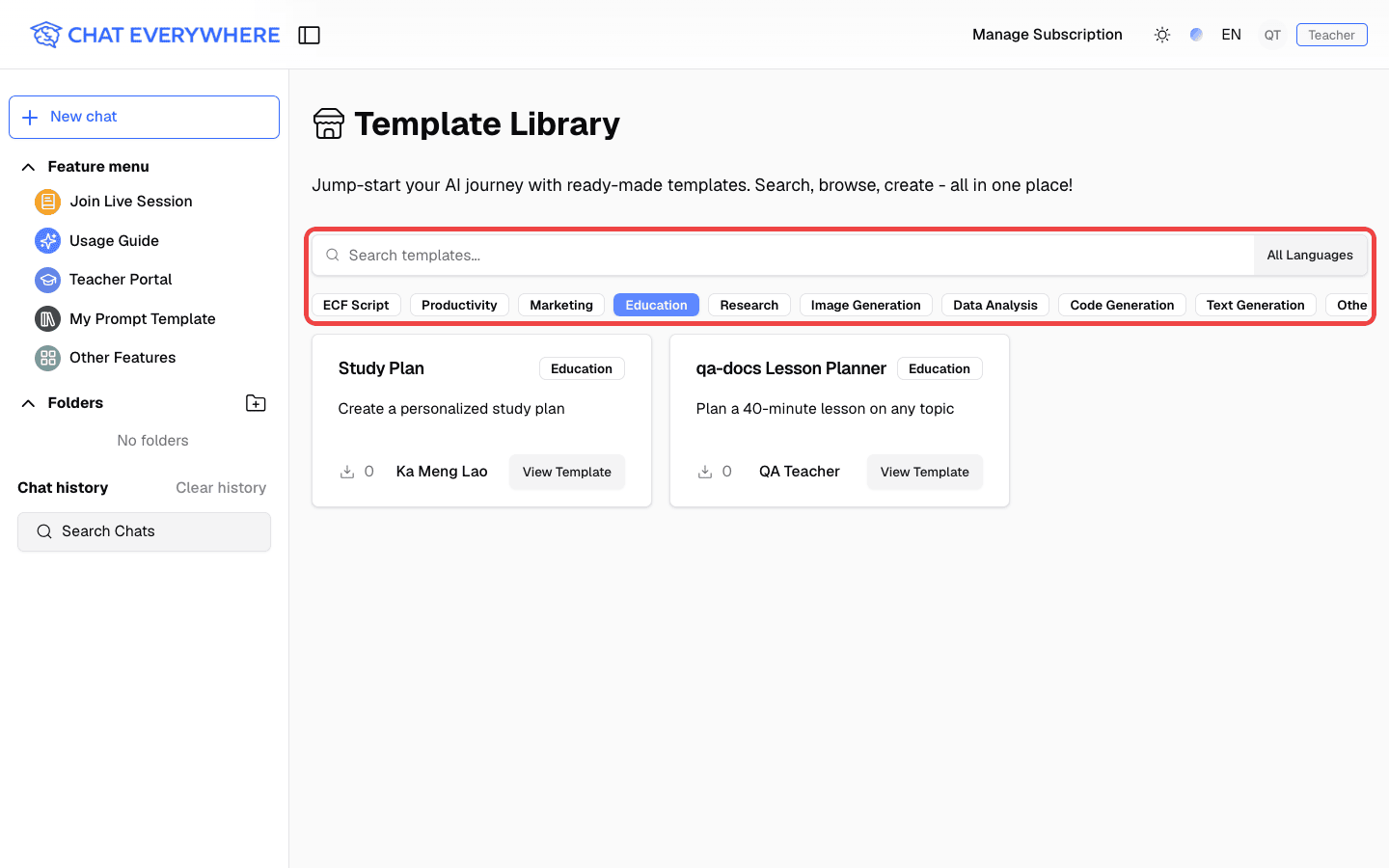
- Click a template card to preview its details and variables
- If you are not signed in, click Sign in to import and choose how to sign in
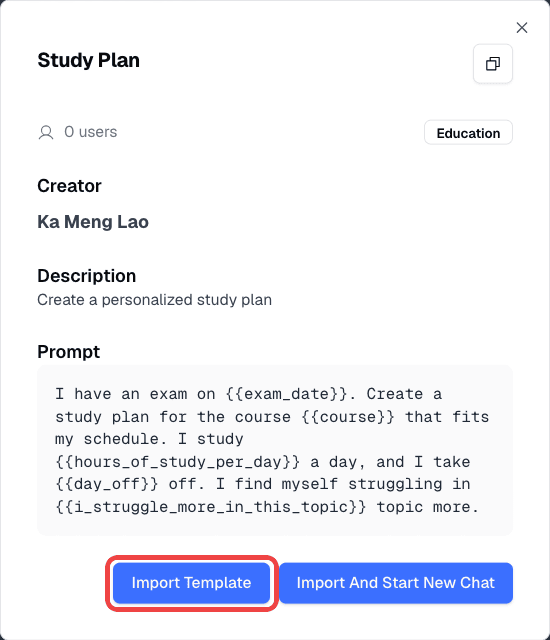
- Click Import Template. The template is added to your list, and you can call it with
/in chat
You cannot import a template you shared yourself.
Publish a Template to the Library
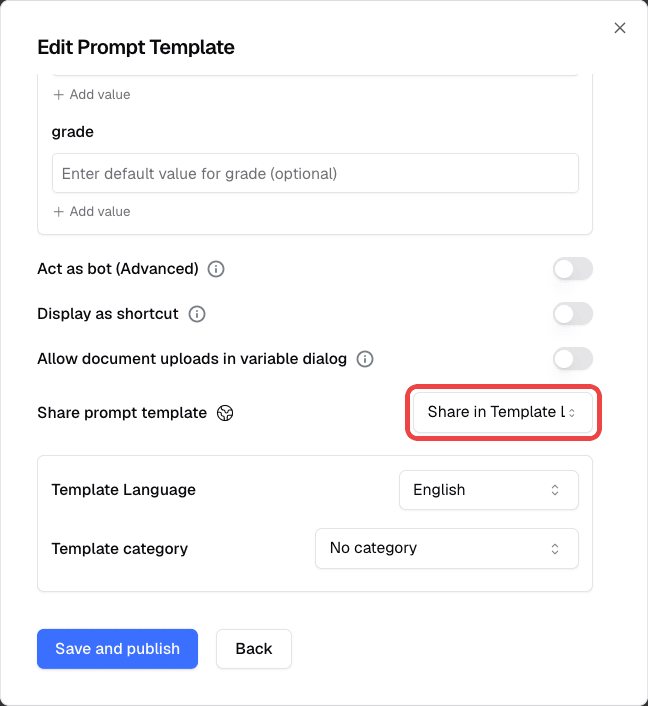
- In the sidebar, open My Prompt Template and edit a template. Under Share prompt template, choose Share in Template Library. The other options are Not shared and Only share link. This option isn’t available when you edit templates in the Teacher Portal
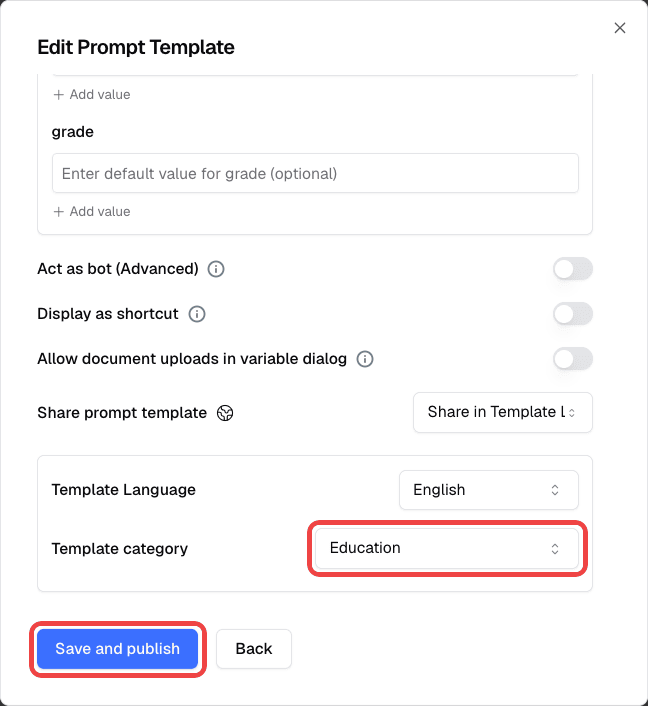
- Choose a Template category, then click Save and publish
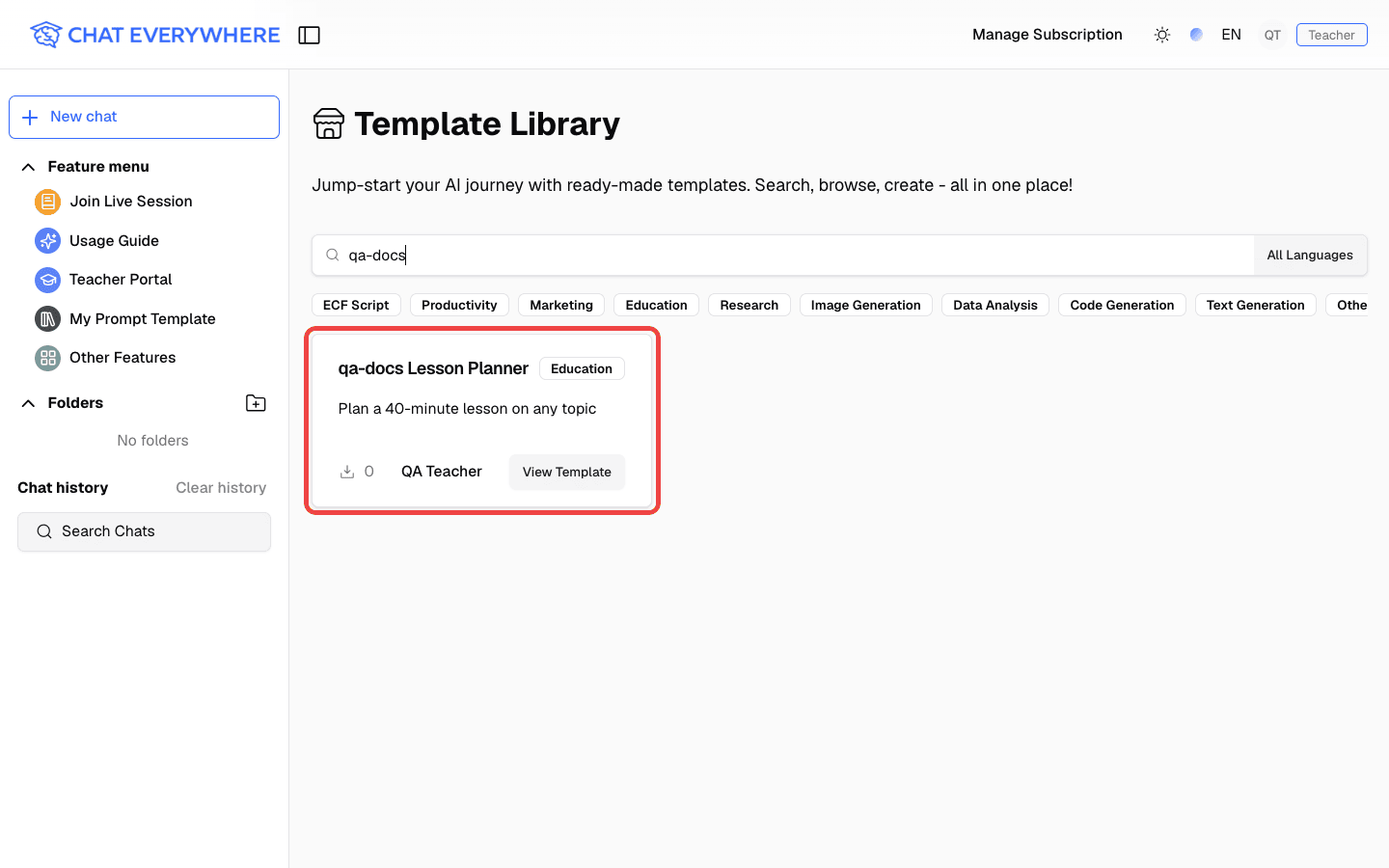
- The template now appears in the public library for other educators
Set the Sharer Display Name
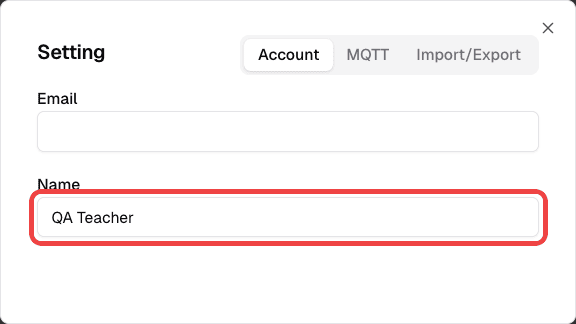
Before sharing templates publicly, set the account nickname that appears with your shared templates.
- Open Setting from the account menu
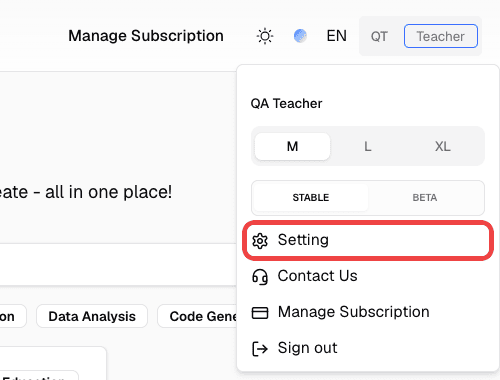
- In the Name field, enter the nickname you want other educators to see, then click Save before publishing
Who Can Use This
- Teachers — Create, edit, share, and publish templates, and import templates from the public library. This feature requires a Teacher plan.
- Students — Use templates that their teacher shares while they are in a live class session. Students do not create or edit templates in the Teacher Portal.
- Everyone — Anyone can browse the public template library.
Related Features
- Class Sessions — Students in your live sessions receive your shared templates
- In-Class Quiz — Combine quizzes with templates for a complete lesson plan
Common Questions
Students don’t see the template I shared. Make sure the template’s switch in the Status column is on, the session is live, and students have joined it. Students load shared templates when they join, so students who were already in class may need to refresh the page after you turn sharing on.
What happens if I edit a template after sharing it? Students who were already in class may keep the earlier version until they refresh the page or rejoin.
Can students modify the bot system prompt? No. Students use the template as-is. They can chat freely within the conversation, but the underlying instructions you wrote stay in place.
How detailed should my instructions be? A few clear sentences are usually enough. Describe the AI’s role, what it should help with, and any boundaries. You can always iterate — try a version, test it yourself, and refine.
Can I share a template without a class session? The Status switch only delivers templates to students in your live sessions. To reach people outside a session, publish the template to the public library or choose Only share link under Share prompt template.