會議小幫手
快速取得 AI 逐字稿與摘要,並可延伸產出心智圖、會議報告、說話者辨識、翻譯內容,還能針對會議追問。
概述
會議小幫手可將音訊或影片錄製檔轉成完整逐字稿、AI 摘要、互動式心智圖與結構化會議報告。您可以上傳檔案、匯入有字幕的 YouTube 影片,或在會議進行時即時轉錄。功能支援多種語言,可自動辨識不同說話者,並匯出為多種格式。
會議處理完成後,您可以向小幫手追問會議內容、匯出到 NotebookLM、用群組整理會議;付費方案還能在 ChatGPT 中搜尋您的會議。
您也可以透過 iOS App 直接用 iPhone 錄製會議,再上傳分析。
如何使用
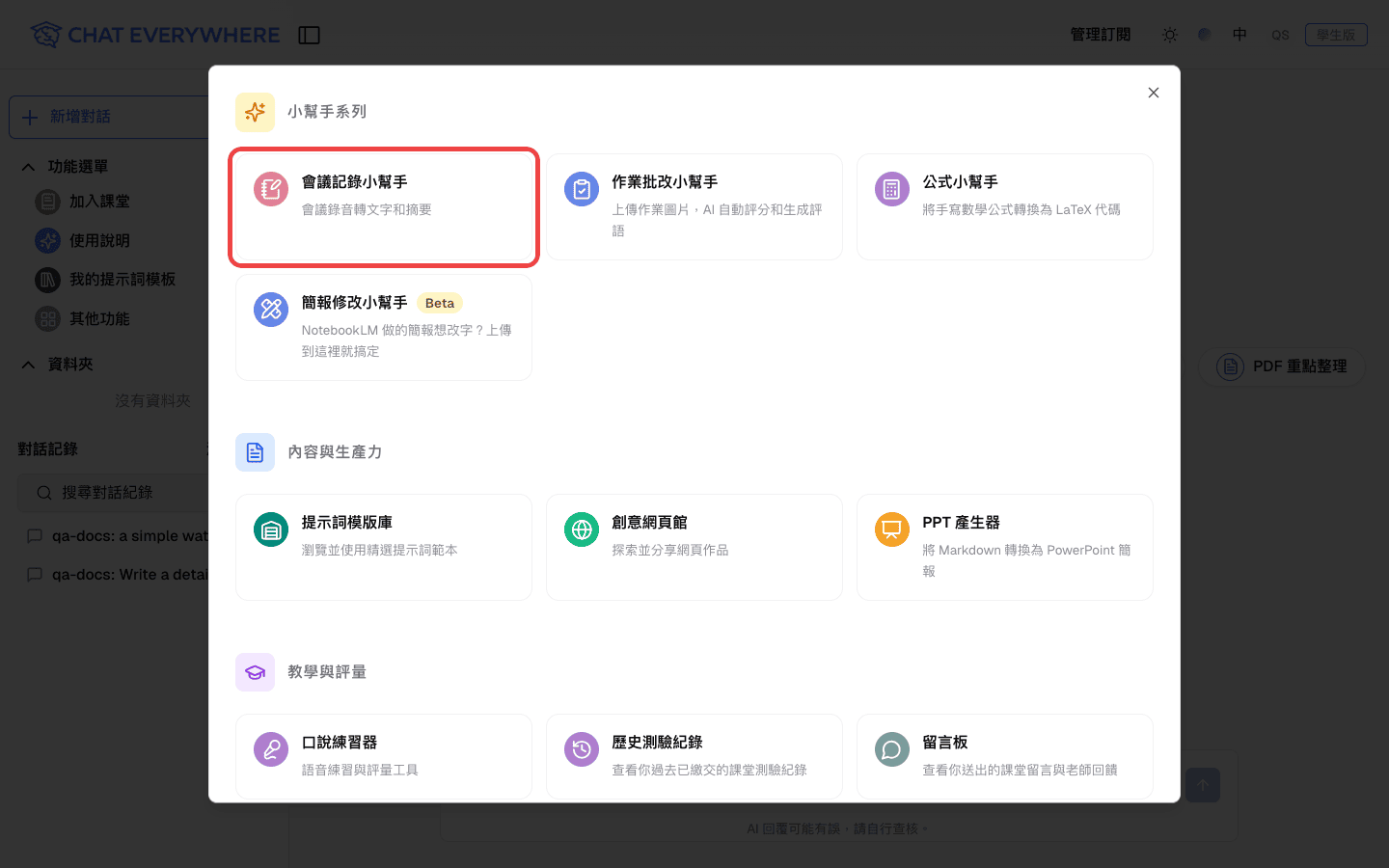
- 開啟側邊選單
- 點選其他功能
- 在「小幫手系列」下選擇會議小幫手
主要功能
- 完整逐字稿:取得音訊或影片內容的完整文字稿
- AI 摘要:快速整理摘要總覽、待辦項目、重點記錄與建議行動
- YouTube 匯入:貼上 YouTube 連結,根據影片字幕產生逐字稿與摘要
- 多檔上傳:將同一場會議的最多 5 個檔案合併為一場會議,或一次上傳最多 20 個檔案並各自建立會議(付費)
- 即時會議轉錄:在會議進行時即時轉錄,並儲存為會議摘要(付費)
- 問問小幫手:針對會議追問,回答會根據這場會議的摘要、報告與完整逐字稿
- 互動式心智圖:將會議主題視覺化呈現,可編輯、全螢幕檢視並匯出
- 會議報告:使用內建或自訂範本產生結構化報告
- 說話者辨識:自動辨識並標記不同說話者(付費功能)
- 翻譯:將逐字稿與摘要翻譯成 7 種語言
- YouTube 章節:自動產生 YouTube 上傳用的章節標記
- 尋找與取代:在整份逐字稿中搜尋並取代文字
- 逐字稿編輯:直接編輯文字、重新命名說話者並儲存
- 匯出:下載為 SRT、TXT、DOCX、PDF、HTML 或 Markdown 格式
- 匯出到 NotebookLM:下載包含摘要、報告與逐字稿的 NotebookLM 專用 Markdown 檔
- 群組與批次操作:用群組整理會議,並一次移動、下載或刪除多筆會議
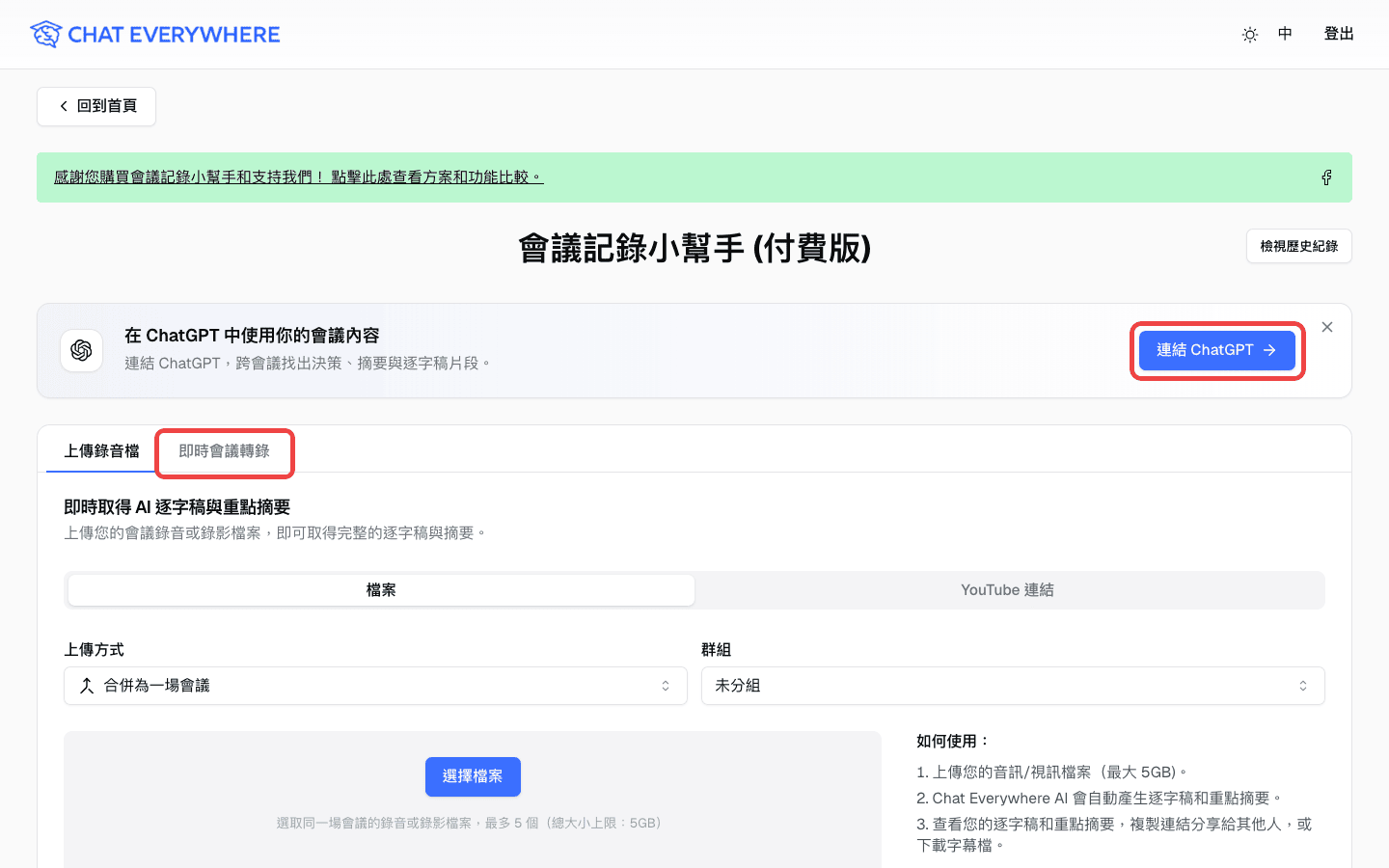
- 在 ChatGPT 中使用會議內容:連結 ChatGPT 來搜尋與讀取您的會議(付費)
操作步驟
上傳錄製檔
- 在檔案分頁的上傳方式中選擇:
- 合併為一場會議:將同一場會議的最多 5 個檔案合併成一份逐字稿、摘要、心智圖與報告
- 各自建立會議:每個檔案建立一場會議,最多 20 個檔案(付費;免費方案會顯示付費限定標籤)
- 點選選擇檔案,選取音訊或影片檔案(支援 MP4、MOV 與其他常見格式)
- 可選擇要存放會議的群組,或建立新群組
- 選擇摘要語言
- 在會議標題中選擇:
- AI 自動生成(預設):轉錄完成後,根據會議內容產生精簡標題
- 檔案名稱:使用第一個上傳檔案的名稱(各自建立會議時,會使用各個檔案的名稱)
- 付費使用者還可以選擇轉錄模型:
- 標準:適合一般會議的逐字稿與摘要
- 進階:可辨識不同說話者並偵測音訊事件,會扣除進階轉錄額度
- 使用進階模型時,可選填說話者人數以提升準確度
- 點選提交
上傳多個檔案
合併為一場會議適用於分成好幾段錄製的同一場會議。
- 選取同一場會議的檔案,最多 5 個
- 用上移與下移,依會議實際進行的順序排列檔案。上傳順序會影響摘要結果。
- 點選提交,所有檔案會合併成一份逐字稿、摘要、心智圖與報告。
所有檔案的總大小不能超過方案上限(免費方案 1 GB,付費方案 5 GB)。
各自建立會議(付費)適用於一次上傳多場不同的會議。
- 在上傳方式中選擇各自建立會議
- 選取最多 20 個檔案。每個檔案會各自建立一場會議,且每個檔案都不能超過大小上限。
- 開始上傳後,每個檔案會分別顯示進度與狀態。
- 若有檔案失敗,點選重試失敗項目重新上傳;若會議處理失敗,點選該會議的重試處理
- 所有檔案都排入處理後,系統會帶您前往會議列表,查看每場會議的處理進度
從 YouTube 連結匯入
- 切換到 YouTube 連結分頁
- 貼上 YouTube 影片連結
- 等待系統檢查字幕。若尚未登入,系統會提示您先登入。
- 選擇摘要語言
- 點選匯入 YouTube 逐字稿
影片必須有可用字幕,且長度在 6 小時以內。若影片沒有字幕,請改為上傳影片或音訊檔案。
檢視結果
處理完成後,您將看到四個分頁:
- 逐字稿:附有時間戳記、說話者標籤的完整文字,支援複製與下載
- 摘要:AI 產生的摘要總覽、待辦項目、重點記錄與建議行動
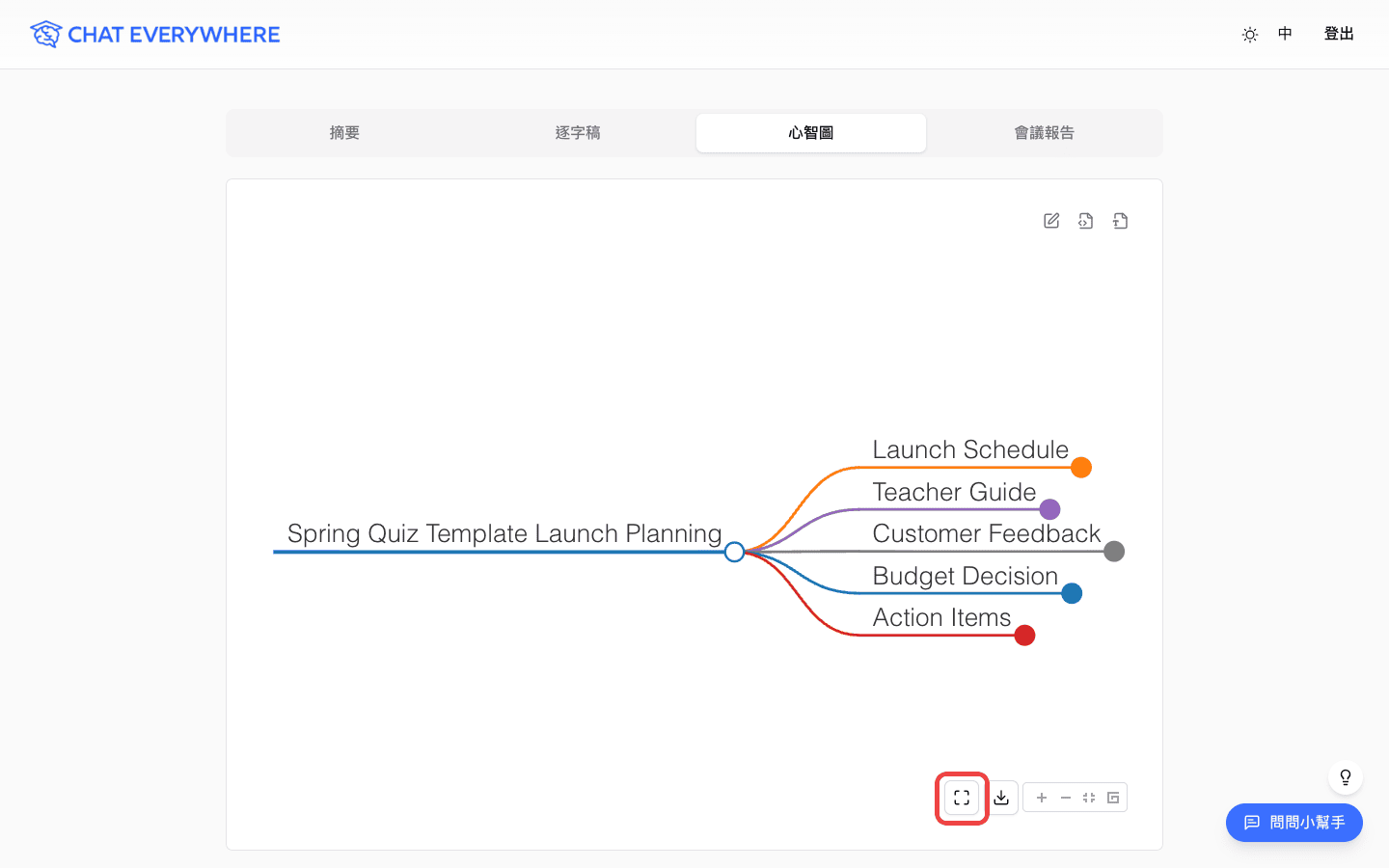
- 心智圖:以互動式心智圖整理會議內容,可點選生成心智圖建立
- 會議報告:可依範本產生的結構化會議報告
追問會議內容
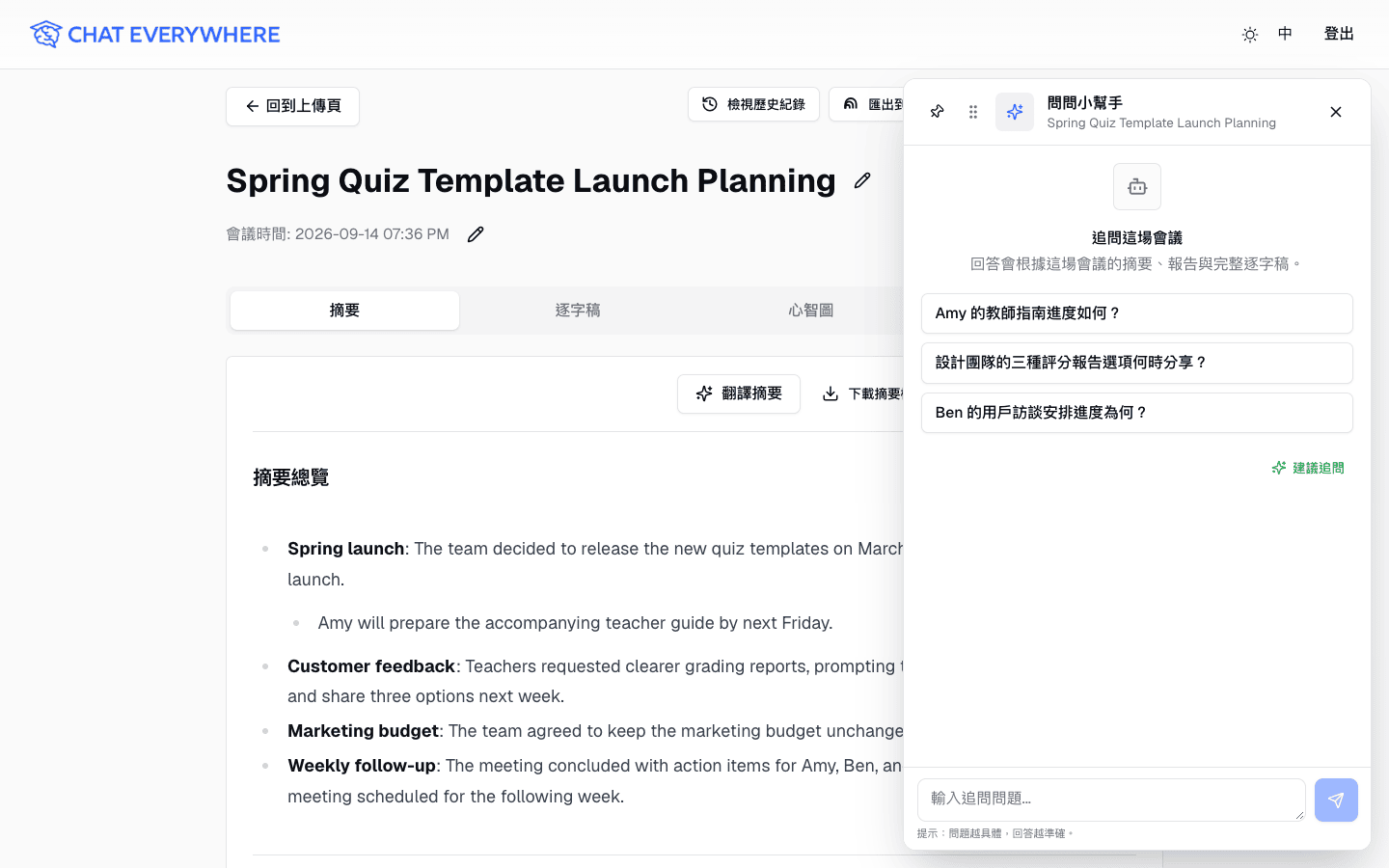
「問問小幫手」可回答您自己會議的相關問題。回答會邊產生邊顯示,內容根據這場會議的摘要、報告與完整逐字稿。
- 開啟會議,點選問問小幫手
- 輸入問題,或點選建議的問題
- 點選建議追問,根據會議內容取得新的建議問題
- 點選關閉建議可隱藏建議泡泡,點選顯示建議可重新顯示
- 點選釘選到側邊讓小幫手固定在會議旁邊,或點選新對話重新開始
問題越具體,回答越準確。您也可以為每則回答標記「回答有幫助」或「回答沒有幫助」。
產生心智圖
- 前往心智圖分頁
- 點選生成心智圖
- 視需要編輯內容
- 點選全螢幕按鈕,以整個螢幕檢視心智圖。按 Esc 或再次點選按鈕即可離開全螢幕。
- 點選心智圖右上角的圖示下載 HTML 或 Markdown,或點選全螢幕按鈕旁的下載按鈕下載 SVG 圖檔
建立會議報告
- 前往會議報告分頁
- 選擇範本:標準、培訓、專案或客戶會議
- 點選生成報告
- 拖曳排序或新增/移除段落以自訂內容
- 將自訂設定儲存為範本供日後使用
- 匯出為 TXT、DOCX 或 PDF 格式
匯出到 NotebookLM
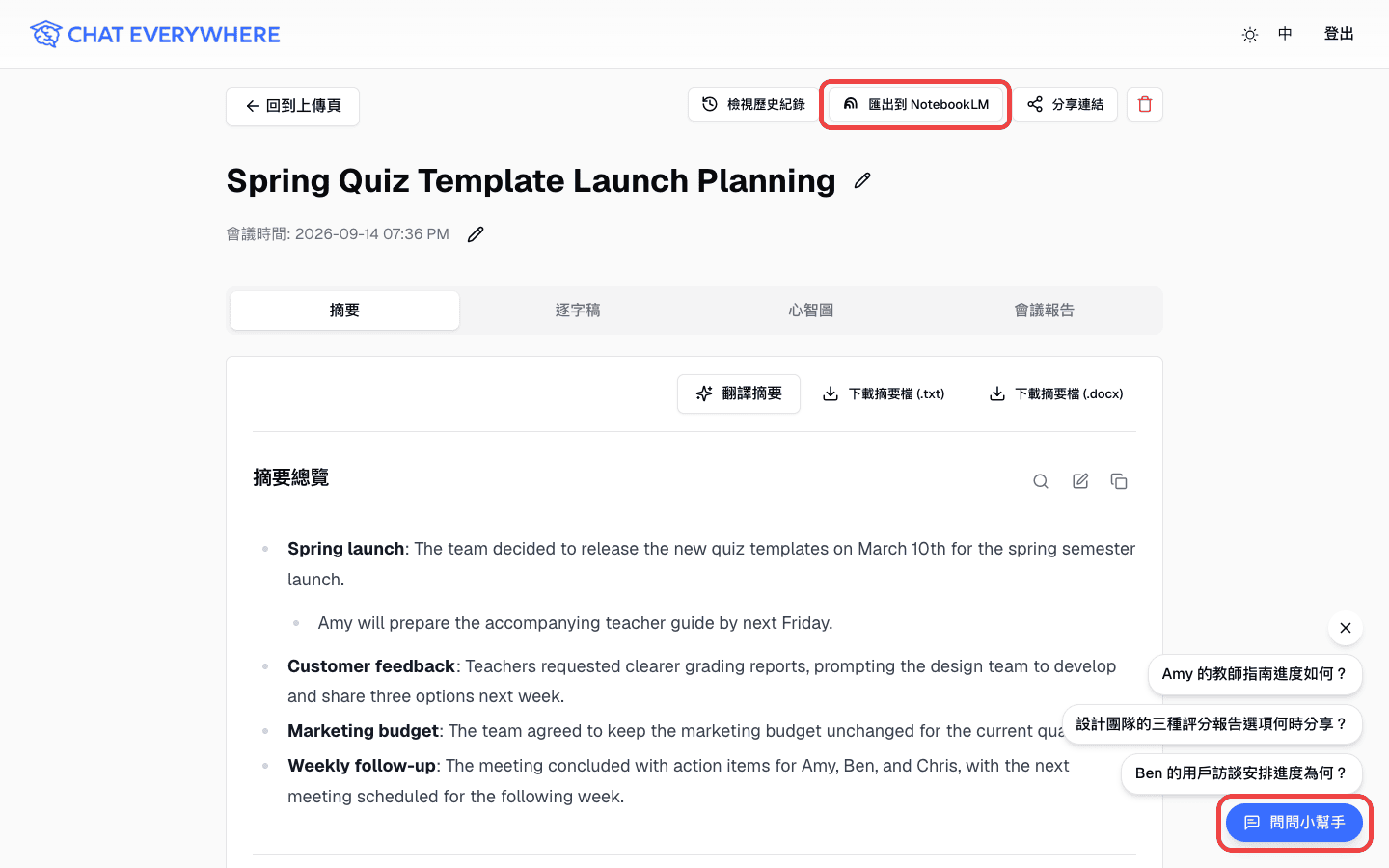
- 開啟會議,點選匯出到 NotebookLM
- 系統會下載一個 Markdown 檔,內含會議標題、會議日期、摘要、報告(若已產生)與完整逐字稿
- 前往 NotebookLM,點選 Create 建立新的筆記本
- 點選 Upload files,選擇剛剛下載的檔案
查看過往會議
- 點選檢視歷史紀錄,開啟您的會議列表(需要登入)
- 依標題或摘要內容搜尋。搜尋範圍是目前檢視的群組;點選搜尋所有會議可搜尋全部會議。
- 點選任一會議,重新查看其逐字稿、摘要、心智圖與報告
用群組整理會議
群組可協助您依專案、客戶或課程分類會議。您建立的群組只有您自己看得到。
- 在會議列表中點選新增群組,輸入群組名稱
- 在所有會議、未分組與各個群組之間切換,每個項目都會顯示會議數量。
- 透過群組選項選單重新命名群組或刪除群組。刪除群組不會刪除會議,會議會移到未分組。
一次處理多筆會議:
- 勾選會議,或點選選取此頁。切換分頁時會保留已選取的會議(最多 100 筆)。
- 選擇操作:
- 移至群組:將選取的會議移到指定群組
- 下載:下載 ZIP 檔,可選擇摘要+逐字稿(.txt)、摘要(.txt),或逐字稿(.txt)
- 刪除:永久刪除選取的會議及其檔案。處理中的會議會保留。
使用即時會議轉錄
即時會議轉錄(付費)可在會議進行時即時轉錄,並將逐字稿儲存為會議摘要。此功能正逐步開放中,您的帳號可能暫時還看不到。
- 在會議小幫手頁面點選即時會議轉錄
- 選擇辨識語言,或維持 Auto
- 選擇麥克風
- 若要一起轉錄 Google Meet、Zoom 等線上會議的聲音,請開啟收錄線上會議聲音,並在分享 Chrome 分頁或畫面時開啟系統音訊
- 點選開始,逐字稿會隨著發言即時顯示
- 會議結束時點選停止
- 點選儲存結果,將逐字稿儲存為附有摘要的會議
若要捨棄目前逐字稿並重新設定,請點選開始新會議。
收錄線上會議聲音目前僅支援 Chrome。在 Safari 中,即時轉錄只會使用麥克風。中文即時轉錄只支援國語,不支援粵語。
在 ChatGPT 中使用會議內容
透過 ChatGPT 的 Meeting Summarizer plugin,您可以直接在一般 ChatGPT 對話中,跨會議找出決策、摘要與逐字稿片段。此功能需要有效的會議小幫手付費方案,或符合資格的 Ultra 權限。
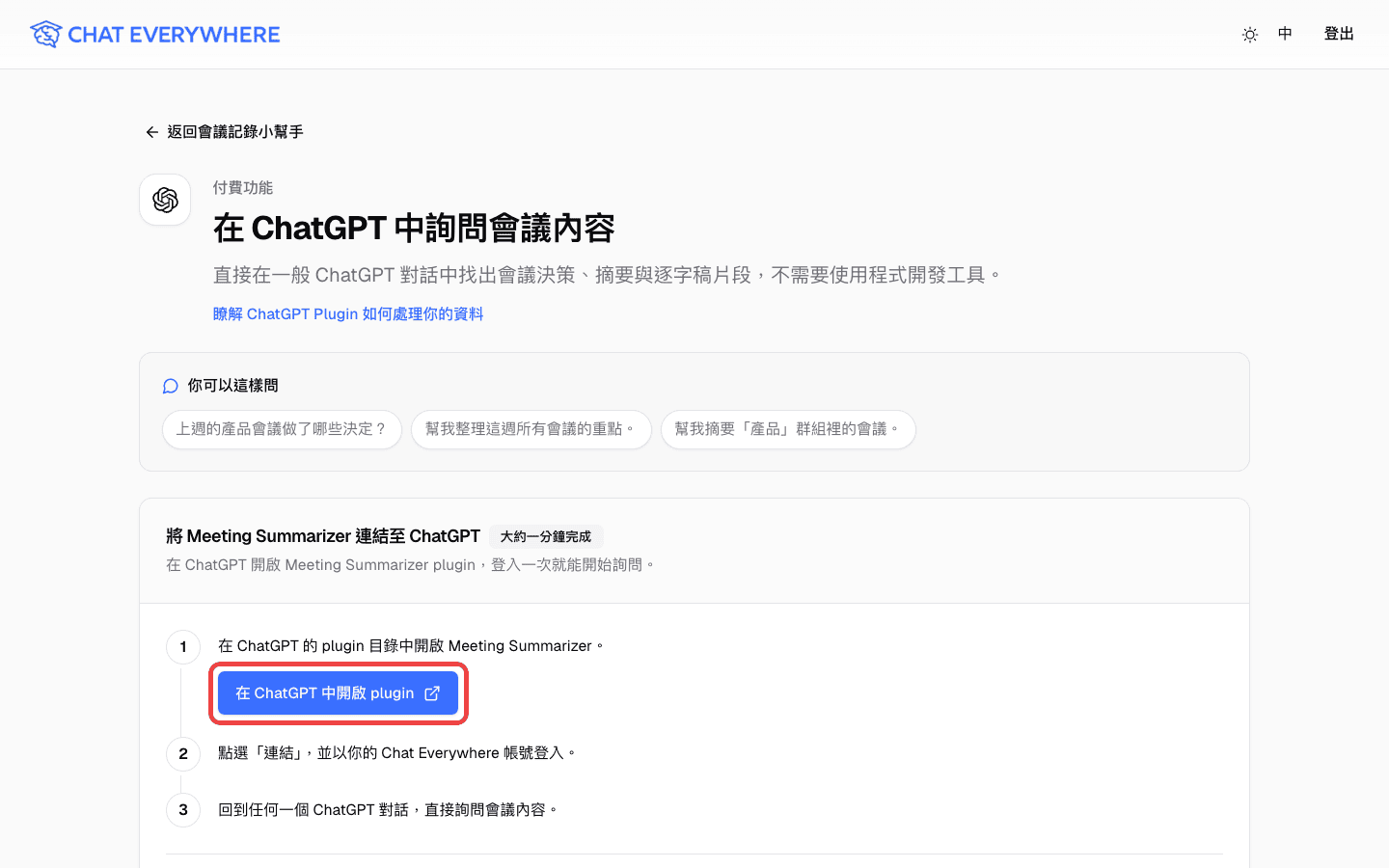
- 在會議小幫手頁面的「在 ChatGPT 中使用你的會議內容」公告中點選連結 ChatGPT。您也可以直接前往
/meeting-transcription/ai-agents。 - 在「將 Meeting Summarizer 連結至 ChatGPT」區塊點選在 ChatGPT 中開啟 plugin,在 ChatGPT 的 plugin 目錄中開啟 Meeting Summarizer
- 點選「連結」,並以您的 Chat Everywhere 帳號登入
- 回到任何一個 ChatGPT 對話,直接詢問會議內容
連結後,同一個帳號在網頁版、桌面版與手機版 ChatGPT 都能使用這個 plugin。
範例問題:
- 「上週的產品會議做了哪些決定?」
- 「幫我整理這週所有會議的重點。」
- 「幫我摘要『產品』群組裡的會議。」
ChatGPT 可以搜尋所有會議或指定群組、讀取摘要與報告、找出相關逐字稿片段,以及分段讀取完整逐字稿。存取權限僅限讀取(無法編輯或刪除),且僅限您擁有的會議;登入透過瀏覽器安全完成,也可隨時中斷連線。
手動連結(進階):如果您的 ChatGPT 工作區看不到 plugin 目錄,請在同一頁展開手動連結(進階),點選複製伺服器 URL,再到 ChatGPT 用這組 URL 自行新增 MCP 連線。
免費與付費方案比較
免費方案:
- 上傳總大小最大 1 GB(最多 5 個檔案合併為一場會議)
- 每份錄音僅分析前 2 小時
- 從 YouTube 連結匯入
- 問問小幫手與匯出到 NotebookLM
- 群組與批次操作
付費方案(Chat Everywhere Ultra 已包含,無需額外付費):
- 上傳檔案最大 5 GB
- 分析不限時長
- 一次上傳最多 20 個檔案並各自建立會議
- 進階轉錄模型,每月 30 小時
- 即時會議轉錄(每月 10 小時)
- 在 ChatGPT 中使用會議內容
- 心智圖產生
- 翻譯成所有支援語言
- 包含所有範本與自訂範本的會議報告
- 說話者辨識
- YouTube 章節產生
進階轉錄時數每月重置。額度用完時,您可以改用標準模型,或點選加購時數購買額外時數。加購時數不會過期,會在每月配額用完後自動扣抵。即時會議轉錄的每月配額依 GMT+8 時間重置。
報告範本
- 標準會議:一般會議與團隊例會
- 培訓會議:工作坊與新人訓練
- 專案會議:專案進度更新與檢討
- 客戶會議:客戶通話與業務洽談
- 自訂:自由組合任意段落建立專屬範本
您可從 24 個預設段落中選擇內容,包含概述、重點討論、決議事項、待辦事項、後續步驟、專案狀態、里程碑、客戶需求等。
支援語言
英文、繁體中文、簡體中文、日文、印尼文、西班牙文、印地文。
相關功能
常見問題
上傳一直失敗。 請確認檔案大小:免費方案總大小上限為 1 GB,付費方案為 5 GB。並確保檔案為支援的音訊或影片格式。若使用「各自建立會議」上傳,可點選重試失敗項目重新上傳失敗的檔案。
為什麼摘要只涵蓋 2 小時? 免費方案每份錄音只會分析前 2 小時。升級付費方案後,開啟該會議並點選提示訊息,即可用完整內容重新產生摘要。
逐字稿品質不佳。 請改用進階模型(付費)。正確填寫說話者人數也有助於提升準確度。錄音品質愈好,結果通常也會愈好。
進階轉錄時數有多少? 付費方案每月包含 30 小時的進階轉錄。選擇進階模型時可查看使用量,不夠用時也可以加購時數。
YouTube 連結無法匯入。 影片必須有可用字幕,且長度在 6 小時以內,您也需要先登入。若影片沒有字幕,請改為上傳影片或音訊檔案。
合併上傳的檔案去哪了? 使用「合併為一場會議」時,所有檔案會變成同一場會議,共用一份逐字稿、摘要、心智圖與報告。檔案順序會影響摘要,請依會議實際進行的順序排列。
刪除群組後,裡面的會議會怎樣? 會議會保留,並移到未分組。
無法產生心智圖或報告。 這些功能需要付費方案。若您已是付費使用者但仍無法產生,請稍後再試一次,因為系統處理偶爾會逾時。
ChatGPT 會修改或刪除我的會議嗎? 不會。ChatGPT plugin 僅限讀取,且只能存取您擁有的會議,您也可以隨時中斷連線。
找不到即時會議轉錄。 即時會議轉錄僅提供付費使用者使用,且正逐步開放中,部分付費帳號可能暫時還看不到。若要收錄線上會議聲音,請使用 Chrome。
說話者名稱有誤。 點選任一說話者標籤即可重新命名。修改後,逐字稿中相同的說話者標籤都會一起更新。