Pronunciation Practicer
Assign spoken pronunciation practice with AI scoring — students get instant feedback, you track progress.
Overview
The Pronunciation Practicer lets you create structured speaking assignments where students practice saying specific sentences and receive instant AI-powered feedback on their pronunciation accuracy. You set the practice sentence, the language and model voice, and a minimum passing score. Students record themselves, get an AI score, and submit their attempt. You can track every student’s progress and scores from a single dashboard.
This feature is especially useful for language teachers working in ESL, foreign language, or speech-focused classes.
How to Access
Teachers:
- Go to the Teacher Portal
- Click Pronunciation Practicer in the sidebar
Students:
- Go to the Class Portal
- Click Pronunciation Practicer in the sidebar
Teacher: Creating an Assignment
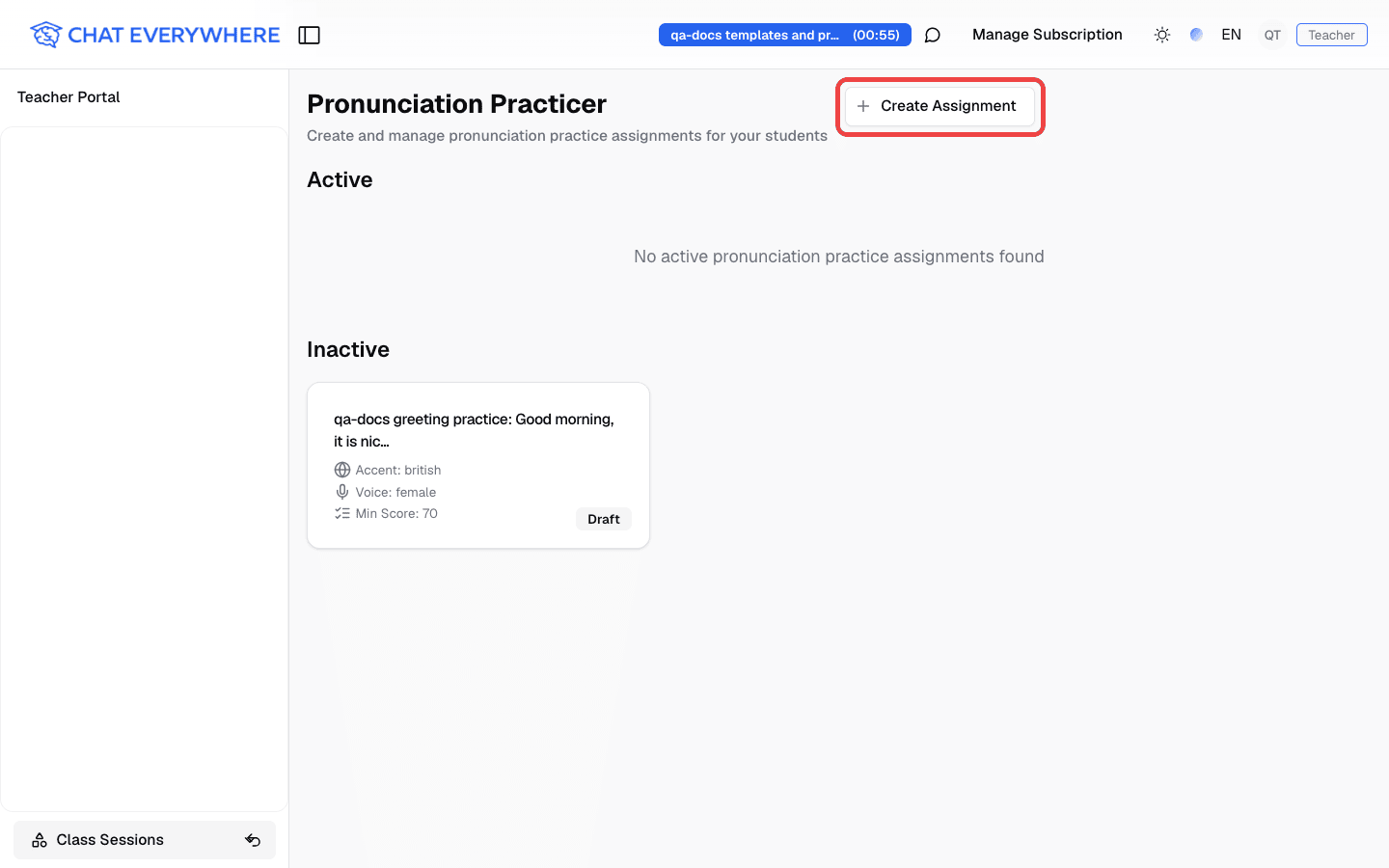
- Click Create Assignment on the Pronunciation Practicer page
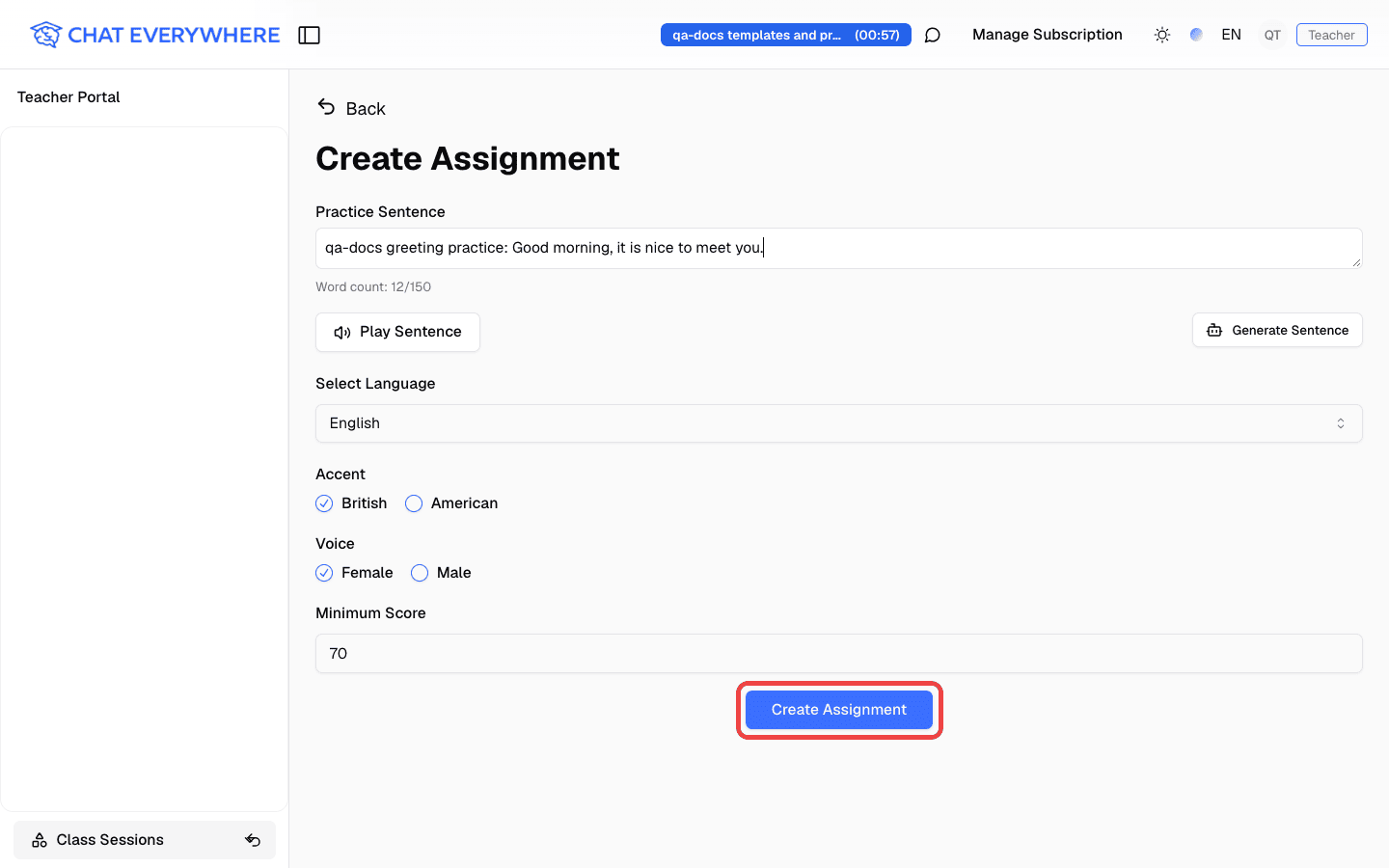
- Fill in the assignment details:
- Practice Sentence — The words or sentences students need to practice saying (for example, “The weather is beautiful today”). You can type it or generate it with AI (see below)
- Select Language — English, Chinese, Japanese, or Korean
- Accent — British or American (shown for English only)
- Voice — A female or male voice for the model reading
- Minimum Score — The lowest score a student needs to pass, from 1 to 100 (default 70)
- Click Create Assignment to save
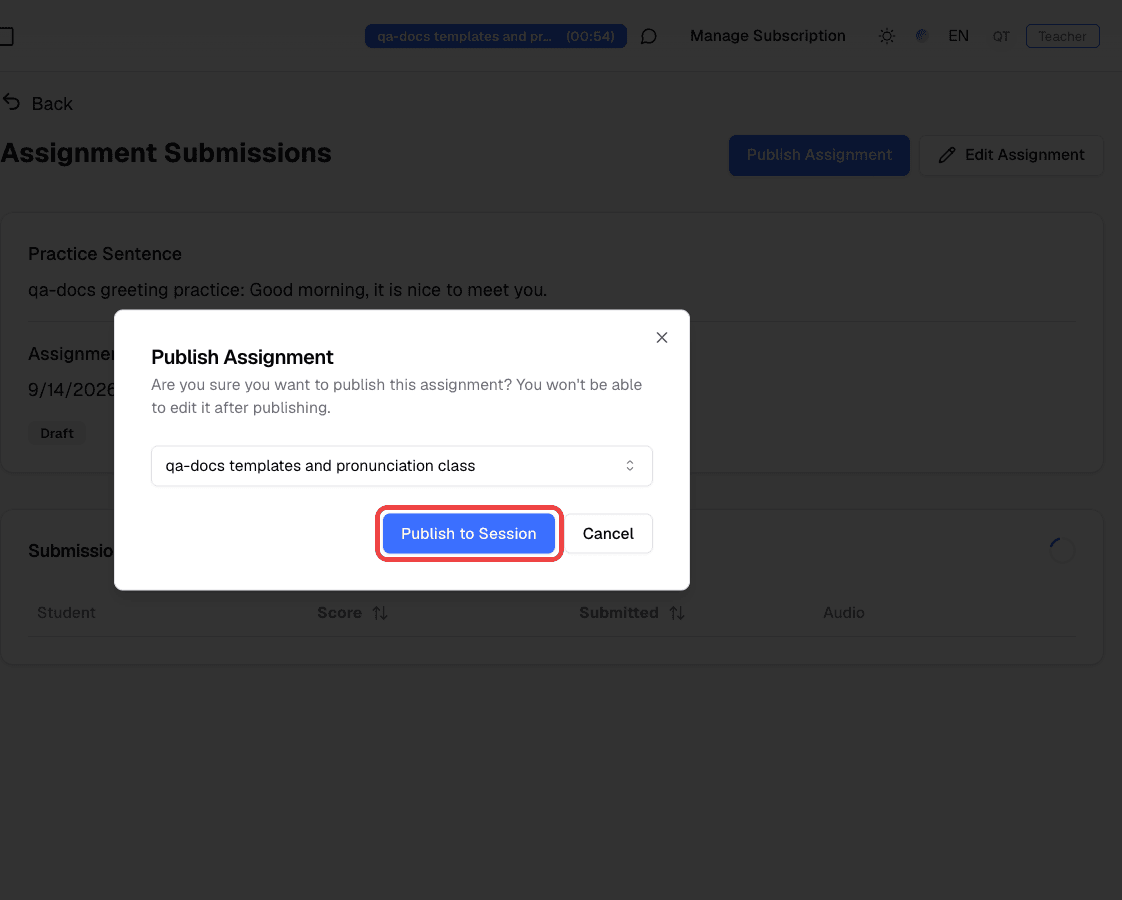
- When the assignment is ready, open it, click Publish Assignment, choose a live class session, and click Publish to Session. You can’t edit an assignment after publishing it.
Generate Practice Sentences with AI
Instead of writing every sentence manually, you can ask AI to generate practice sentences.
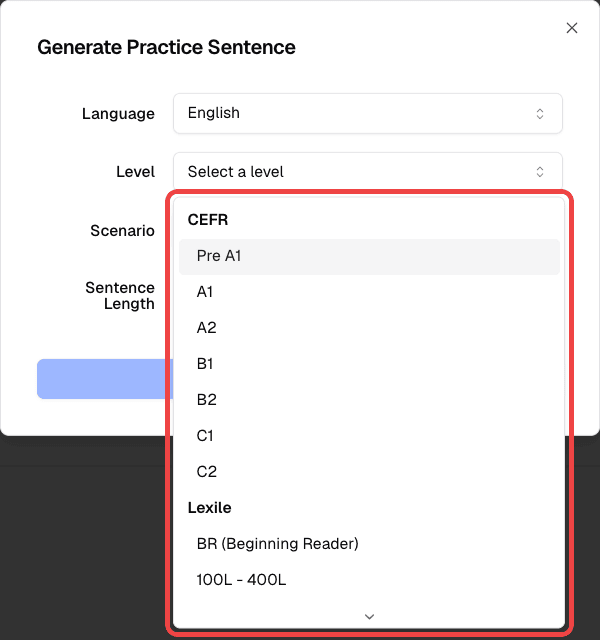
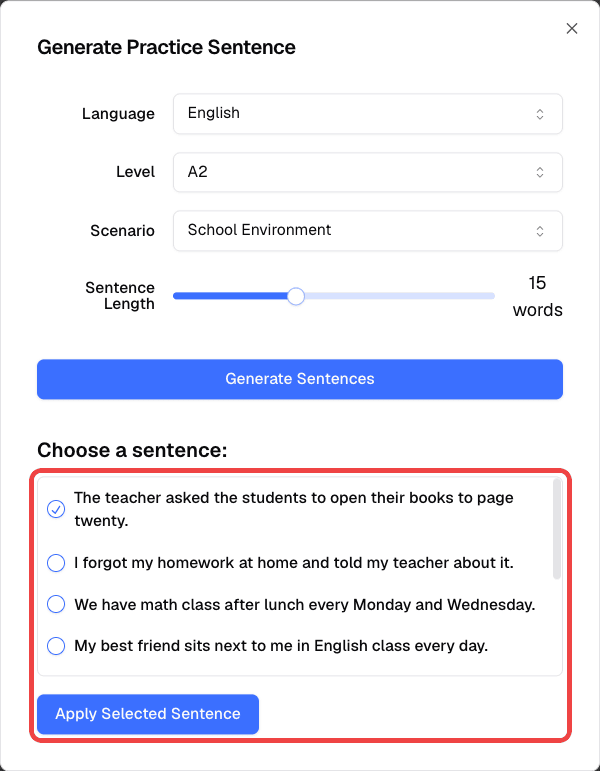
- Click Generate Sentence on the assignment form, then choose the language, test level, scenario, and sentence length
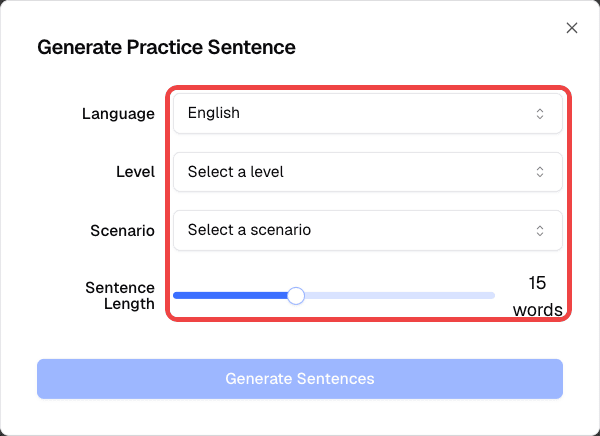
- Pick a test level that matches your students
- Pick a scenario for the sentences
- Click Generate Sentences, select the sentence you want students to practice, and click Apply Selected Sentence
Tips for setting up assignments:
- Start with shorter sentences for beginners and increase length as students improve
- Set a realistic minimum score — this encourages students to practice multiple times
- Include context or instructions if the sentence requires specific intonation or emphasis
Teacher: Tracking Student Progress
From the Pronunciation Practicer dashboard, you can see:
- All assignments you have created, with their status
- Student submissions for each assignment, including every attempt
- Individual scores per attempt, so you can see how a student improved over time
- Class-wide progress — which students have met the minimum score and which still need practice
Open an assignment to see its Submissions list with each student’s score, submission time, and recording.
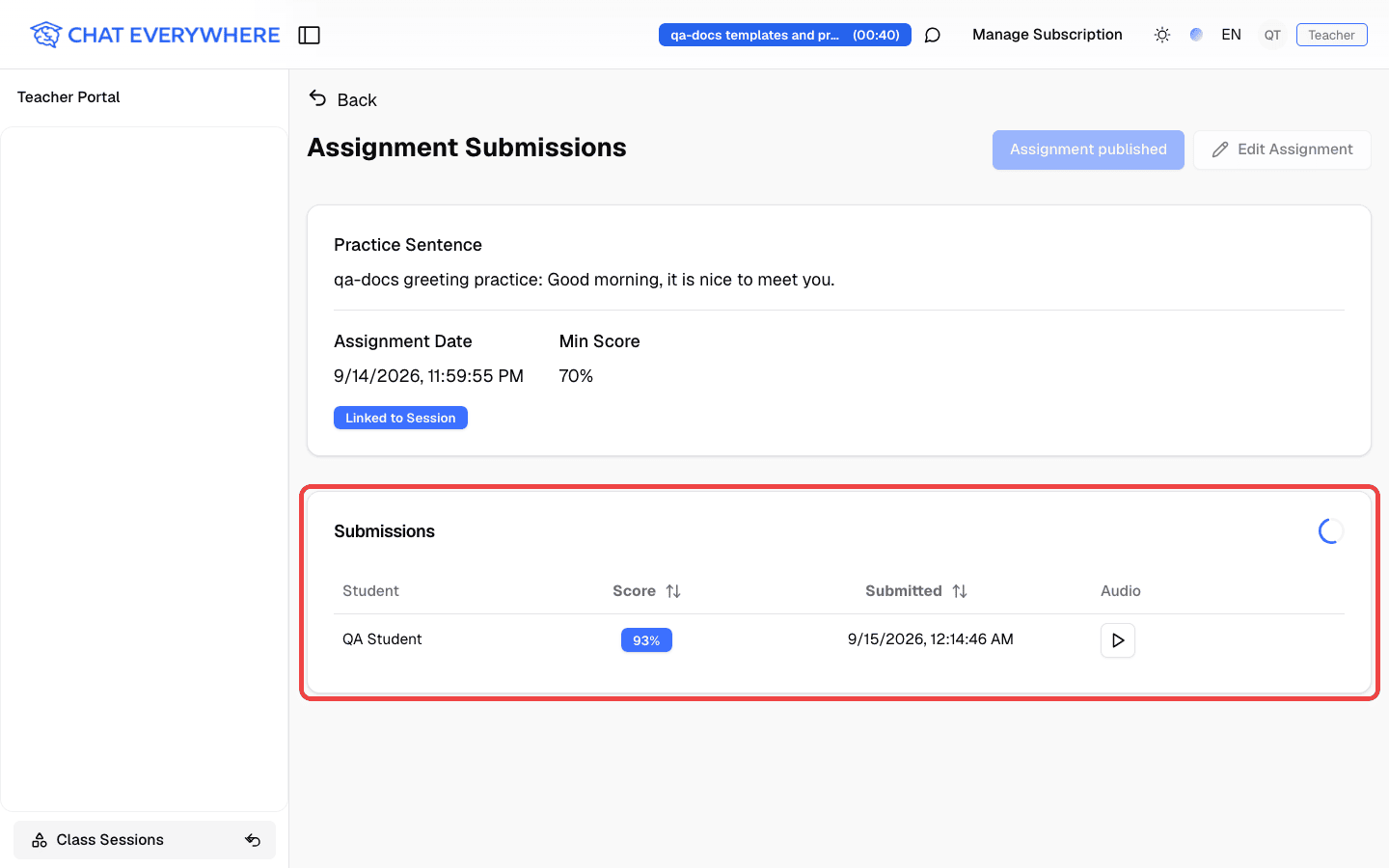
This helps you identify students who are struggling and may need additional support.
Student: Completing an Assignment
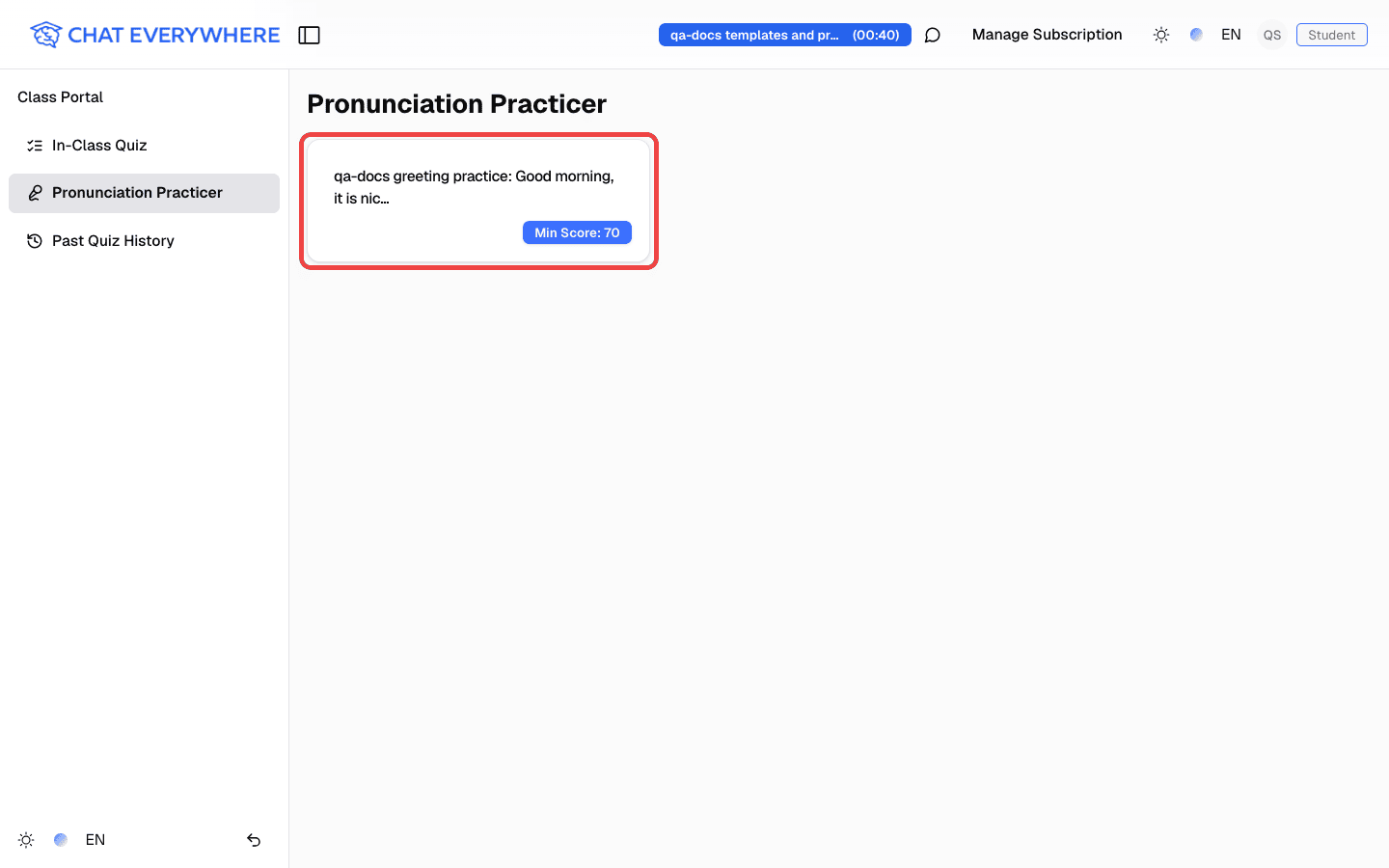
- Open the Class Portal and go to Pronunciation Practicer
- Find the assignment from your teacher and click it to open it
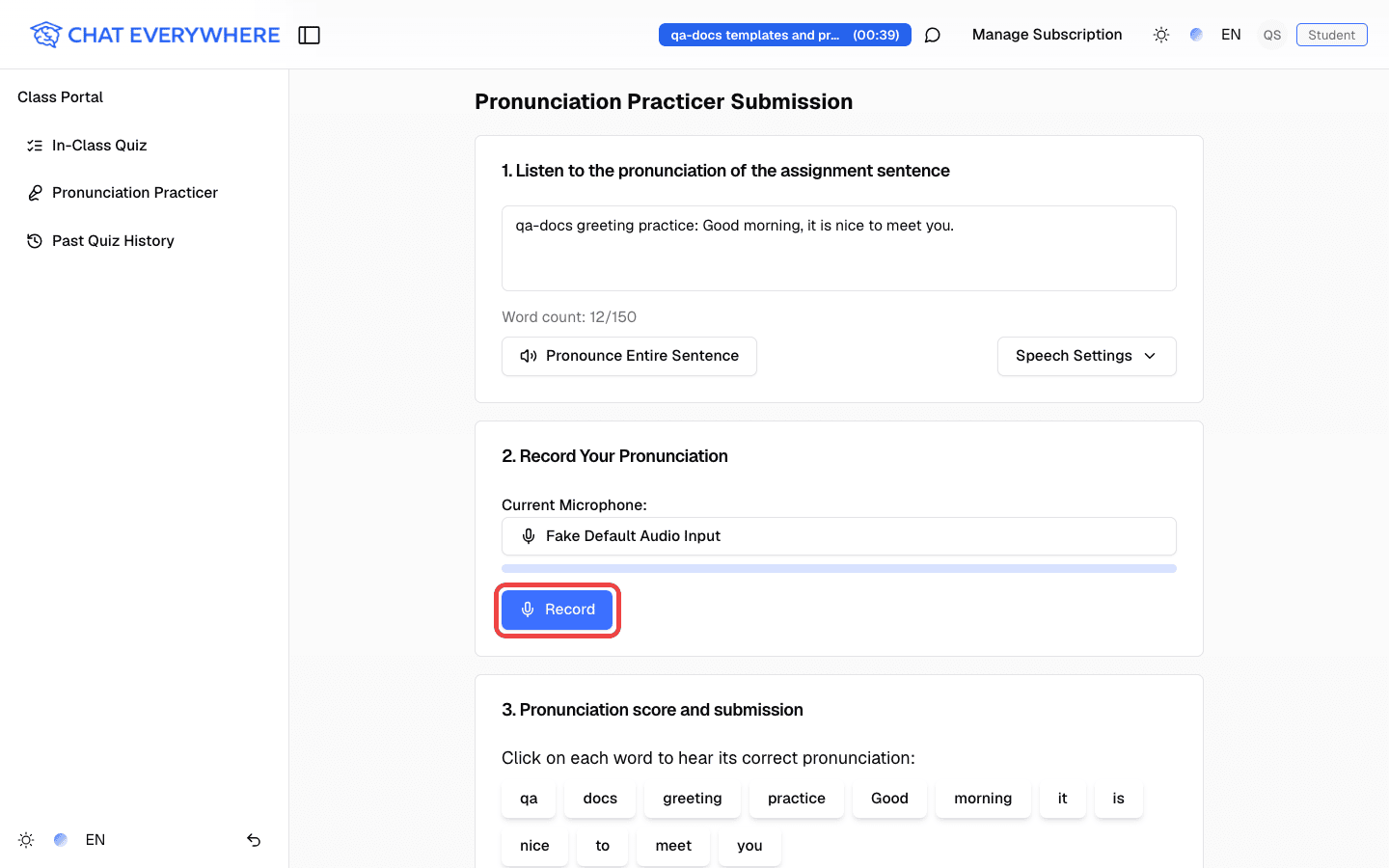
- Review the target sentence. Click Pronounce Entire Sentence to listen to a model reading first
- Click Record, say the sentence clearly into your microphone, then click Stop and Analyze
- The AI analyzes your pronunciation and returns a score along with feedback on what you did well and what to improve
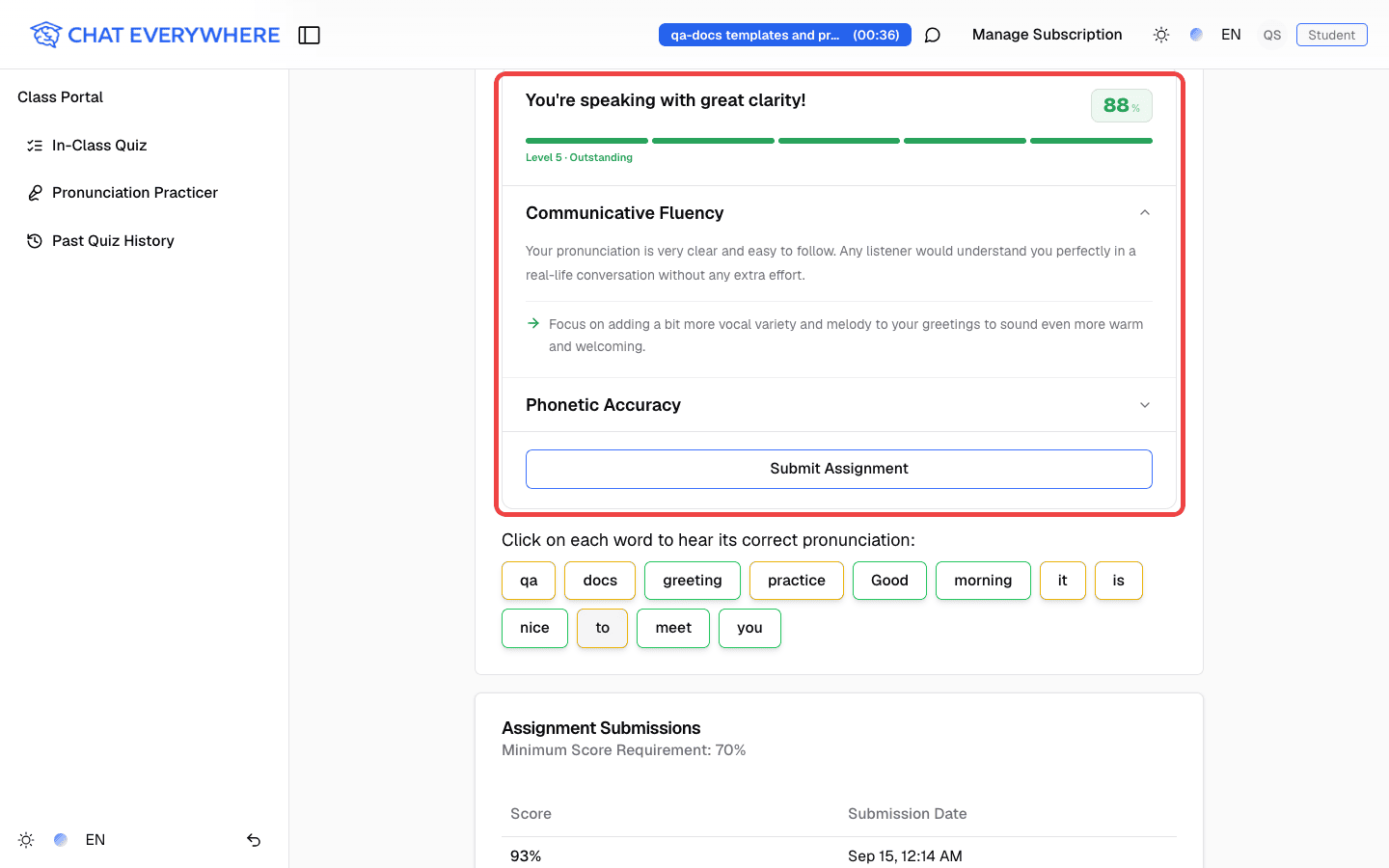
- Click Submit Assignment to send your attempt. You can only submit when your score meets the minimum score
- If your score is below the minimum, try again — practice and re-record until you meet the requirement
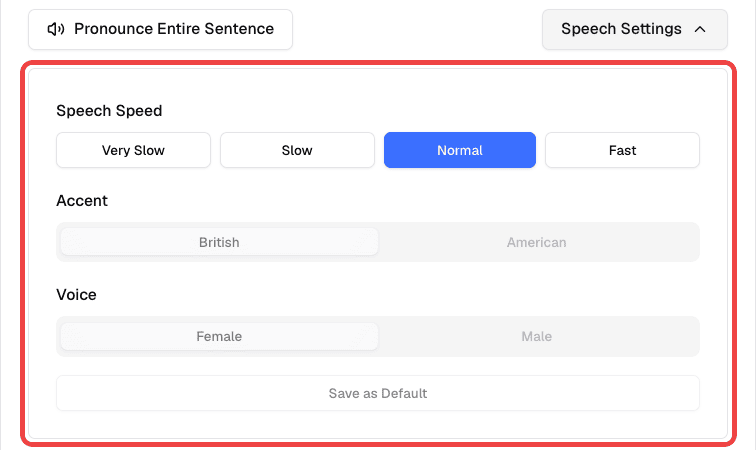
Before recording, students can click Speech Settings to adjust the model reading’s speed, accent, and voice when those options are available.
Understanding AI Scoring
The AI evaluates pronunciation accuracy by comparing the student’s spoken audio to the target sentence. Here is what the scoring means:
- Score — A number (typically out of 100) indicating how closely the student’s pronunciation matched the target
- Feedback — The AI provides specific notes on what sounded correct and where improvements can be made (for example, individual sounds, word stress, or rhythm)
The score is generated automatically and consistently, so every student is evaluated by the same standard.
Who Can Use This
- Teachers — Create assignments, set requirements, and view all student submissions and progress. This feature requires a Teacher plan.
- Students — Complete assignments, record pronunciation, view their own scores and AI feedback.
Related Features
- Class Sessions — Use sessions to connect with students and coordinate pronunciation activities
- In-Class Quiz — Another structured assessment tool for classroom use
Common Questions
Can students retry an assignment? Yes. Students can practice and re-record as many times as they want until they meet the minimum passing score.
What browsers support audio recording? Most modern browsers (Chrome, Edge, Safari, Firefox) support microphone recording. Students should make sure their browser has microphone permission enabled. Mobile browsers also work, though a quiet environment is recommended for best results.
The AI gave a low score but the student’s pronunciation sounded fine. AI scoring is based on pattern matching with the target sentence. Background noise, low microphone quality, or unusual accents can sometimes affect results. Encourage students to record in a quiet environment with a clear microphone.
Can I see each individual attempt? Yes. The progress dashboard shows every attempt a student has submitted, including the score for each one. This lets you see improvement over time.
Can I edit an assignment after publishing it? No. Published assignments can’t be edited, so check the sentence, language, voice, and minimum score before you publish.