Getting Started
Get up and running with Chat Everywhere in minutes.
Setting up a class? Jump to For Teaching Workflows, or go straight to Class Sessions and the Teacher Portal.
Create an Account
- Visit v2.chateverywhere.app
- Click Sign In in the top right
- Create an account with your email or sign in with Google
You can also open the localized Traditional Chinese entry point at v2.chateverywhere.app/zh .
Try Guest Access
Guest Access lets you try Chat Everywhere without an email address.
- Open the sign-in screen and click Sign up as guest. A guest account is created in one click.
- If this browser has used a guest account before, the button reads Continue as guest and brings back your earlier chats.
Guests chat with GPT-5.6 in Auto mode. Web Search mode, file uploads, the Whiteboard, and CE Bot require signing in with a Free account or above.
To use the same guest account on another device, click your profile icon, open Setting, and copy the login link under Guest Access Control. See Guest Access for details, including how to move guest history to a regular account.
Walkthrough video: Guest cross-device continuation video .
Choose a Plan
- Free — GPT-5.6 chat, Web Search, file reading, YouTube Analyzer, and CE Bot. Some tools are limited to 3 uses per day (see the FAQ).
- Pro — Deeper reasoning on every reply and no daily tool limits.
- Ultra — Everything in Pro, plus Create Image, Deep Think, and Live Voice Chat.
- Teacher — For educators. Everything in Ultra, plus the full Teacher Portal.
To compare plans or upgrade, click your profile icon and select Pricing. See Plans & Limits for a full comparison.
Start Chatting
- Type your message in the chat bar
- Press Enter to send
- The AI will respond with streaming text
Language and Theme
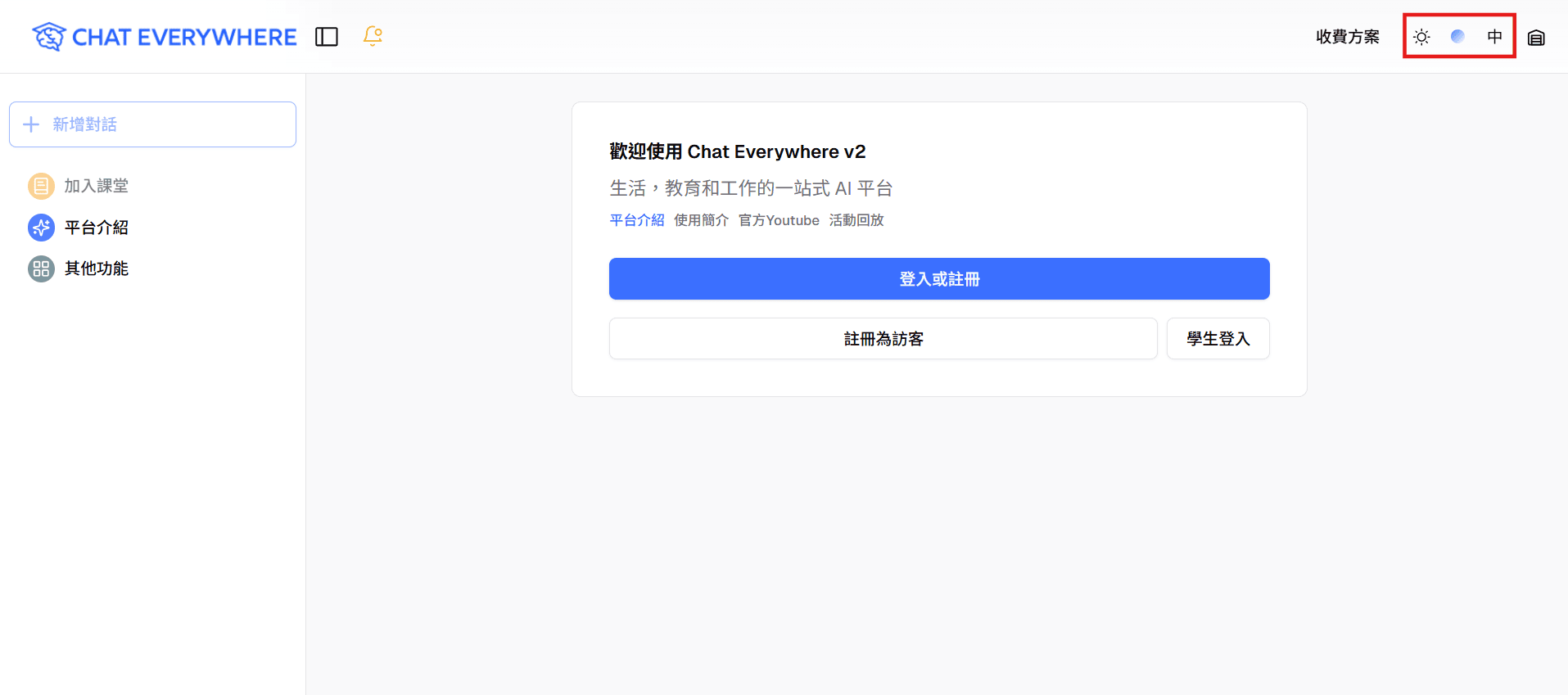
Use the display settings to switch the interface language and color theme. This is useful when students, teachers, or organization members who share a device prefer different interface languages. See Account & Settings for all personal settings.
Explore Features
- Open the sidebar to access Chat History, Template Library, and Other Features
- Click Other Features to discover all available tools
- Try Prompt Templates for guided conversations
Main Interface Walkthroughs
For Teaching Workflows
- Subscribe to the Teacher plan
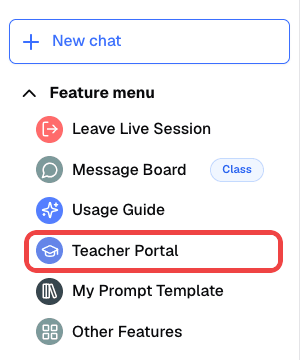
- Access the Teacher Portal from the sidebar
- Create your first Class Session
- Share a join code with your students
Teacher Portal Onboarding
Next Steps
- Browse Teaching & Assessment
- Explore Work & Documents
- Discover Core AI Tools