Organization Portal
A management dashboard for institutional administrators to manage users, assign roles, track usage, and control access across an organization or district.
Overview
The Organization Portal is the administrative hub for institutional deployments of Chat Everywhere. Org admins, district admins, and platform admins each get a tailored view of the tools they need — from managing individual members in an organization to overseeing AI usage across an entire district. The portal is the primary control surface for licensing, role assignment, and access management at scale.
How to Access
Click Organization Portal in the sidebar. Where you land depends on your role:
- Org Admin — You go directly to your organization’s member management page.
- District Admin — You go to your district’s organization list.
- Admin — You go to the full district list for platform-wide access.
Role Hierarchy
Four roles interact with the Organization Portal, each with a different level of access.
- Admin — Full platform access. Manages all districts and organizations, including the AI Usage Portal.
- District Admin — Manages all organizations within an assigned district. Can set expiration dates for user accounts.
- Org Admin — Manages members, tags, and reservations within their own organization.
- Teacher — Does not have access to the Organization Portal. Teachers use the Teacher Portal instead.
Member Management
When you open an organization, the Members tab is where most day-to-day administration happens.
Viewing and Searching
The member list shows everyone in the organization. You can search by name or email using the live search field, or filter the list by tag or department to narrow down to a specific group.
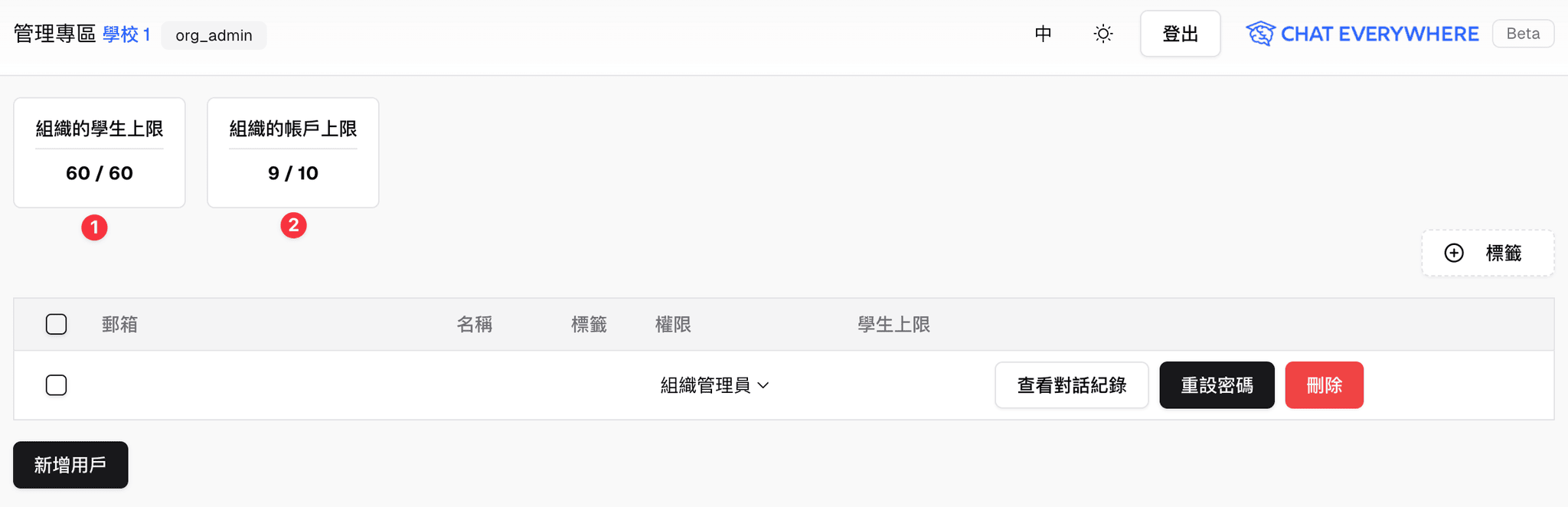
At the top of the tab, two bars give you a quick read on seat usage:
- Licensed Seats — how many pro, ultra, and teacher seats are currently occupied versus the total your organization has licensed.
- Max Student — the combined student capacity across all teachers in the organization.
Per-User Actions
Each member row has a set of actions you can take directly:
- Edit display name — Click the pencil icon next to the name to rename it inline.
- Change role — Use the dropdown to assign a role: free, pro, ultra, teacher, or org_admin. Changing to pro, ultra, or teacher will be blocked if no licensed seats of that type remain.
- Set expiration date — Schedule when the account should expire. Available to District Admins and Admins only.
- Max Student — For users with the teacher role, this opens a dialog where you can cap how many students they can host.
- View chat history — Opens a side panel showing the user’s conversation history.
- Reset password — Org admins can reset passwords for users whose email domain matches the organization’s domain.
- Remove from org — Removes the user from the organization.

Bulk Operations
Select multiple users using the checkboxes to act on them at once:
- Add a tag to all selected users.
- Remove a tag from all selected users.
Adding Users
Two options are available from the Members tab:
- Add User — Opens a dialog where you can create a brand-new account or add an existing free-tier user to your organization.
- Import Users (XLSX) — Bulk import up to 1,000 users from an Excel file. Each row can either create a new account or add an existing user. The spreadsheet should include columns for email, display name, password, and role.
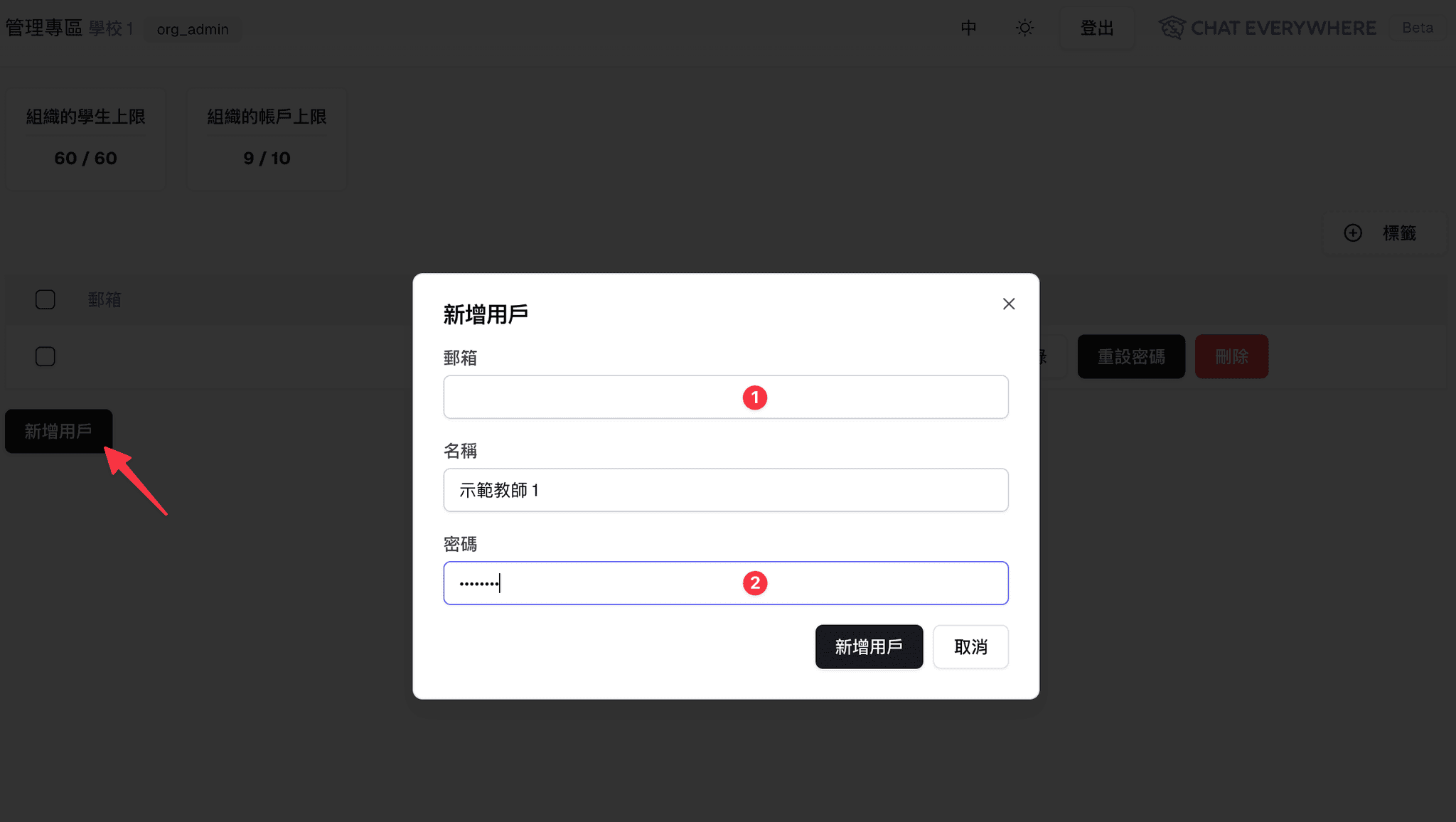
When you create a user manually:
- The email address does not have to receive mail from Chat Everywhere, but it must be unique.
- Use your organization domain when possible so accounts are easier to identify and avoid conflicts.
- Passwords cannot be viewed again after they are saved, so share or store the initial password through your organization’s normal process.
- Setting a user to Teacher gives that account Teacher Portal access.
- Setting a user to Student here is not the same as temporary class-session access from a teacher’s one-time class code.
Permission and Account Notes
Admins and org admins should review role changes before applying them:
- Org admins can assign other users as org admins within the same organization.
- Upgrading a user to pro, ultra, or teacher consumes the corresponding licensed seat.
- Removing or deleting an account can permanently remove that user’s chat history, depending on the action used.
Tag Management
Tags are colored labels you create at the organization level to categorize members. Open the Tags section to:
- Create a tag by entering a name and choosing a color.
- Apply tags to individual users from their row in the member list, or apply them in bulk using the multi-select checkboxes.
- Filter the member list by tag to quickly surface a particular group of users.
- Delete tags that are no longer needed.
Use organization tags for groups such as class, subject, campus, department, or support needs. A user can have multiple tags, and bulk add or bulk remove is the fastest way to update a group after selecting members from the table.
Reservations
If your organization has the Reservations feature enabled, you can temporarily elevate a user’s role for a scheduled time window — for example, granting a student an ultra-tier role for a specific class period.
From the Reservations tab you can:
- View upcoming and past reservations in a calendar or list view.
- Create a reservation — Select a user, set a date and time range, choose the temporary role, and (for teacher roles) set the student slot count.
- Cancel any upcoming reservation at any time.
The system enforces two rules: reservations cannot overlap for the same user, and you cannot create a reservation with a start time in the past.
AI Usage Portal
The AI Usage Portal is a separate sidebar entry available to Admins only. It provides platform-wide analytics on how the AI is being used across your entire deployment.
The main analytics view shows:
- Token usage and cost breakdowns by feature.
- Daily, weekly, and monthly trend charts.
- Usage broken down by role — admin, teacher, student, pro, ultra, free, and guest.
Use the time range selector to view data for Today, This Week, This Month, Last 3 Months, or Last 6 Months.
Usage Settings
Within the AI Usage Portal, admins can configure daily message limits per role. For each role — guest, free, pro, ultra, student, teacher, and org_admin — you can toggle between unlimited messages and a specific daily cap.
District Management
Admins only. The top-level view of the Organization Portal shows a list of all districts on the platform. From here you can:
- Create, edit, and delete districts.
- Click into a district to see the organizations it contains.
- Create, edit, and delete organizations within a district, including setting the licensed seat count and Max Student for each organization.
- Navigate directly into any organization’s member management page.
Who Can Use This
- Org Admin — Member management, tag management, reservations, and usage stats within their own organization.
- District Admin — Everything an Org Admin can do, plus cross-organization visibility within their district and the ability to set account expiration dates.
- Admin — Full access to everything, including district management and the AI Usage Portal.
The Organization Portal is available for institutional and organizational deployments. Contact Chat Everywhere for pricing.
Related Features
- Teacher Portal — Classroom tools for teachers within an organization.
- Class Sessions — Live classroom sessions that teachers run for students.
- In-Class Quiz — AI-generated quizzes delivered during a live session.