Frequently Asked Questions
General
What is Chat Everywhere?
Chat Everywhere is an all-in-one AI platform for educators, professionals, and everyone. It provides AI chat, web search, image generation, classroom management tools, meeting transcription, and more.
Is Chat Everywhere free?
Yes. The Free plan includes AI chat, Web Search, and file reading, with daily limits on some tools. Pro, Ultra, Teacher, and Student accounts have no daily limits and unlock additional features. See Plans & Limits for a full comparison.
I hit a daily limit. When does it reset?
On the Free plan, each of these tools can be used 3 times per day: file reading, YouTube Analyzer, CE Bot, MQTT Connection, Magic Wand, voice input, mind map generation, and Export to Word. Limits reset every day at 00:00 GMT+8 (Taipei time). Upgrade to Pro or above to remove these limits. See Plans & Limits.
Can I use Chat Everywhere without an account?
Yes. On the sign-in screen, click Sign up as guest to create a guest account in one click. Guests can chat with GPT-5.6 in Auto mode. To use Web Search mode, file uploads, the Whiteboard, or CE Bot, sign in with a Free account or above. See Guest Access.
What AI models does Chat Everywhere use?
Every plan chats with GPT-5.6. Pro, Ultra, Teacher, and Student accounts get deeper reasoning on each reply, so answers to complex questions tend to be more thorough. Ultra, Teacher, and Student accounts also get Create Image and Deep Think mode. See AI Chat for details.
What languages are supported?
The interface supports English, Traditional Chinese (zh-TW), Japanese, and Indonesian.
Teaching & Assessment
How do students join my class?
Create a Class Session in the Teacher Portal. Students join using the session code you share with them.
Students can start from v2.chateverywhere.app/zh , choose the student class entry point, enter a display name, and enter the one-time class code. Ask students to use a stable display name such as a student number or full name if you plan to reuse the class code later.
Can I generate quizzes automatically?
Yes. The In-Class Quiz feature uses AI to generate questions from a topic you provide. You can customize question types and difficulty.
Do students need paid accounts?
Teachers can generate one-time codes to give students paid-tier access within class sessions.
How do I reuse a class code for multiple lessons?
When starting or restarting the class, enable Allow login with same display name again and Collect student conversations. Students should rejoin with the same display name and class code during the active class window. See Troubleshooting for the checklist.
Organization Administration
How do admins create organization accounts?
Open the Organization Portal, go to Members, and use Add User for a single account or Import Users (XLSX) for a bulk import.
The email must be unique, but it does not have to receive an email from Chat Everywhere. Passwords cannot be viewed again after they are saved, so share the initial password through your organization’s normal process. For step-by-step instructions, see Organization Portal.
What role should I assign to a member?
Use Teacher for users who need the Teacher Portal. Use Org Admin for members who should manage users and organization settings. A Student role assigned in the Organization Portal is not the same as temporary class-session access from a teacher’s one-time class code.
Who can use the Template Library?
All users can import and use public templates. Paid users can also share templates into the public Template Library.
To find a template, open Other Features, click Template Library, and search or filter by category.
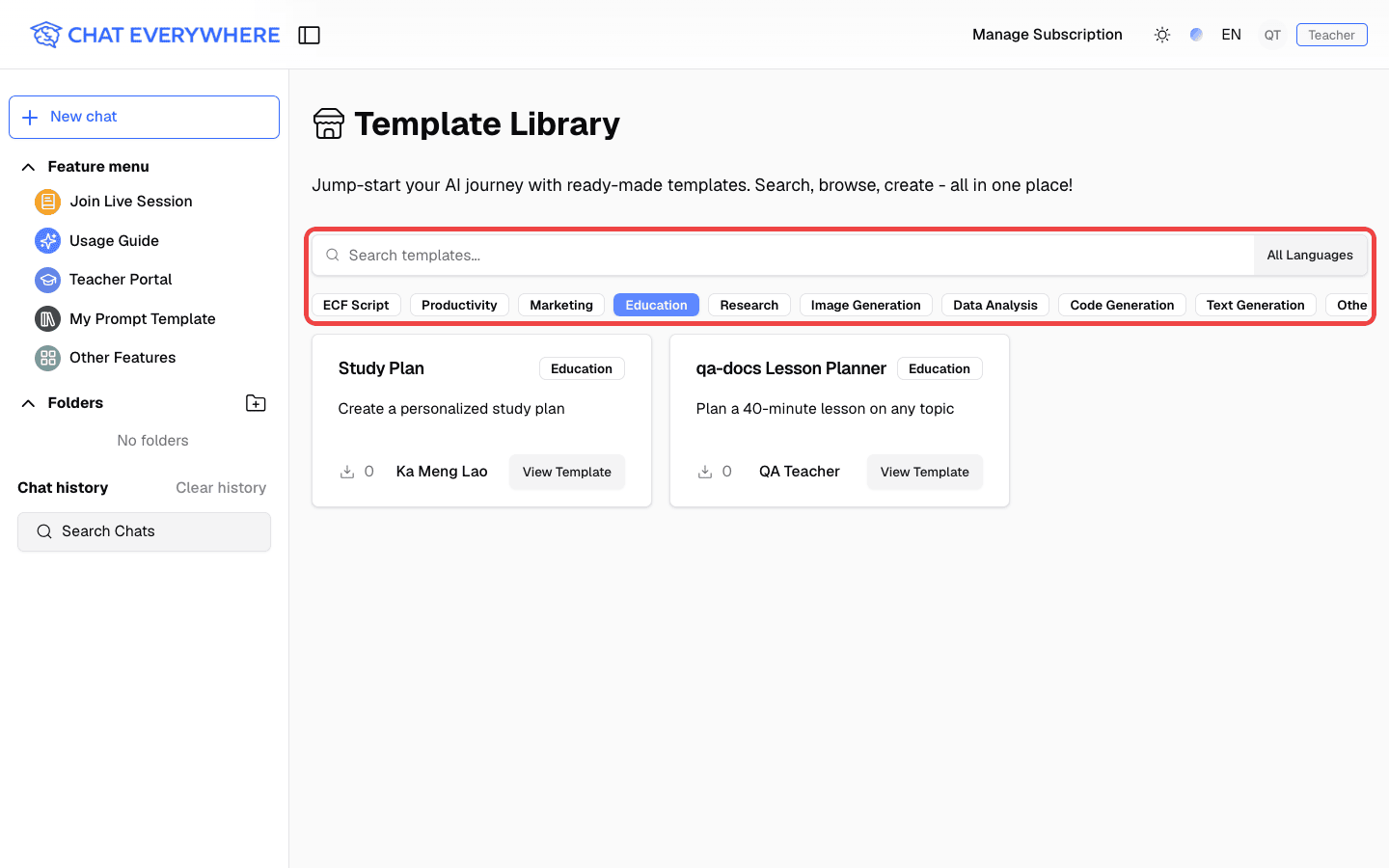
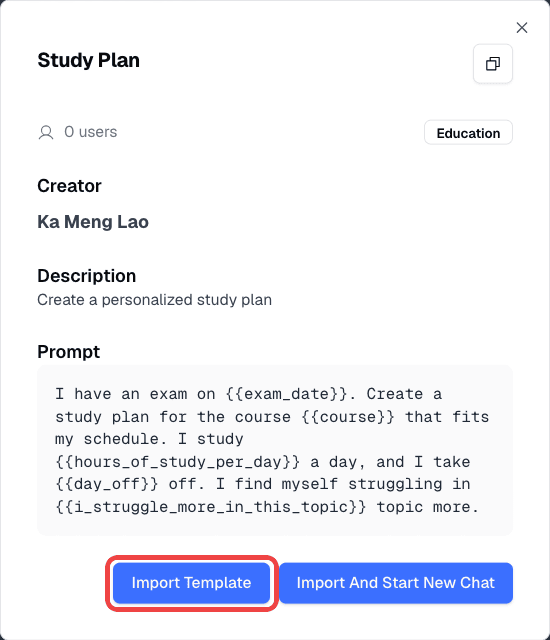
Open a template and click Import Template to add it to your list. See Template Library for publishing steps.
Billing
How do I upgrade my plan?
Click your profile icon and select Pricing to compare plans and upgrade.
Can I cancel anytime?
Yes. Once you have a paid plan, your profile menu shows Manage Subscription instead of Pricing. Select it to manage or cancel your subscription at any time.
Technical
Does Chat Everywhere work on mobile?
Yes. Chat Everywhere is a Progressive Web App (PWA) that works in mobile browsers. You can install it to your home screen for a native-like experience.
For Meeting Summarizer, the upload page links to Android and iOS tutorial videos:
Live Voice Chat isn’t available in my region
Live Voice Chat is not available in mainland China, Hong Kong, or Macao. When you connect from these regions, the Voice Interaction section does not appear in Other Features. Live Voice Chat also requires the Ultra plan or above.
Is my data secure?
Chat Everywhere uses Clerk for authentication and stores data securely. See our Privacy Policy for details.