CE Bot
An autonomous AI agent that writes and runs real code to analyze data, generate charts, build presentations, and produce downloadable files.
Overview
CE Bot goes beyond ordinary AI chat. Instead of just generating text, CE Bot actually writes Python code, executes it in a secure sandbox, and hands you the results as downloadable files. Describe what you want in plain language — CE Bot figures out the steps, writes the code, runs it, and delivers the output. No programming knowledge required.
How to Activate
- Open any chat conversation
- Click the mode selector button in the chat toolbar (it shows the currently active mode)
- Select CE Bot
- Type your request and send
What CE Bot Can Do
- Data analysis — Upload an Excel or CSV file and ask CE Bot to find patterns, calculate statistics, or answer questions about your data
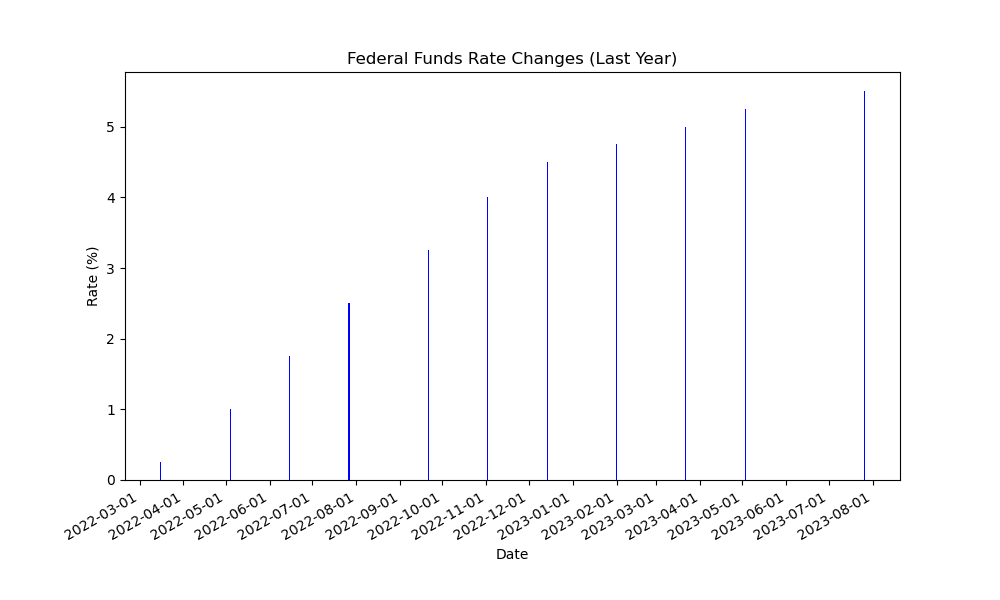
- Charts and graphs — Request any chart type (bar, line, pie, scatter, heatmap, and more) and CE Bot generates it as a downloadable image
- Presentations — Ask CE Bot to build a slide deck and it produces a ready-to-use .pptx file
- Word documents and PDFs — Generate .docx or PDF files from your content, reports, or structured data, including table cell background colors
- Diagrams — Create Mermaid or PlantUML diagrams for architecture, flowcharts, sequence diagrams, entity-relationship diagrams, and more
- Web research — CE Bot can search the web and read pages to gather information, then compile the findings into a report or document
- Extract data from images — Attach a photo or screenshot of a chart or table and CE Bot reads the data from it. Tables in images are converted to text first, so cell contents are read accurately
Example Workflows
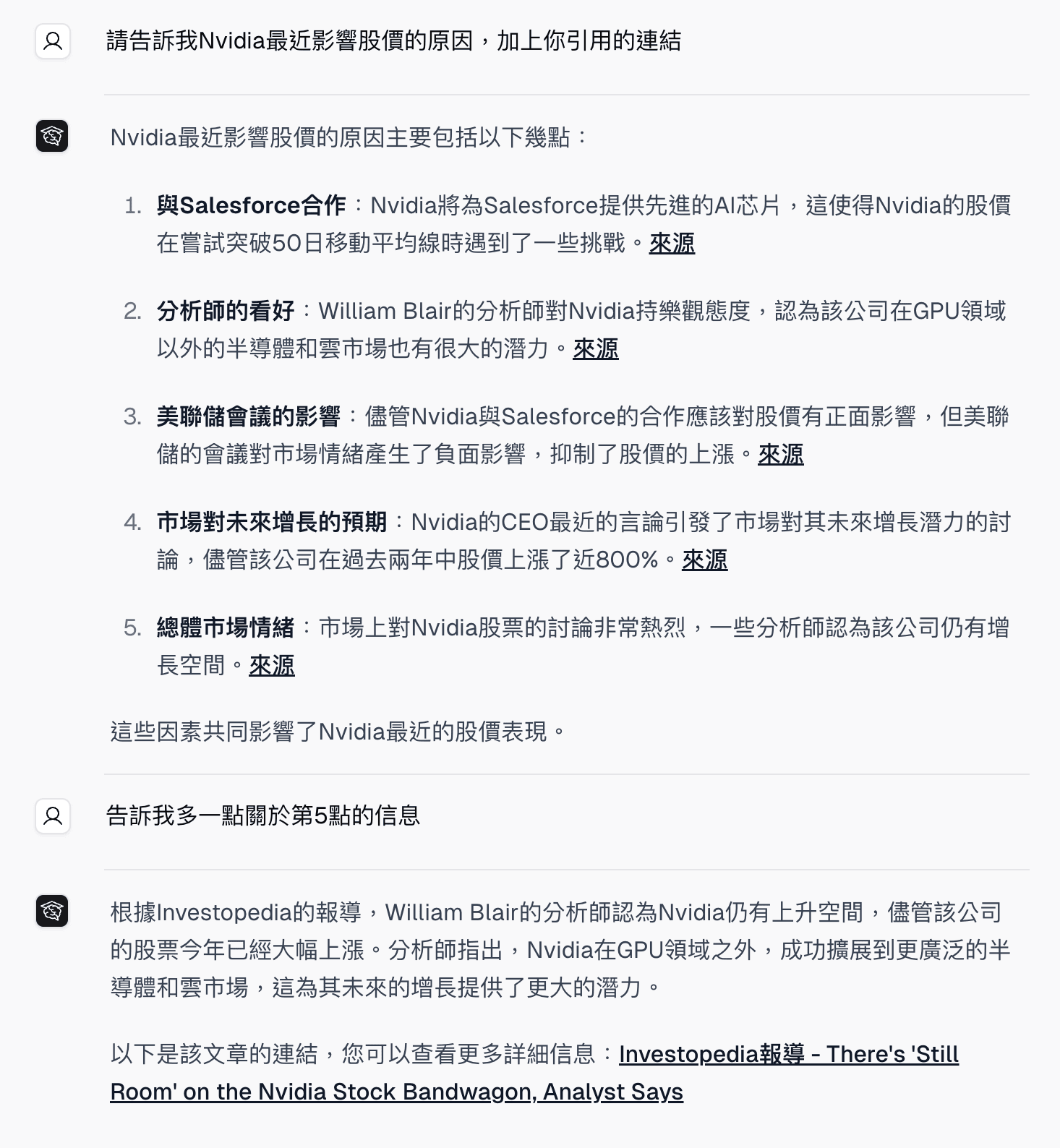
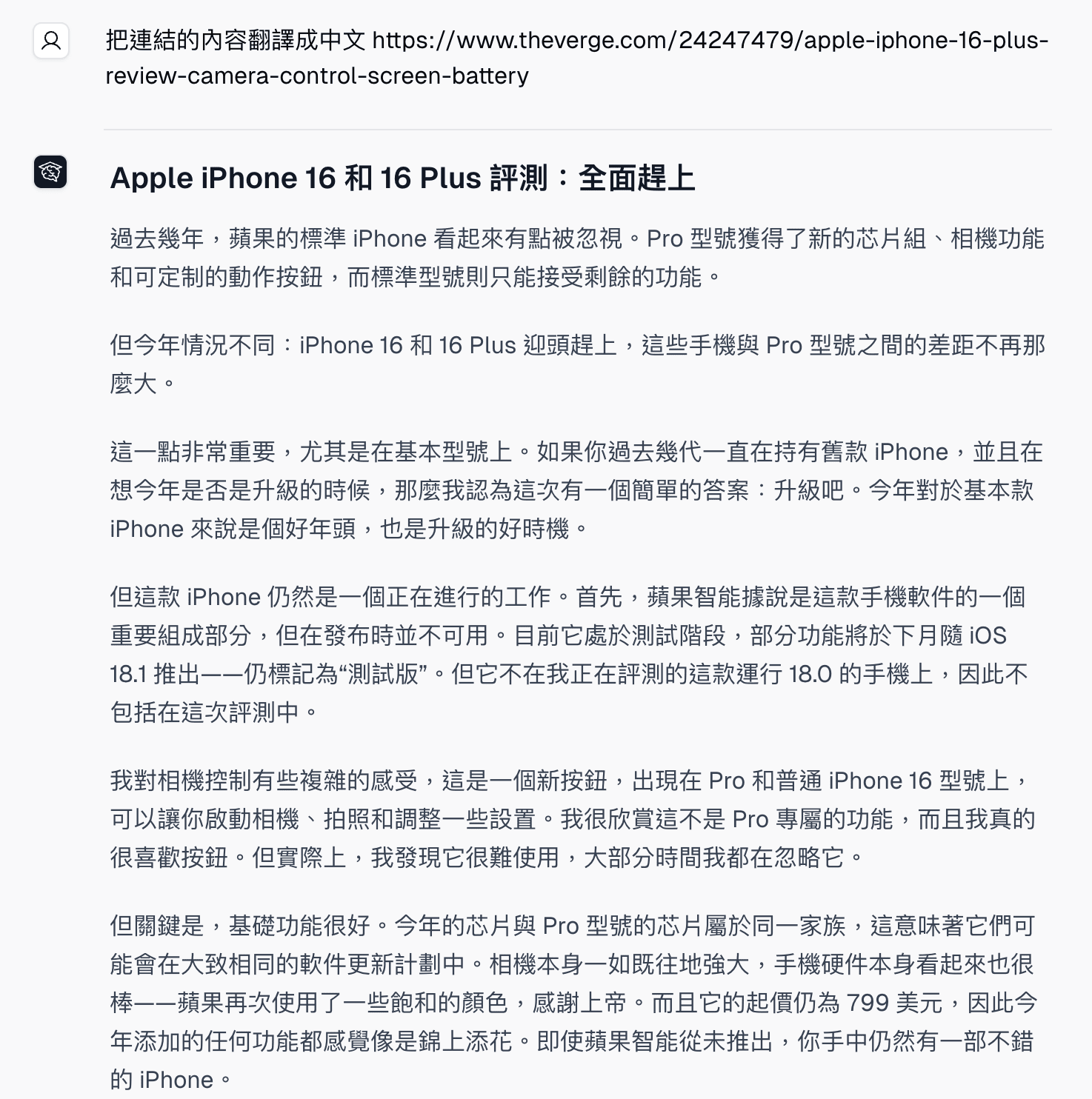
Read a Web Link
Paste a URL or ask CE Bot to research a topic. CE Bot can read web pages, summarize the relevant information, and include source links so you can review where the answer came from.
Generate Diagrams
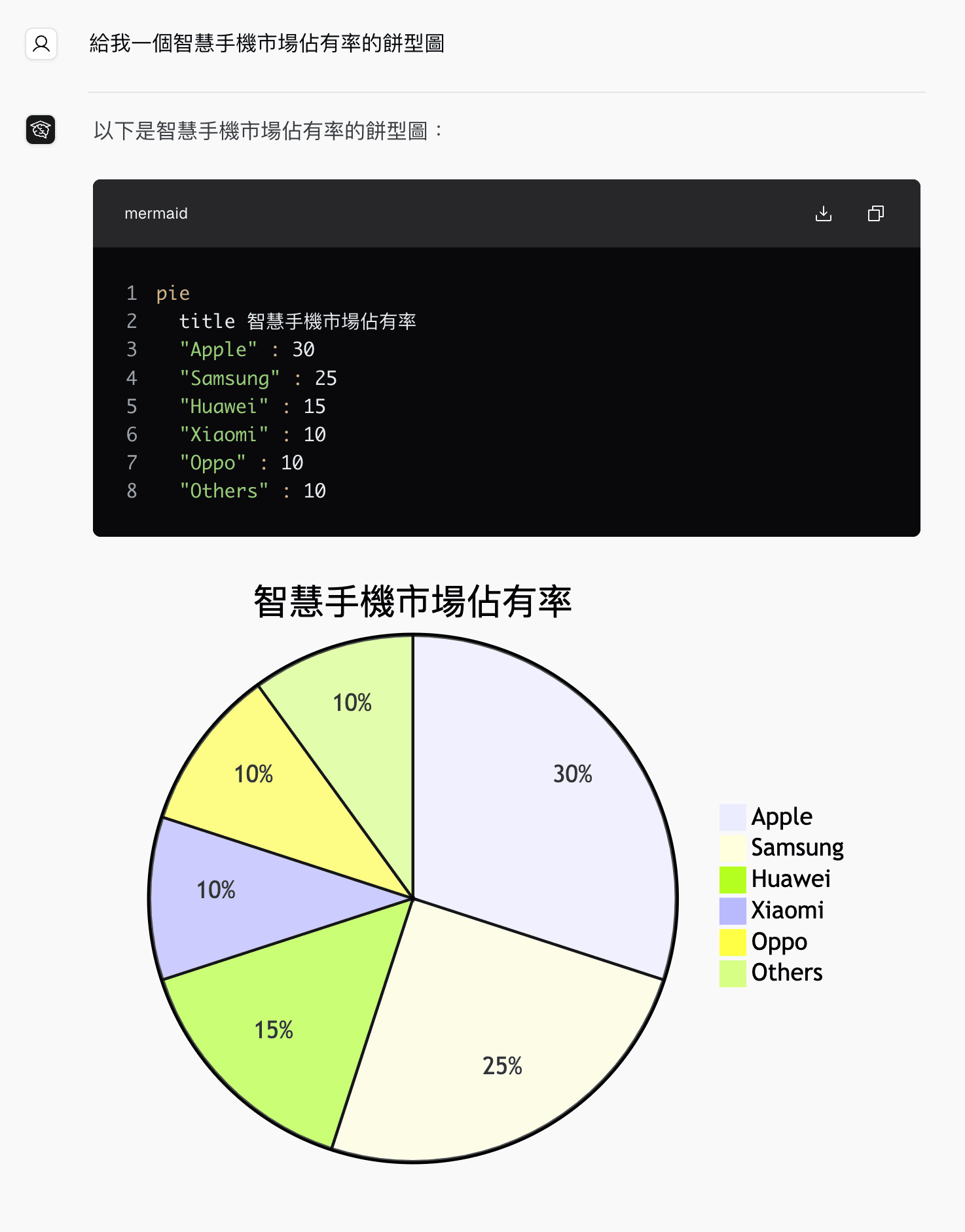
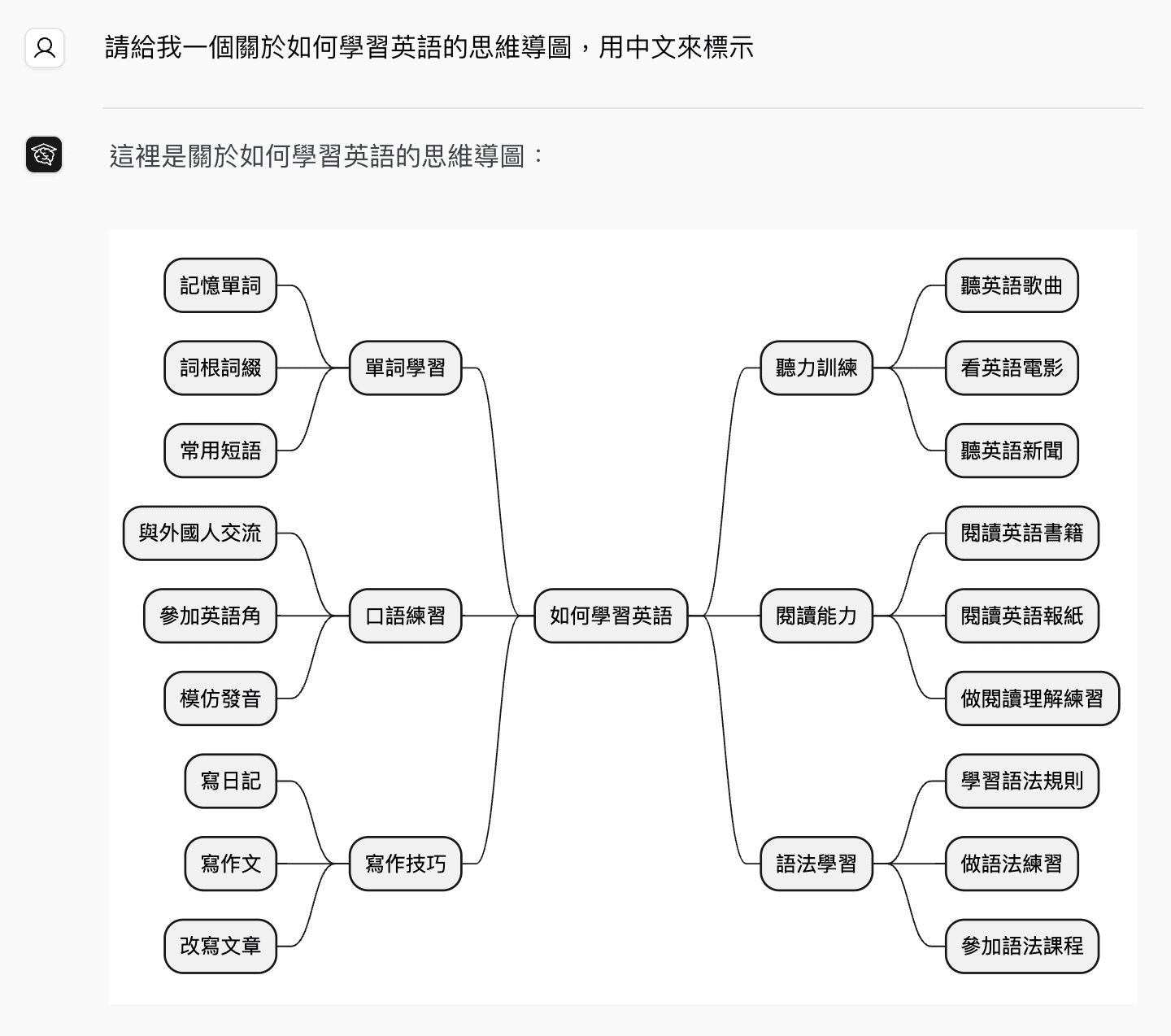
CE Bot can generate diagram syntax and render the result in the chat. It can create pie charts, mind maps, flowcharts, and other diagram formats. For more syntax examples, see the Kroki examples .
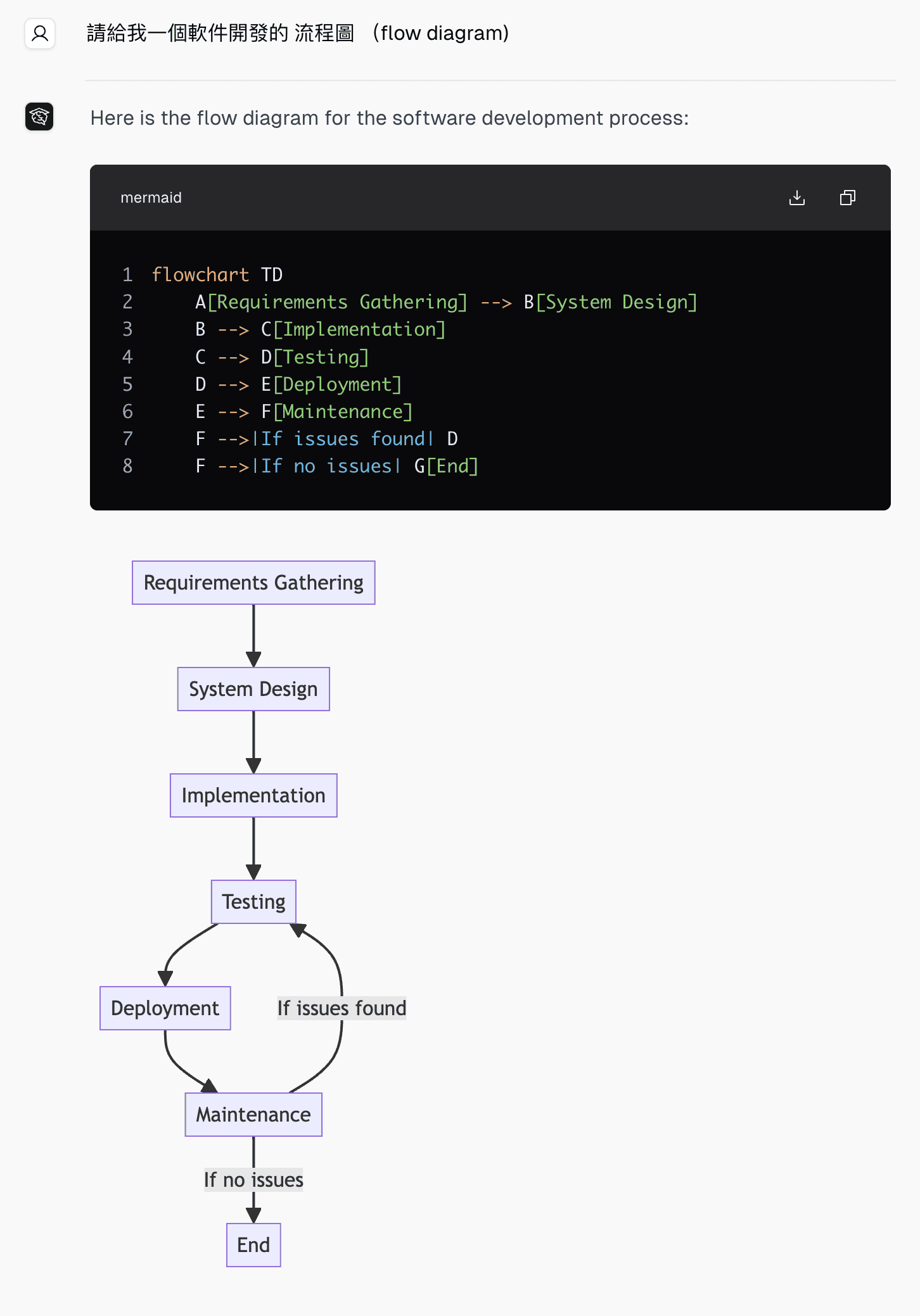
Run Python and Create Files
Ask CE Bot to run calculations, generate charts, or create downloadable files. The output can appear directly in the chat or as a file link you can download.
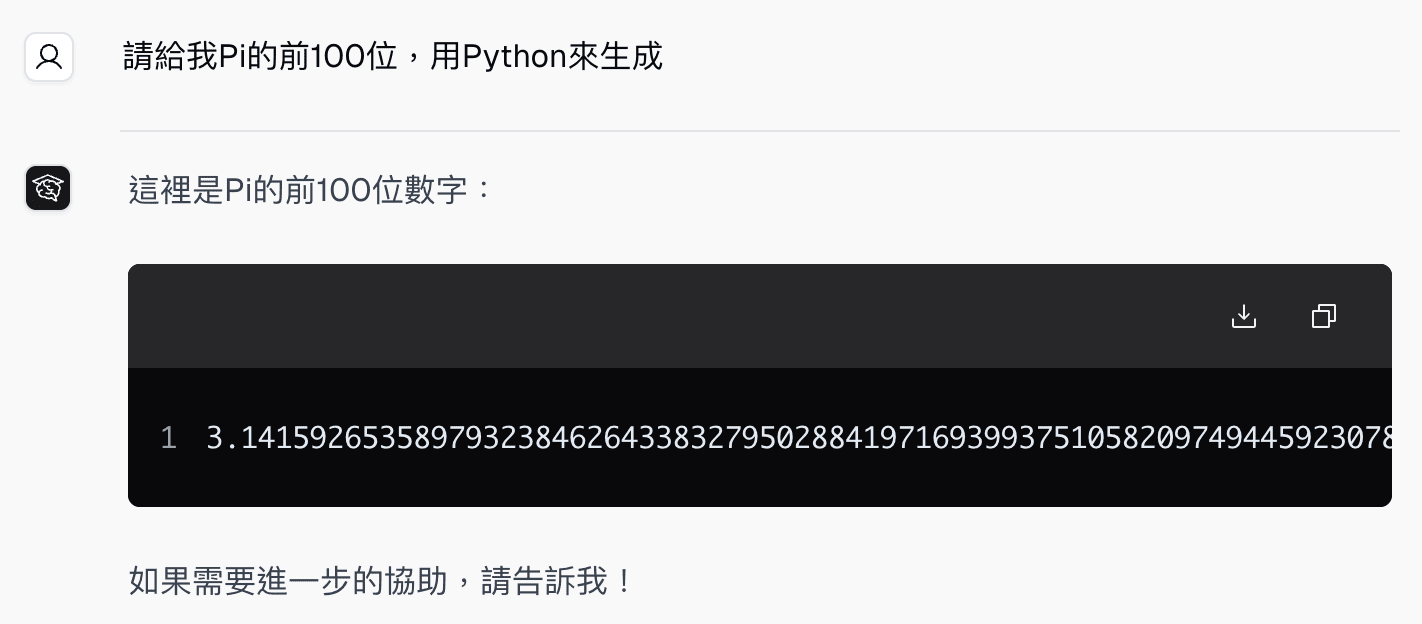
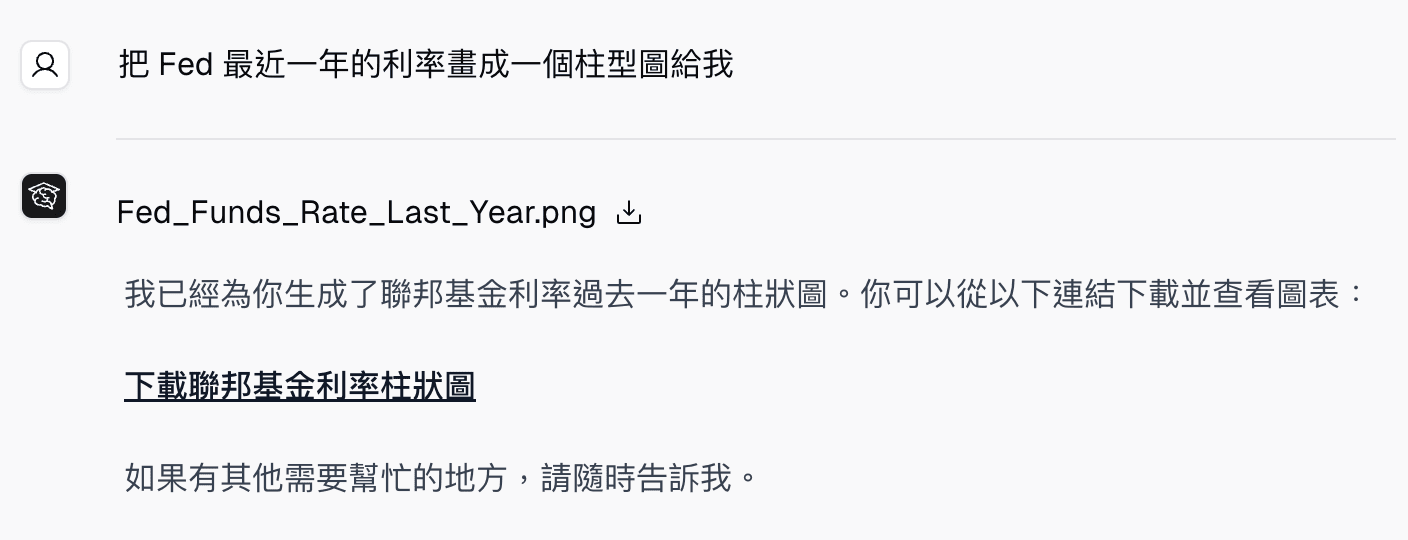
Copy a Table from an Image into a Document
Attach a screenshot or photo of a table — for example, a timetable or a grade sheet — and ask CE Bot to fill it into a Word document or PDF.
- Attach the image, along with any existing Word file you want CE Bot to fill in.
- Describe exactly what you want, such as which column to copy, which colors to keep, and the output format.
- Send the request. CE Bot reads the table from the image as text, then builds the document.
- Download the result and check the table.
CE Bot follows the exact wording of your request. If you say “use the Room column” or “keep the yellow highlights,” it does that rather than a looser interpretation. Cell background colors you ask for are applied correctly in Word documents.
How It Works
When you send a request, CE Bot works through it autonomously. A progress indicator appears in the chat showing each stage:
- Waking up CE Bot — The sandbox environment is starting
- Preparing environment — Dependencies and files are being set up
- Starting analysis — CE Bot is writing and running code
- Collecting output files — Results are being packaged for download
CE Bot plans the steps, writes the code, and runs it. If something fails, it diagnoses the problem and tries again automatically. When it finishes, the response appears with any output files listed as download links. Charts and diagrams also appear inline as previews directly in the chat.
Stop a Task
If you sent the wrong request or no longer need the result, you can stop CE Bot while it is still working.
- While CE Bot is working, click the red Stop answer button in the message box (where the send button normally is).
- The button shows Stopping answer while CE Bot wraps up.
- CE Bot cancels the work running in its sandbox. Any text already written stays in the conversation.
- Send a new or corrected request when you are ready.
See AI Chat for more about stopping answers.
Multi-Turn Follow-Ups
After CE Bot delivers a result, you can keep refining it in the same conversation. CE Bot remembers the context of the previous analysis and picks up where it left off.
For example, after generating a chart you could follow up with:
- “Make it a bar chart instead”
- “Add a trend line to this”
- “Calculate the monthly average and add it to the report”
- “Change the color scheme to blue tones”
Stay in the same chat thread to get the best results from follow-up requests.
Tips for Best Results
- Be specific about the output format you want — “give me a PNG chart”, “create a Word document with a summary table”, “export as PDF”
- Attach the actual data file rather than pasting data into the chat — CE Bot works better with the original file
- When copying a table from an image, name the columns, rows, and colors you want — CE Bot follows your exact wording
- For follow-up edits, stay in the same chat thread so CE Bot has full context from the previous run
- If your request involves multiple outputs (for example, a chart and a written summary), mention them together in one message
Who Can Use This
CE Bot requires a signed-in account. It is available on the Free plan (sign-in required).
Session Limits
Each CE Bot session runs for up to 15 minutes. For very complex tasks that approach the limit, CE Bot wraps up what it has completed and delivers the partial results before the session ends.
Common Questions
Do I need to know Python to use CE Bot? No. Just describe what you want in plain language. CE Bot handles all the code.
Where do I find the output files? Download links appear in the chat response when CE Bot finishes. Image outputs like charts and diagrams also appear directly in the chat as previews.
Why does CE Bot take longer than regular chat? CE Bot actually runs code in a real sandboxed environment. Each session involves writing, executing, and verifying code — that takes more time than generating a text reply.
Can I stop CE Bot in the middle of a task? Yes. Click Stop answer while CE Bot is working. The work in its sandbox is cancelled, and the text written so far stays in the chat.
What if the result isn’t right? Ask a follow-up in the same chat. Describe what needs to change and CE Bot will revise the output. Staying in the same thread gives CE Bot the context it needs to make accurate corrections.
Can CE Bot read a table from a screenshot? Yes. Attach the screenshot or photo, and CE Bot converts the table to text before working with it, so cell contents are copied accurately. For best results, use a clear, uncropped image of the table.
What file types can I upload? Excel (.xlsx, .xls), CSV, images (PNG, JPG), and other common data formats. For best results with data analysis, use Excel or CSV files.
Related Features
- AI Chat — Standard multi-turn conversations without code execution
- PPT Generator — A simpler tool that converts markdown directly to PPTX, without code execution
- Add Files and Photos — Upload documents and ask questions about their content
- Meeting Summarizer — Transcribe and summarize audio and video recordings