Tag Management
Create tags to organize and filter student posts on the Message Board.
Overview
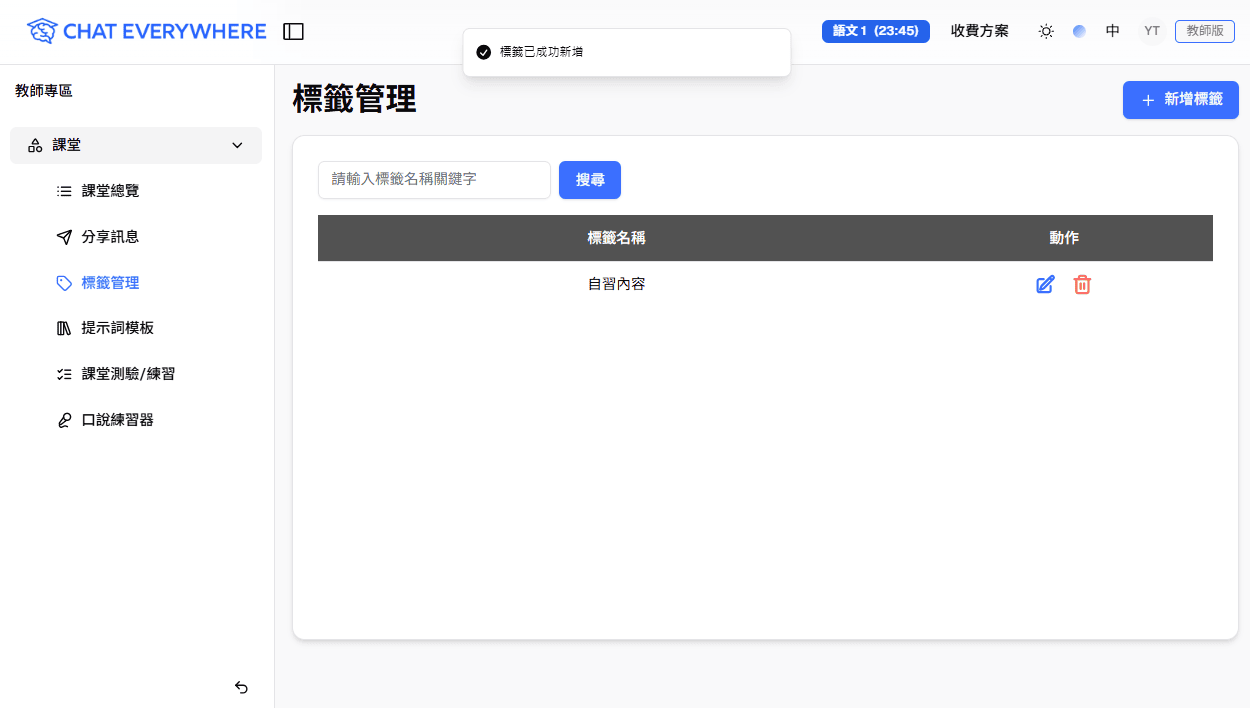
Tag Management gives you a simple way to categorize student posts. You create custom tags, then apply them to posts on the Message Board. Once tagged, you can filter posts to quickly find what you need. Tags are a teacher-only tool — students never see them.
How to Access
- Go to the Teacher Portal
- Click Tag Management in the sidebar
Creating a Tag
- Click Add New Tag on the Tag Management page
- Enter a Tag Name (for example, “Excellent Work” or “Needs Review”)
- Click Add
You can create as many tags as you need. Edit or delete tags at any time from this page.
Applying Tags to Posts
Tags are applied on the Message Board, not on the Tag Management page:
- Go to Message Board in the Teacher Portal
- Open a student post
- Click Add / Edit Tags and choose one or more of your tags
- The tags appear on the post and are visible when you browse the list
You can apply multiple tags to a single post. For more on reviewing posts, see Message Board.
For a walkthrough, watch the Tag Management tutorial below.
Batch Tagging
When you need to organize many posts at once, use multi-select mode on the Message Board. Select multiple posts, apply one or more tags in a single action, then exit multi-select mode when you are done. You can use the same workflow to remove tags from multiple posts.
Filtering Posts by Tag
Once you have tagged posts, use the filters on the Message Board to narrow your view:
- Use Filter by Tags to see only posts with specific tags
- Combine tag filters with Filter by Sessions to focus on one class
- Clear filters to return to the full list
This makes it easy to review a specific category of work — for example, viewing all posts tagged “Needs Review” to follow up with those students.
Who Can Use This
- Teachers — Create, edit, delete, and apply tags. This feature requires a Teacher plan.
- Students — Tags are not visible to students. They are a teacher-side organizational tool only.
Related Features
- Message Board — Where you apply tags and filter posts
Tips
Here are some ways teachers organize their tags:
- By topic — “Photosynthesis”, “Civil War”, “Fractions” — to group posts by subject area
- By quality level — “Excellent”, “Good”, “Needs Improvement” — for quick sorting during review
- By assignment — “Week 1 Activity”, “Midterm Prep”, “Final Project” — to track posts across different tasks
- By action needed — “Needs Review”, “Follow Up”, “Share with Class” — to manage your own workflow