Personalized Challenge
Support follow-up practice without extra prep. Deliver personalized follow-up practice before students forget what they missed.
Overview
Personalized Challenge gives students an optional follow-up practice round after they finish an in-class quiz. Instead of stopping at a score, students can continue with questions tailored to the concepts they need to strengthen most.
This helps you respond to quiz results without preparing extra remediation materials yourself. Students get targeted practice while the original lesson and their mistakes are still fresh, which makes the feedback more useful and easier to act on.
How to Access
- Go to the Teacher Portal
- Open In-Class Quiz
- Create a new quiz, or open an existing unpublished quiz
- In the quiz settings, turn on Enable Personalized Challenge
Key Features
- Optional follow-up practice — Students can choose whether to continue into the challenge after the original quiz
- Tailored questions — The follow-up questions focus on the concepts a student struggled with in the quiz
- Two question sources — Generate fresh practice from weak areas, or build practice directly from the questions a student missed in the original quiz
- Fast turnaround — Students can start the challenge soon after grading instead of waiting for manual follow-up
- Teacher time savings — You can offer targeted reinforcement without preparing separate extra practice
- Progress visibility — Teachers can review challenge status and completed rounds in quiz results
Step-by-Step Guide
Enable Personalized Challenge
- Open the quiz creation form or edit an unpublished quiz
- In the settings area, turn on Enable Personalized Challenge
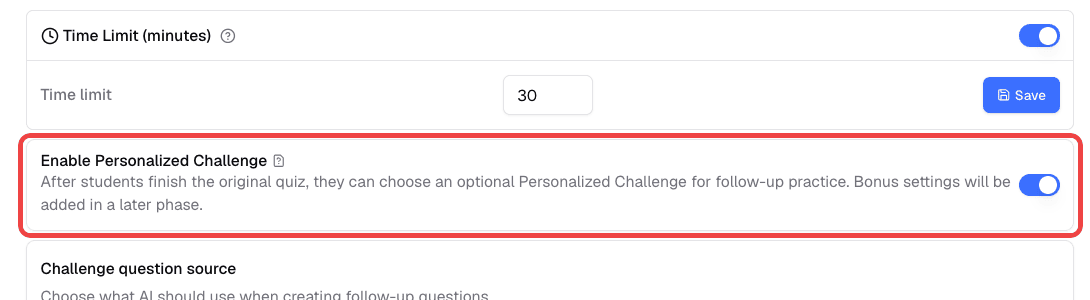
- Finish configuring the rest of the quiz, then generate and publish it as usual
This setting appears alongside other quiz controls such as Hold Grades Until Released. Once it is on, students can start a Personalized Challenge after they finish the original quiz and their results are graded.
Choose the Challenge Question Source
After you turn on Enable Personalized Challenge, use Challenge question source to choose what the AI uses when creating follow-up questions:
- Create new practice from weak areas (default) — Best for extra practice. The AI uses the concepts students missed to write fresh questions.
- Use only missed questions from the original quiz — Best for image-based questions. The AI builds practice from the exact original questions the student did not fully get right, so the challenge stays close to the original content.
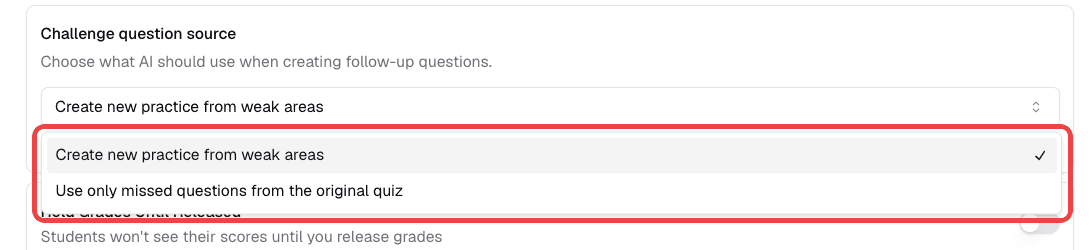
Choose the source before you publish the quiz. It cannot be changed after the quiz is published.
Where Students Start
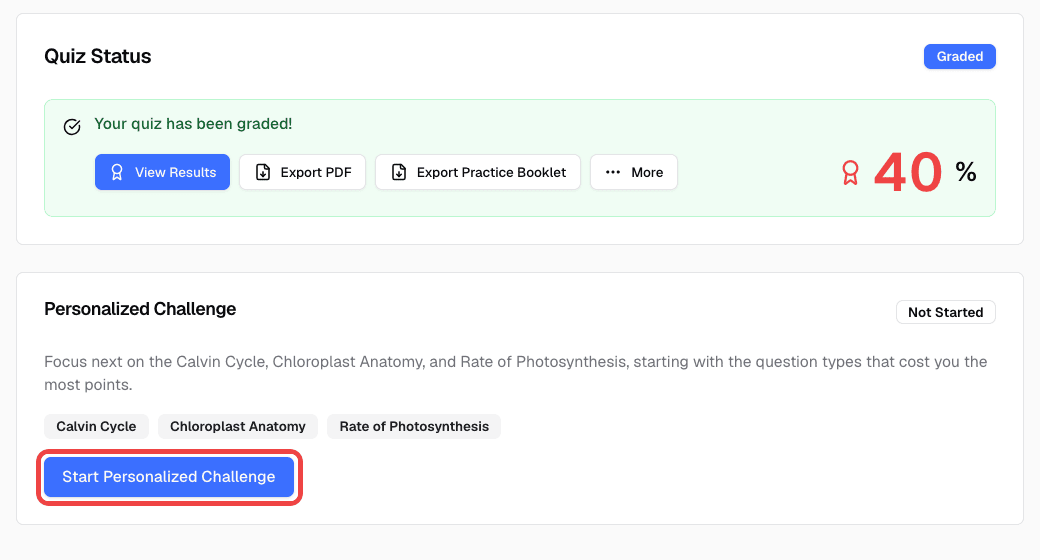
After a student finishes the original quiz and the graded results are available, a Personalized Challenge section appears on the result page. It lists the concepts to focus on first. The student clicks Start Personalized Challenge to begin a round of questions targeted at their weak areas.
After Finishing a Round
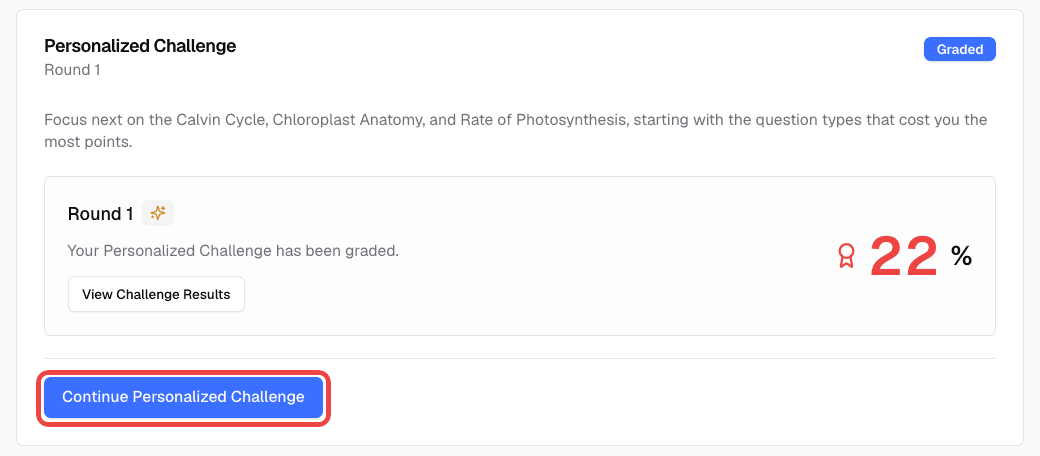
When a student finishes a round, they can review that round’s results, score, and remaining weak concepts. If more practice is needed, the page shows Continue Personalized Challenge so the student can start the next round. If no more follow-up is needed, the challenge chain ends.
Detailed Explanations for Every Question
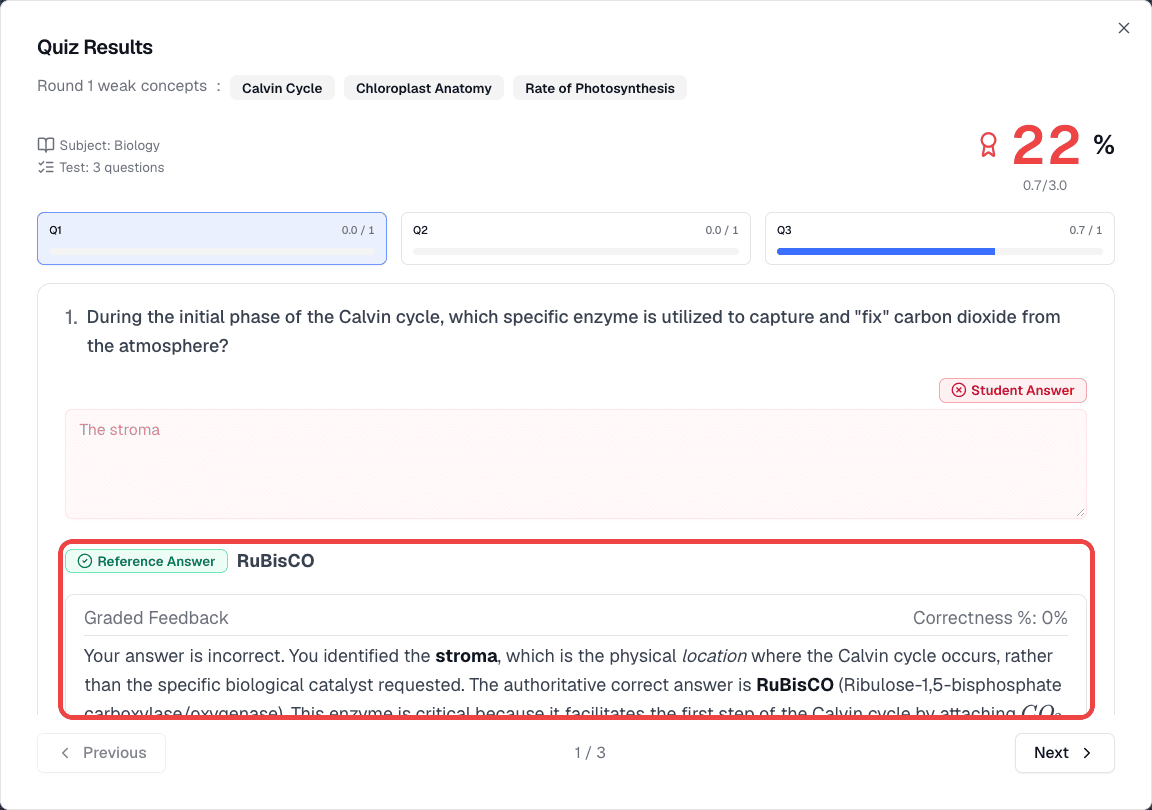
A Personalized Challenge is more than another set of questions. After answering, students can still see each question’s grading, the correct answer, and a detailed explanation, so they understand not just that they were wrong, but why and how to fix it.
What Teachers Can Review
- Open the quiz detail page in In-Class Quiz
- Review student attempts as usual
- Open a student’s result to see their answers on the original quiz
- If the student also completed Personalized Challenge rounds, switch to a round, such as Round 1, to see that round’s questions, the student’s answers, scores, and explanations
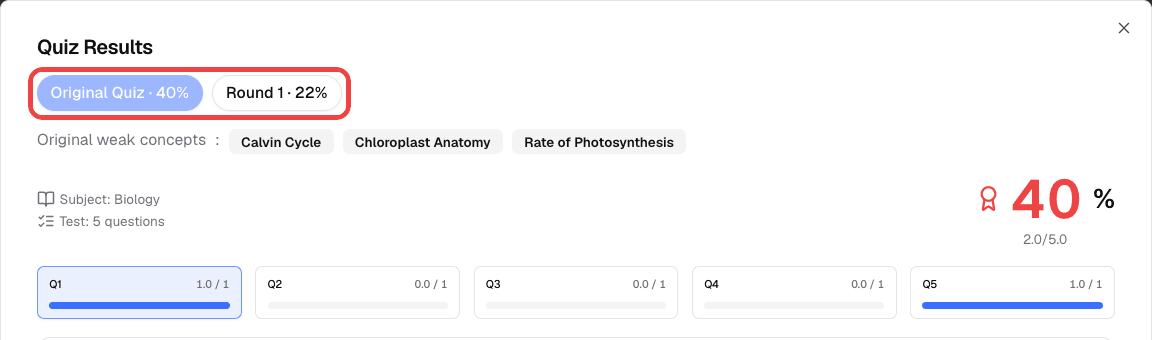
This helps you see which students started follow-up practice, which round they are on, and how each round went.
Plans & Access
| Role | Access |
|---|---|
| Teachers | Can enable Personalized Challenge, publish quizzes, and review challenge progress in results |
| Students | Can start and complete Personalized Challenge rounds after finishing a quiz |
This feature requires a Teacher plan.
Related Features
- In-Class Quiz — Create the original quiz and enable Personalized Challenge in settings
- Class Sessions — Deliver quizzes through a live class session
Troubleshooting
I can’t change the challenge question source. The question source is locked once the quiz is published. Choose it while the quiz is still unpublished.
Follow-up questions drift away from image-based questions in the original quiz. Set Challenge question source to Use only missed questions from the original quiz before publishing, so the challenge stays grounded in the original questions.
Students do not see Personalized Challenge after the quiz. Check that Enable Personalized Challenge was turned on for that quiz and that grading has completed.
The challenge is unavailable. Some quizzes may not have enough question data to generate a challenge. In that case, students can review their quiz results, but no Personalized Challenge is created.
A student cannot continue an existing challenge. If the original quiz has ended or a dedicated quiz link has expired, students may only be able to review completed challenge results instead of continuing.