Quiz Results and Grading
Review student attempts, understand class performance, adjust AI grades, and export results for an In-Class Quiz.
Overview
After students submit an In-Class Quiz, AI grades each attempt using your reference answers and grading instruction. The Student Quiz Results tab collects every attempt in one place so you can check scores, compare answers question by question, and generate an AI summary of how the whole class performed.
You stay in control of the final grade. You can change any question’s score and feedback, add your own comments, respond to regrade requests from students, and hold grades until you have reviewed them. When you are done, you can export grades as a spreadsheet and download PDFs for individual students or the whole quiz.
This page covers what happens after students submit. To create and publish a quiz, see In-Class Quiz.
How to Access
- Go to the Teacher Portal
- Click In-Class Quiz in the sidebar
- Open a quiz
- Click the Student Quiz Results tab
The tab appears once the quiz is published or ended, or as soon as it has student attempts. Published and ended quizzes open on this tab by default.
Key Features
- Results table — Every attempt with status, score, extra info fields, and per-attempt exports
- Question Cards — All students’ answers to one question side by side
- Student Quiz Summary — AI-generated challenging questions, common misconceptions, recommendations, and a five-part performance radar chart
- AI grading — Follows your grading instruction, with partial credit
- Retry Grading — Re-run grading for attempts that failed
- Edit Grade — Override the score and feedback for any question
- Regrade requests — Review and resolve student requests in one place
- Hold grades — Keep scores hidden until you release them
- Exports — Grade spreadsheet, student attachments, whole-quiz PDF, and practice booklets
Step-by-Step Guide
Check Overall Progress
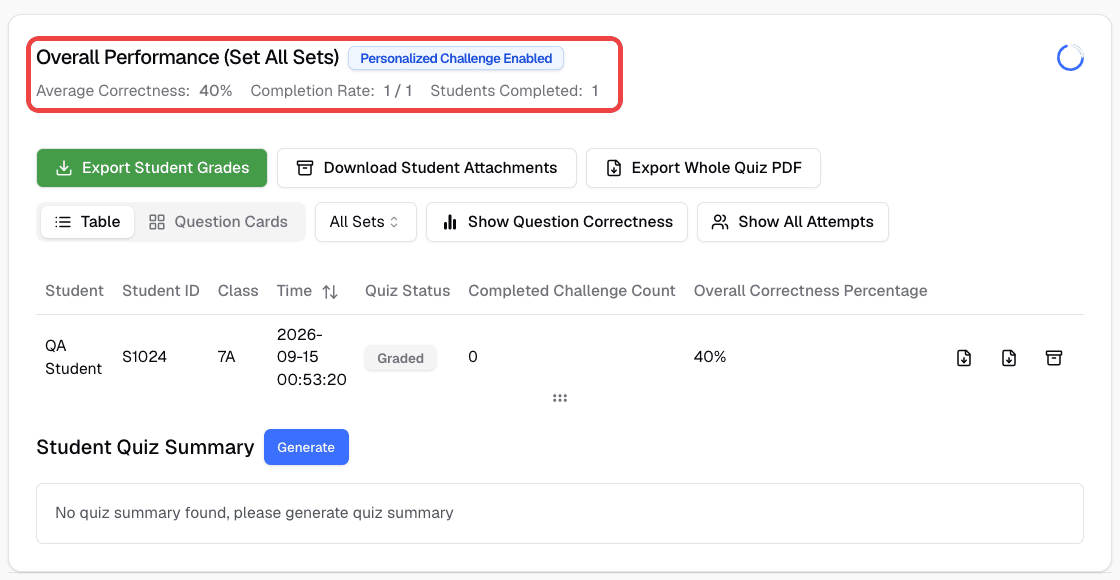
The top of the tab shows Overall Performance for the selected set:
- Average Correctness — The average score across completed attempts
- Completion Rate — Students who completed the quiz out of all students in view
- Students Completed — The number of students with a completed attempt
While the quiz is active, results refresh automatically, and a countdown shows when the next refresh happens.
Review Results in the Table
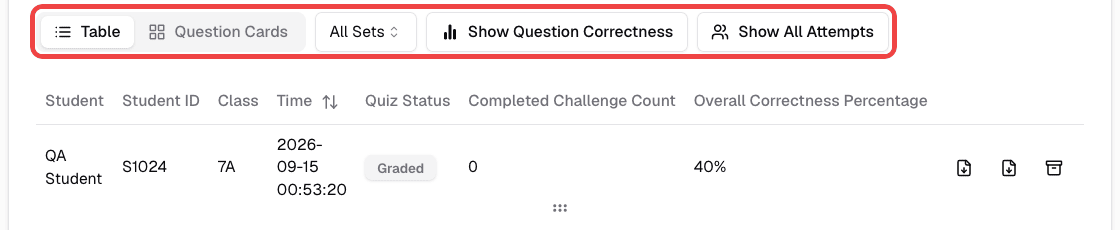
- Keep Table selected
- Use the set menu to show All Sets or a single set. If the quiz has several random sets, each student answers only one set, so choose a set when you want to compare students who answered the same questions
- Optionally turn on Show Question Correctness to add per-question scores to the table, or Show All Attempts to list every attempt
- Click a row to open Quiz Results for that attempt. Move between questions with Previous and Next, or click a segment of the score bar to jump to a question
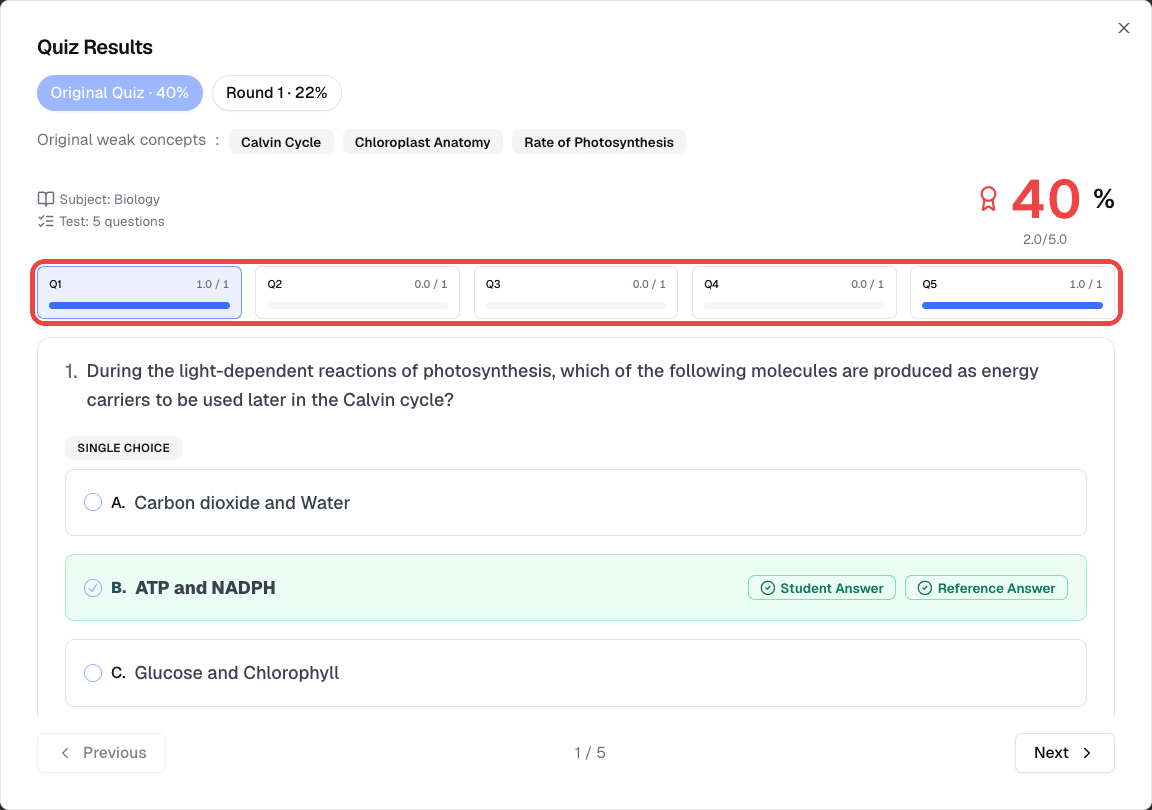
In Quiz Results, each question shows badges so it is clear which answer is which:
- Student Answer — The answer the student gave, with a green check when it is correct and a red cross when it is not
- Reference Answer — The correct option on Single Select and Multi Select questions
- Single Choice or Multiple Choice — The question type, shown above the options
When a student answered with photos or handwriting, you see each Student Uploaded Image together with the AI Extracted Text that was used for grading.
Each row in the table also has buttons to export that attempt as a PDF or practice booklet, download that student’s attachments, or delete the attempt. Deleting an attempt removes its answers and uploaded files.
Compare Answers with Question Cards
- Click Question Cards
- Choose a set. Question Cards shows one set at a time
- Click a question number
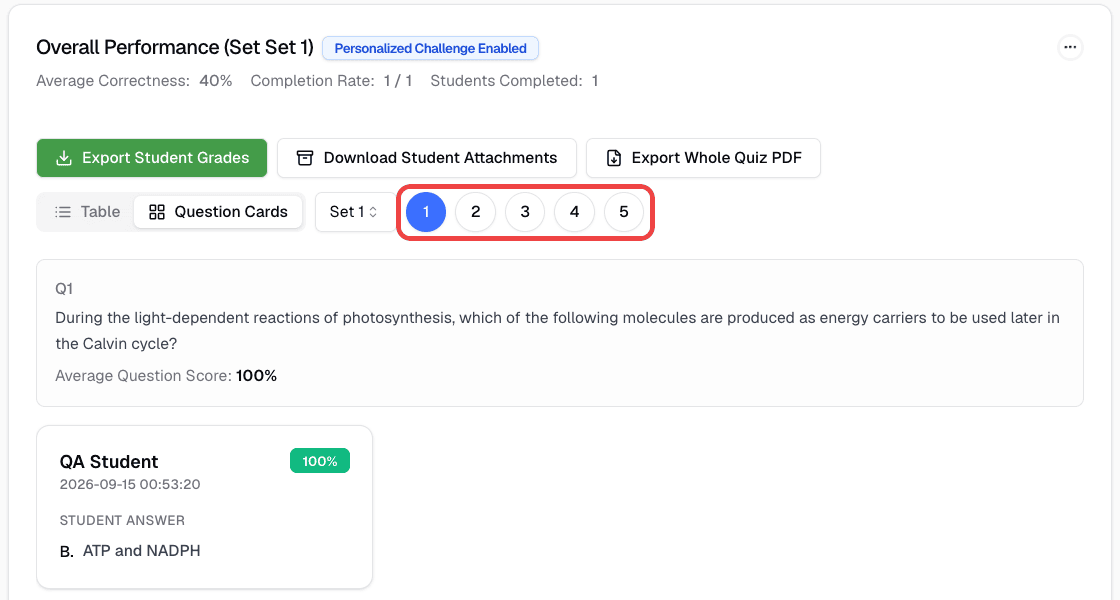
- Review the Average Question Score and one card for each graded submission. Each card shows the student’s name, submission time, answer, and score. The score badge is green at 100%, blue at 60% or more, amber above 0%, and red at 0%. Image answers appear as “Uploaded image”
- Click a card to open that student’s attempt directly at that question
Question Cards is useful for spotting a common wrong answer or checking that the AI graded a written question consistently across students.
Generate the Student Quiz Summary
- Scroll down to Student Quiz Summary
- Click Generate. The button is available once at least one attempt is graded
- Review the summary sections: Summary, Most Challenging Questions, Easiest Questions, Common Misconceptions, and Recommendations
- Optionally click Export Summary to Word to download the summary as a Word document
The summary shows its Last Updated Date and does not update on its own. Click Generate again after more students submit.
The Class Performance Overview radar chart scores the class from 0 to 100 on five dimensions. Hover over a point to see its description.
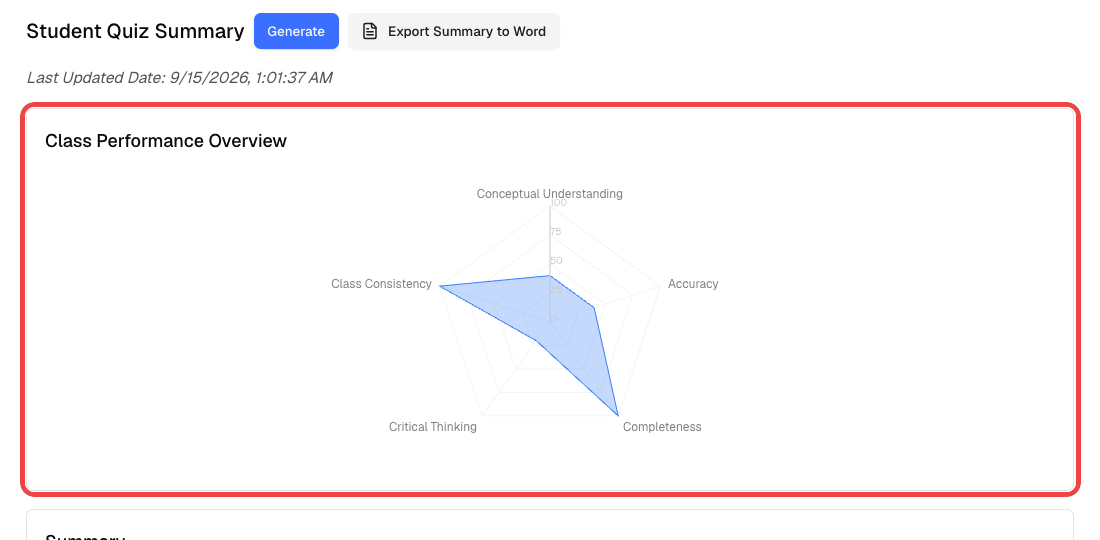
| Dimension | What it measures |
|---|---|
| Conceptual Understanding | Did students grasp the core concepts or just guess correctly? |
| Accuracy | How correct were answers overall? |
| Completeness | Did students attempt all questions with thorough answers? |
| Critical Thinking | How well did students handle harder or multi-step questions? |
| Class Consistency | How uniform was performance across students? |
A low Class Consistency score with a high Accuracy score, for example, suggests some students did very well while others need extra support.
How AI Grading Works
Grading starts automatically when a student submits. The attempt status moves from Grading to Graded.
- Single Select questions score 100% for the correct option and 0% otherwise
- Multi Select questions earn partial credit: (correct selections − incorrect selections) ÷ total correct options, never below 0%. This score is calculated automatically; the AI only writes the feedback
- Text questions are compared with your reference answer. Without a grading instruction, the AI uses a default scale of 100%, 75%, 50%, 25%, or 0% depending on how complete and accurate the answer is
- Your grading instruction is followed for every attempt and takes priority over the default feedback rules if they conflict. Use it to define your own partial-credit rules or required key points
- The reference answer is authoritative. The AI grades against the answer you set, even if it disagrees with it
- Feedback explains the reasoning for both correct and incorrect answers, not just a verdict
- Photo and handwritten answers are graded from the extracted text, with some leniency for unclear handwriting
- Overall score is weighted by each question’s points
To check your grading instruction before students take the quiz, see Set Grading Instructions and Test Grading.
Retry Failed Grading
If grading fails, the attempt shows Grading Failed and the student is asked to try again later or contact you.
- Click Retry Grading in the attempt’s row, or open the attempt and click Retry Grading at the top of Quiz Results
- The status changes to Grading while the AI grades the attempt again
Only attempts with Grading Failed can be retried.
Edit a Grade
- Open an attempt from the table or from Question Cards
- Go to the question you want to change
- Click Edit Grade. This button is available once the attempt is graded
- Update the Grading Feedback and move the Question Score slider (0–100%, in steps of 5)
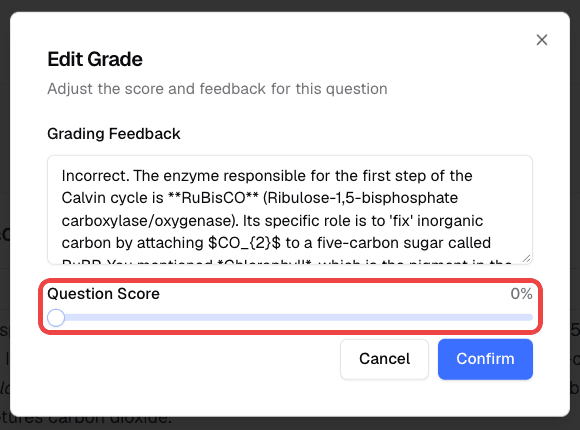
- Click Confirm
The attempt’s overall score is recalculated right away, and the student sees the updated score and feedback.
To leave a comment without replacing the AI feedback, click Add Teacher Feedback instead. Write your comment, optionally attach images, and click Confirm. Students see it labeled Teacher Feedback under the question.
Handle Regrade Requests
Students can ask you to recheck a question after their attempt is graded:
- The student opens the graded quiz and clicks View Results
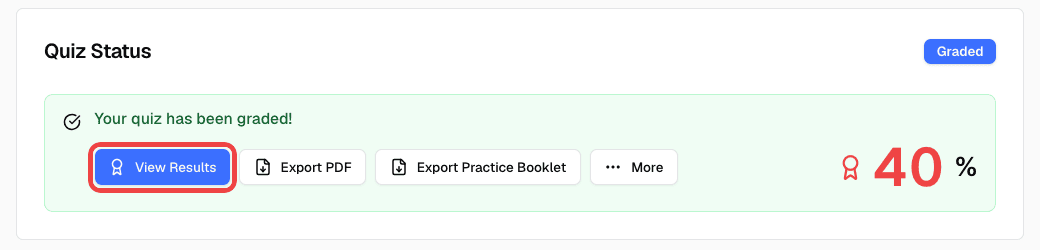
- On the question, the student clicks Request regrade
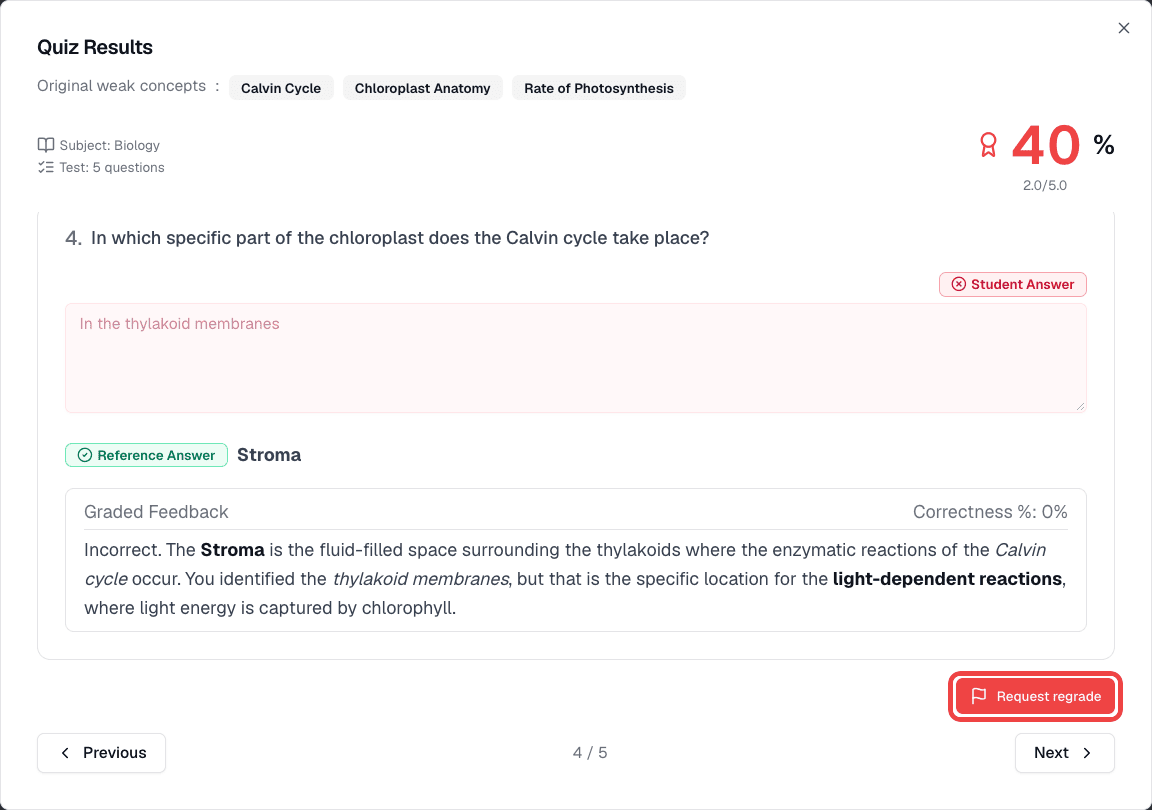
- The student enters a Reason (up to 500 characters) and clicks Submit request. The button then shows Regrade requested
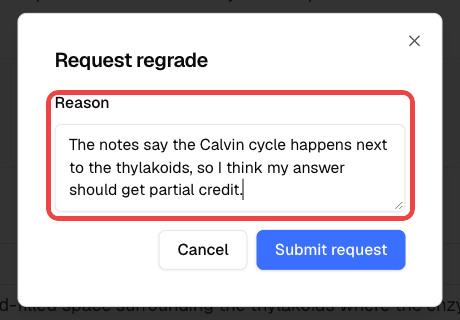
Students can request a regrade from their result page for both class session and dedicated link quizzes, including from Past Quiz History. There is no setting to turn this off. Students can’t request a regrade while you are holding grades (their results are not available yet), on Personalized Challenge rounds, or more than once for the same open request.
To resolve requests:
- On Student Quiz Results, find the Regrade Requests card. It appears only when there are open requests, with a badge showing how many
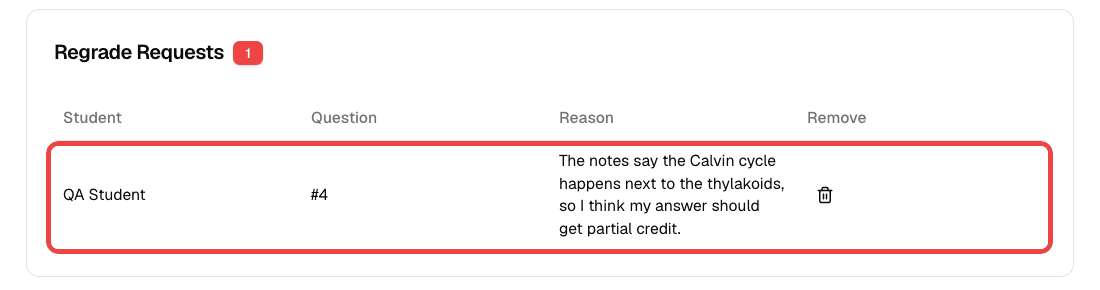
- Review the Question and Reason for each request
- Click a row to open the question. You can correct the answer that is graded, rewrite the feedback, and set the score with the Overall Correctness Percentage slider for that question
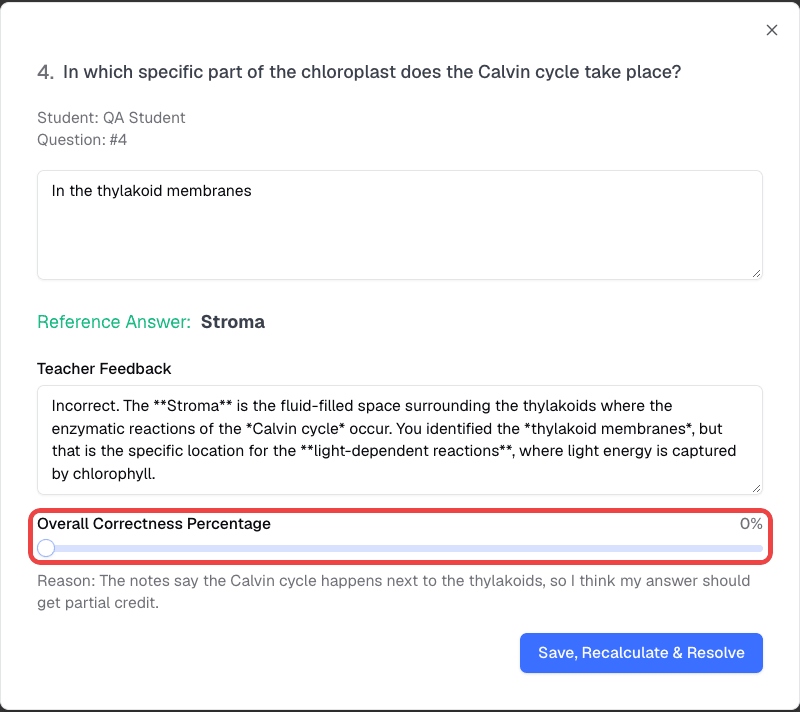
- Click Save, Recalculate & Resolve. The overall score is recalculated and the request is removed from the list
To dismiss a request without changing the grade, click the trash icon in the Remove column.
Hold and Release Grades
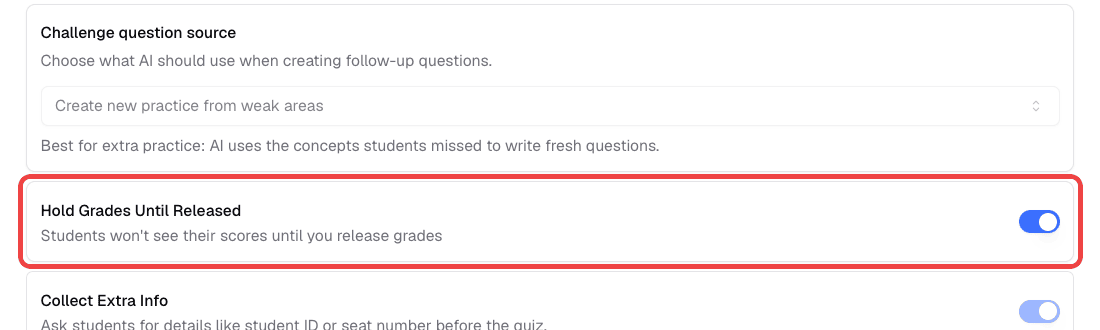
When Hold Grades Until Released is on in the quiz settings:
- AI grading still runs, so you can review and edit grades on Student Quiz Results
- Students see “We’ve received your submission. Thank you!” and the status Submitted, with no score
- The record may appear in the student’s Past Quiz History without a score
- Anyone opening a shared dedicated-link result also sees no score
To release grades, open the Question Set Settings tab and turn off Hold Grades Until Released. You’ll see “Grades are visible to students.” You can change this setting at any time, including after the quiz is published. See Create a Quiz.
Export Results
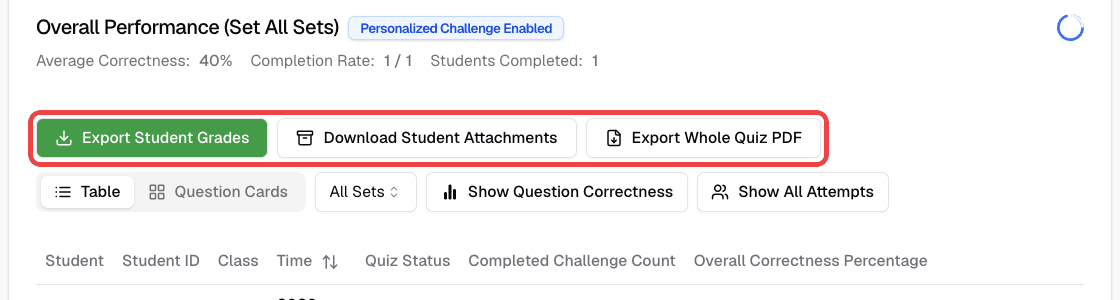
At the top of Student Quiz Results:
- Export Student Grades — Download a spreadsheet (.xlsx) of student grades, including any extra info fields you collected
- Download Student Attachments — Download a .zip file of the images students uploaded
- Export Whole Quiz PDF — Download a PDF of the quiz
In each graded attempt’s row:
- Export PDF — The student’s full attempt
- Export Practice Booklet — Only the questions the student answered incorrectly, got partially correct, or left unanswered
The practice booklet (Practice & Review Booklet) starts with the concepts to review, then has two parts:
- Part A | Try Again — The missed questions, for the student to answer again before checking the solutions
- Part B | Review & Reflect — The student’s original answer, the solution and explanation, and prompts for the student to note where they went wrong and what to remember next time
If a student got every question fully correct, the practice booklet button is disabled and shows No questions need review.

Students can download the same files from their own result page with Export PDF and Export Practice Booklet. If everything is correct, they see “Everything is correct. No practice booklet is needed.” instead. Under More, students can also Print or use Email Results to receive a link to their results by email.
Open a Result from a Dedicated Link
When a student takes a quiz through a dedicated link, anyone who has the link to that quiz result can open it — whether they are signed in with a different account or not signed in at all. This makes it easy to open a shared result on another device or account. If you are holding grades, the score stays hidden until you release it.
Because the link itself grants access, share result links only with people who should see the result.
Follow Up with Personalized Challenge
If Personalized Challenge is on, students can practice their weak concepts after grading, and you can track their progress from the results table. See Personalized Challenge.
Plans & Access
| Role | Access |
|---|---|
| Teachers | View all attempts and analytics, generate the class summary, edit grades, add feedback, resolve regrade requests, release grades, and export results |
| Students | View their own graded results (once released), request a regrade, and export their own PDF and practice booklet |
This feature requires a Teacher plan.
Related Features
- In-Class Quiz — Create and publish quizzes
- Personalized Challenge — Offer tailored follow-up practice after a quiz
- Class Sessions — Distribute quizzes through live sessions
Troubleshooting
Grading seems stuck. Written and image answers take longer to grade than multiple choice. If the status changes to Grading Failed, click Retry Grading.
The Generate button for the class summary is disabled. At least one attempt must be graded before you can generate a summary.
Edit Grade is disabled. You can only edit grades after the attempt has finished grading.
A student can’t find Request regrade. The attempt must be graded and grades must be released. Requests are also not available on Personalized Challenge rounds.
The practice booklet button is disabled. The attempt has no questions to review because the student answered every question fully correctly. The button is also unavailable until the attempt is graded.
The summary doesn’t include the latest students. The summary isn’t updated automatically. Click Generate again.
Can someone open a dedicated-link quiz result without the student’s account? Yes. Anyone with the result link can open it, even if they are signed in with another account or not signed in. Held grades stay hidden until you release them.