AI Chat
Have multi-turn conversations with powerful AI models, organize your history, and use specialized modes for any task.
Overview
AI Chat is the core experience of Chat Everywhere. You can have back-and-forth conversations with the AI, switch between specialized modes for different tasks, and organize everything into folders. Responses stream in real time, and your full conversation history is saved and searchable.
Every plan chats with GPT-5.6. Pro, Ultra, Teacher, and Student accounts get deeper reasoning on each reply, so answers to complex questions tend to be more thorough. Ultra, Teacher, and Student accounts also get Create Image and Deep Think mode.
How to Access
Visit v2.chateverywhere.app and start typing in the message box. No setup required.
What You Can Do
- Switch chat modes — Choose from Auto, Web Search, Create Image, Deep Think, and CE Bot depending on what your task calls for
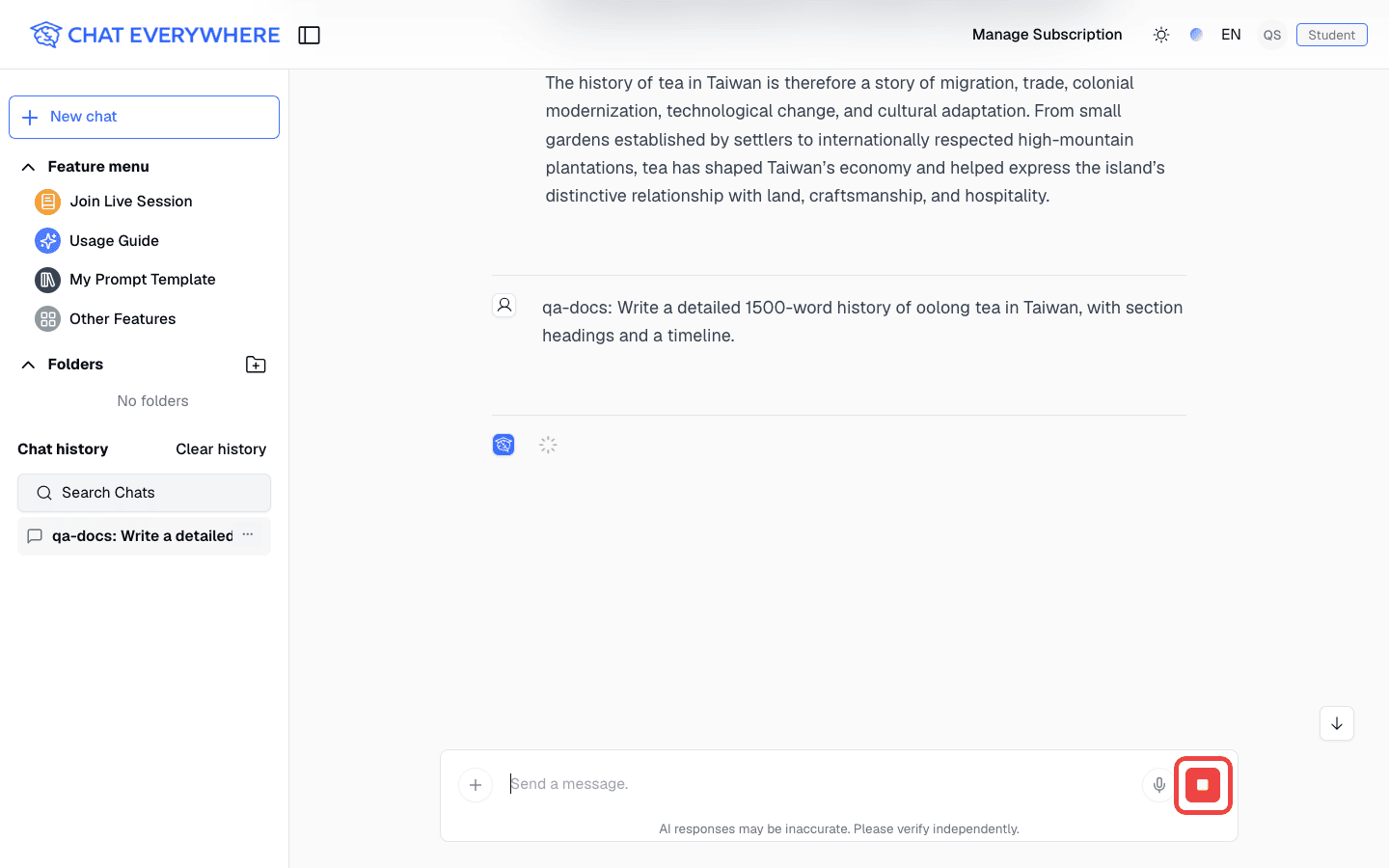
- Stop an answer — Click Stop answer to end a response early and keep what the AI has written so far
- Leave and come back — Switch to another conversation while an answer is still being written; it keeps going and picks up on screen when you return
- Voice input — Click the microphone button to speak your message instead of typing; it transcribes automatically
- Attach files — Upload PDFs, images, or documents to include in your conversation (sign-in required)
- Draw a sketch — Open the Whiteboard and draw something to attach as an image to your message
- Enhance your prompt — Click the Magic Wand icon and the AI rewrites your draft into a clearer, more effective prompt before you send
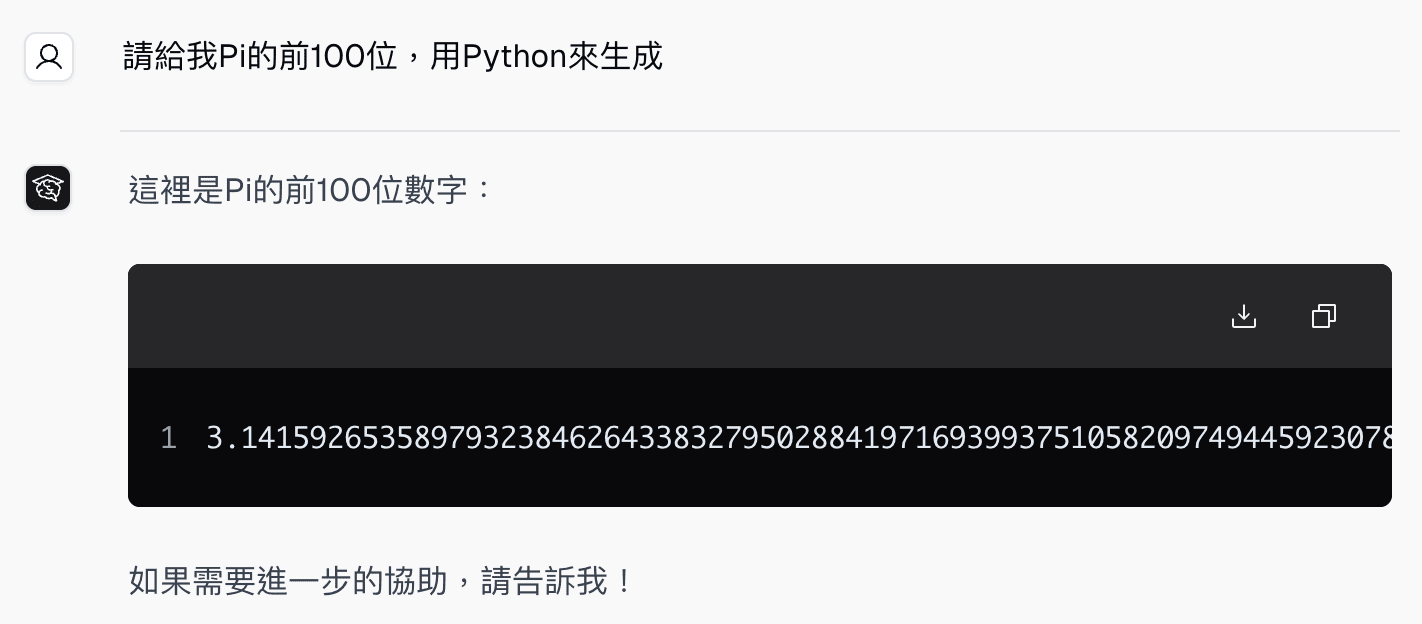
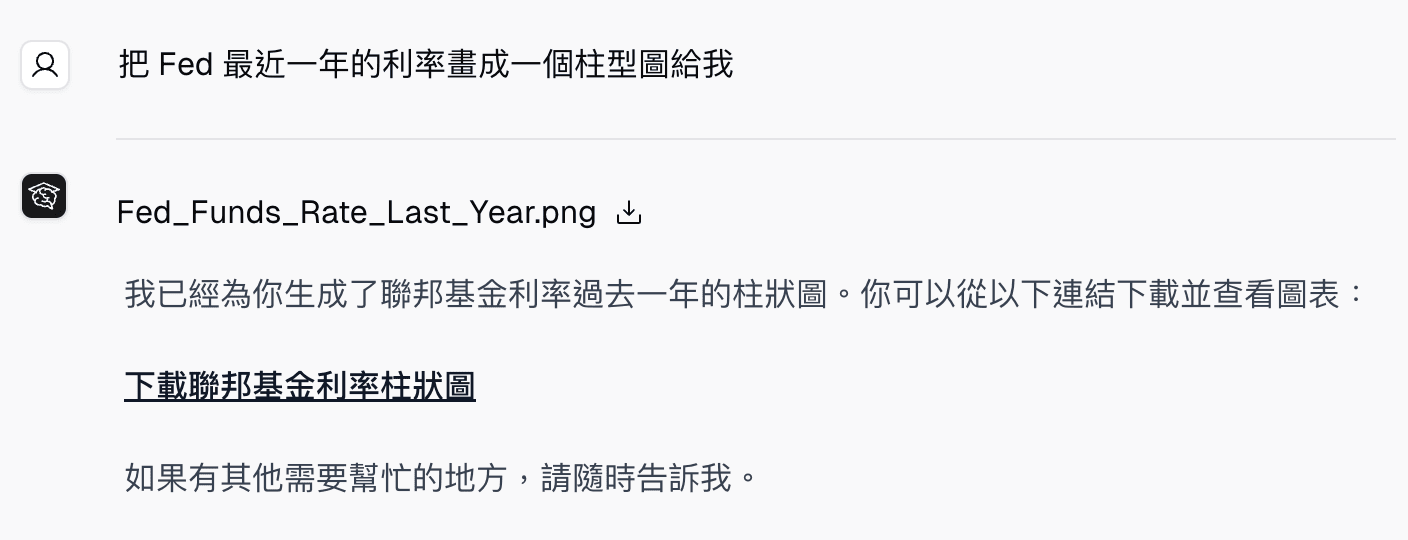
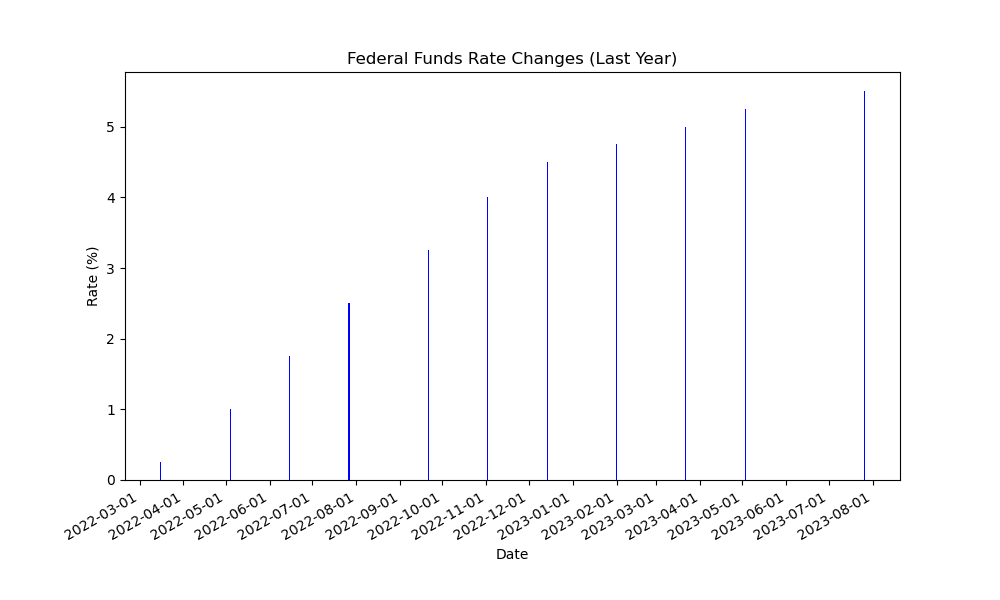
- Run Python-backed work — Ask CE Bot to calculate, transform files, or generate charts when the task needs code execution
- Organize conversations — Create folders in the sidebar, rename them, and drag chats between folders
- Share a conversation — Generate a public link for any chat and send it to anyone
- Back up your history — Export your entire chat history and import it again on any device
Chat Modes
You choose a mode from the mode selector button in the chat toolbar. Each mode changes how the AI approaches your message.
Auto
The default mode. The AI picks the best approach for each message — it may search the web, reason step by step, or respond directly depending on what your question needs. A good starting point for most tasks.
Web Search
The AI searches Google and reads real web pages before answering. Use this when you need current information — news, prices, recent events, or anything that changes frequently. Responses include source links. Requires a signed-in account.
Create Image
Describe an image and the AI generates it. You can also attach an existing image and describe edits you want made. Available on Ultra, Teacher, and Student accounts.
Deep Think
Use Deep Think for complex or multi-step problems, such as math, logic, coding architecture, and detailed analysis. Expect the AI to take more time before it answers. Available on Ultra, Teacher, and Student accounts.
CE Bot
An autonomous agent that can analyze data, read documents, and work through multi-step tasks on your behalf. Useful when you want the AI to handle a workflow rather than just answer a question. Requires a signed-in account.
Step-by-Step Guide
Start a Conversation
- Go to v2.chateverywhere.app
- Type your message in the input box at the bottom of the screen
- Press Enter or click the send button
- The AI responds in real time. While the answer is being written, the send button changes to Stop answer — wait for the answer to finish, or stop it, before sending your next message
Stop an Answer
- While the AI is answering, click the red Stop answer button (the square icon where the send button normally is)
- The button briefly shows Stopping answer while the AI wraps up
- Everything the AI wrote before you stopped stays in the conversation
- Send a new message whenever you are ready
When you stop an answer:
- Any tools still running for that answer are cancelled — for example, a web search, an image being generated, or a CE Bot task
- No follow-up suggestions are shown for the stopped answer
- The message still counts toward your daily message allowance
Leave and Come Back to a Running Answer
You do not have to stay on a conversation while the AI is answering.
- Send a message and let the AI start answering
- Open another conversation from the sidebar, or start a new chat
- The original answer keeps being written in the background
- Return to the original conversation — the in-progress answer continues on screen, and the finished answer is saved as usual
Use a Different Chat Mode
- Look for the mode selector button in the chat toolbar (it shows the current mode name)
- Click it to open the list of available modes
- Select the mode you want — Auto, Web Search, Create Image, Deep Think, or CE Bot
- Send your message; the AI will use that mode for every message in this session
Attach a File
- Click the file upload button (the paperclip icon) in the message toolbar
- Select your file — PDFs, images, and common document formats are supported
- Add your message and send
- The AI reads the file and responds based on its contents
File attachments require a signed-in account. Free accounts have a daily limit on file reading.
Example walkthroughs:
Run Python Code
- Switch to CE Bot for tasks that need calculations, file conversion, or chart generation.
- Describe the result you need in plain language.
- Let the AI generate and run the code.
- Review the output or download the generated file.
Use Voice Input
- Click the microphone button in the message toolbar
- Speak your message clearly
- The text appears in the input box when you stop speaking
- Review it and press Enter to send
See the voice input demo .
Organize Your Chat History
- In the sidebar, click the folder icon to create a new folder
- Give the folder a name
- Drag any conversation from the list into the folder
- Rename or delete folders by right-clicking them
Share a Conversation
- Open the conversation you want to share
- Click the share icon near the top of the chat
- Copy the generated link
- Anyone with the link can read the conversation
Export and Import History
- Click your profile icon and open Setting
- Go to the Import/Export tab
- To back up your chats, click Export to download a backup file
- To restore on another device, open the same tab, click Import, and select your backup file
See the export and import history demo .
Display Settings
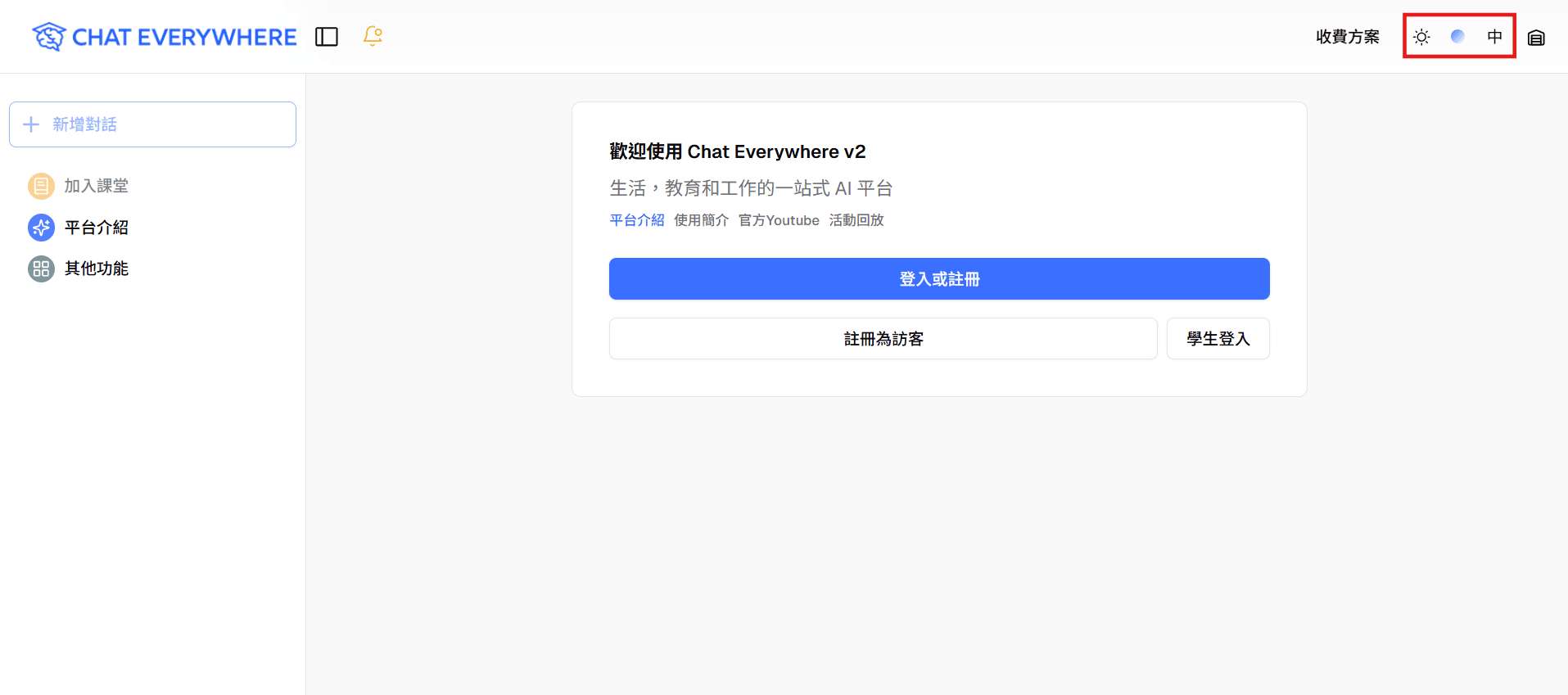
You can adjust the font size to 18, 20, or 22 pixels using the display settings menu. Dark and light mode can be toggled from the same menu or from your account settings.
Plans and Access
- Guest — GPT-5.6 chat in Auto mode. Sign in to use Web Search, file uploads, the Whiteboard, and CE Bot
- Free — GPT-5.6, Web Search, file uploads, and CE Bot. Some tools, such as file reading, CE Bot, voice input, and Magic Wand, have daily limits
- Pro — GPT-5.6 with deeper reasoning, Web Search, file uploads, and CE Bot
- Ultra — GPT-5.6 with deeper reasoning, plus Create Image and Deep Think
- Teacher and Student — Same chat features as Ultra: GPT-5.6 with deeper reasoning, plus Create Image and Deep Think
Related Features
- Web Search — Search Google and browse pages in real time from within chat
- Image Generation — Generate and edit images directly in the conversation
- Memory — Teach the AI things to remember across all your conversations
Common Questions
Which AI model am I talking to? Every plan chats with GPT-5.6. Pro, Ultra, Teacher, and Student accounts get deeper reasoning on each reply, which helps with complex questions. Ultra, Teacher, and Student accounts can also switch to Deep Think mode for demanding multi-step problems.
Can I use Create Image or Deep Think on a Free account? No. Create Image and Deep Think are available on Ultra, Teacher, and Student accounts. To upgrade, click your profile icon and select Pricing.
Does a stopped answer count toward my daily limit? Yes. A stopped answer still counts toward your daily message allowance, even though the AI did not finish it. The partial answer stays in the conversation.
What happens if I switch conversations while the AI is still answering? The answer keeps being written in the background. When you come back to that conversation, you see the answer continue from where it is.
How do I recover a conversation I accidentally deleted? If you have an exported backup, you can import it to restore your history. There is no other way to recover deleted conversations, so exporting regularly is a good habit.