Template Library
Browse, import, and publish ready-made prompt templates shared by the Chat Everywhere community.
Overview
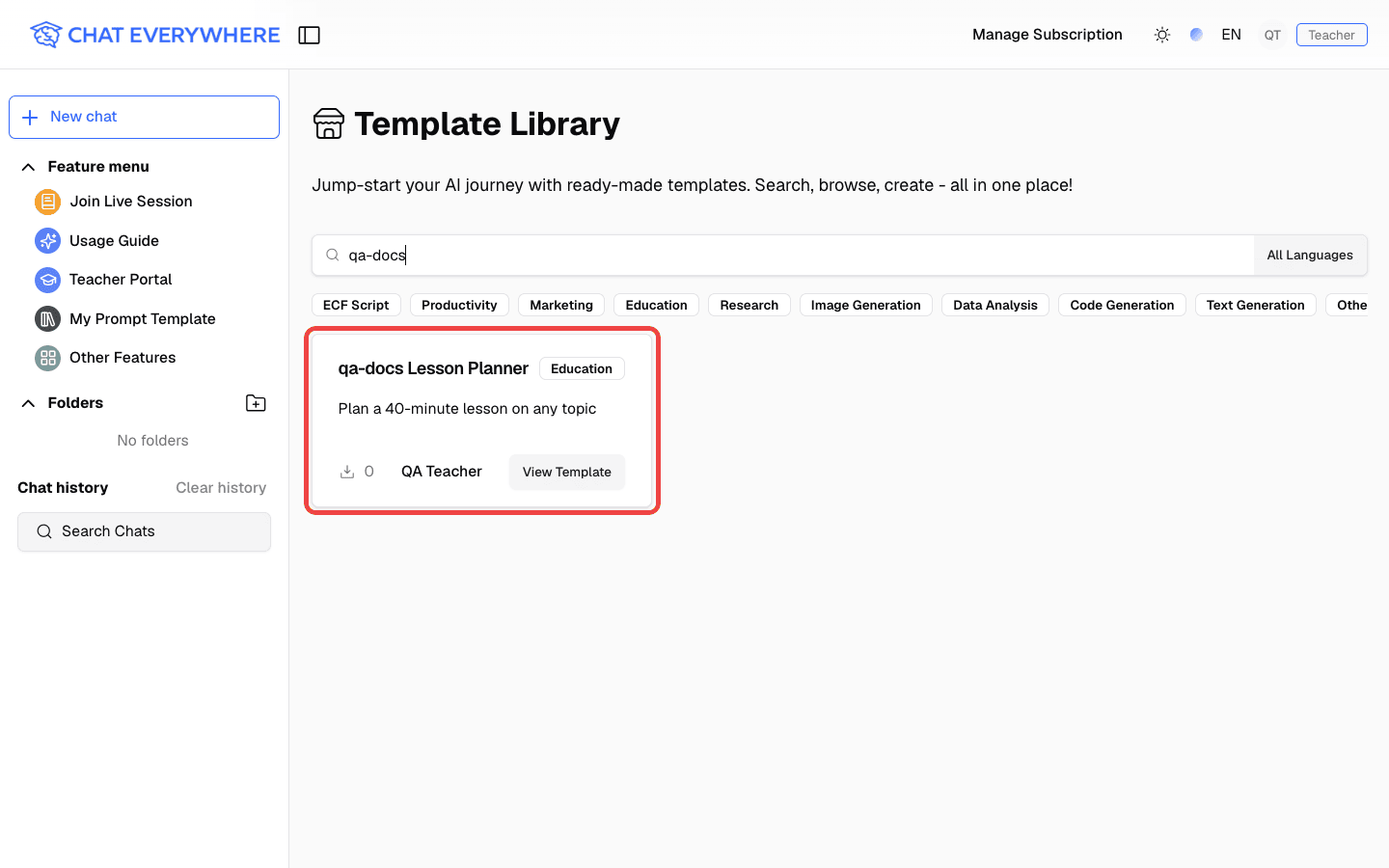
The Template Library is a public collection of prompt templates. Each template has a title, description, and prompt, and some act as bots with their own system prompt. You can browse and search without signing in, then sign in to import a template into your own list.
Templates you import appear alongside the ones you create under My Prompt Template, and you can call any of them from the chat box by typing /.
If you are on a paid plan, you can also publish your own templates to the library or share them by link.
How to Access
- Open the sidebar and click Other Features
- Click Template Library

You can also go directly to v2.chateverywhere.app/templates . When you are signed out, a Template Library icon also appears in the top bar.
Key Features
- Search — Find templates by keyword
- Filter by category — Productivity, Marketing, Education, Research, Image Generation, Data Analysis, Code Generation, Text Generation, or Other
- Filter by language — Show templates in your interface language only, or all languages
- Template details — See the creator, description, prompt, number of users, and whether the template has attached files
- Import — Add a template to your list, or import it and start a new chat right away
- Copy link — Share a template’s page with others
- Publish — Paid users can publish their own templates to the library
Step-by-Step Guide
Find a Template
- Open the Template Library
- Type in Search templates… to search, or click a category to filter
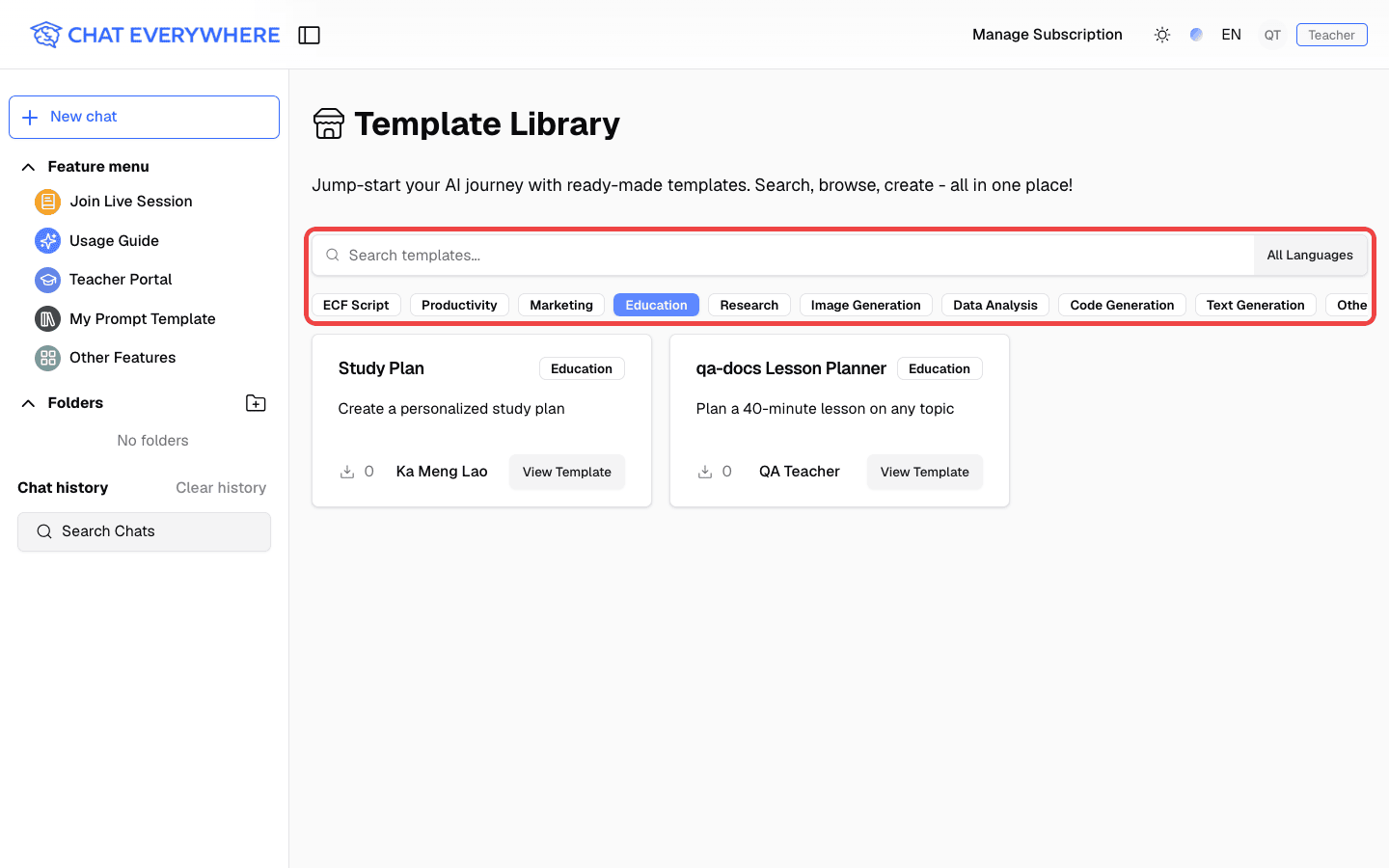
- By default, the library shows templates in your current interface language. Click All Languages to include every language, and click it again (now labeled with your language, for example English Only) to switch back
- Click Load More at the bottom to see more results
View and Import a Template
- Click a template card to open its details
- Review the Creator, Description, and Prompt. Bot templates may show “System prompt hidden by creator”
- If you are signed out, the button reads Sign in to import. Sign in first
- Click Import Template to add it to your list, or Import And Start New Chat to start using it immediately
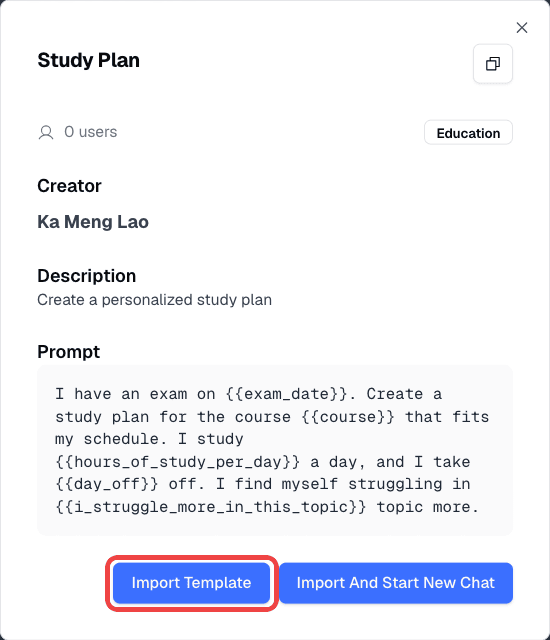
If you already imported the template, the button shows Already Imported. You cannot import a template you published yourself.
Use Templates in Chat
- In the chat box, type
/to open your templates - Keep typing to filter by title, then select a template
- If the template has variables, fill them in and submit
Type @ instead to list only bot templates. The list includes templates you created, templates you imported, and templates a teacher shared with your class.
Manage My Prompt Template
- Open the sidebar and click My Prompt Template
- Click New Prompt Template to create one, or edit or delete existing templates
Publish Your Own Template
Sharing options appear when you edit a template you have already saved.
- Open My Prompt Template and edit one of your templates
- Under Share prompt template, choose:
- Share in Template Library — publish it to the public library
- Only share link — keep it out of the library, but let anyone with the link view it. Use the copy button to copy the link
- Not shared — keep it private
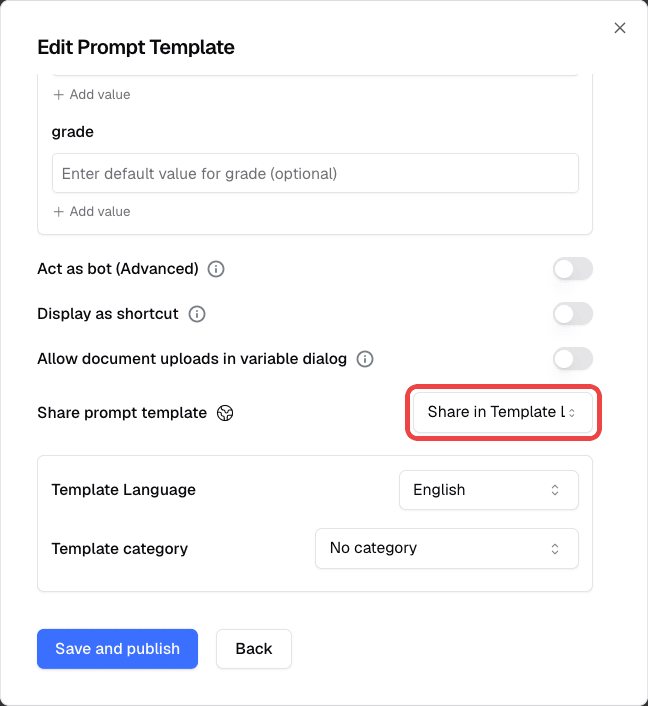
- Set the Template Language and Template category so people can find it
- For bot templates, turn on Hide system prompt if you don’t want others to see it
- Click Save and publish
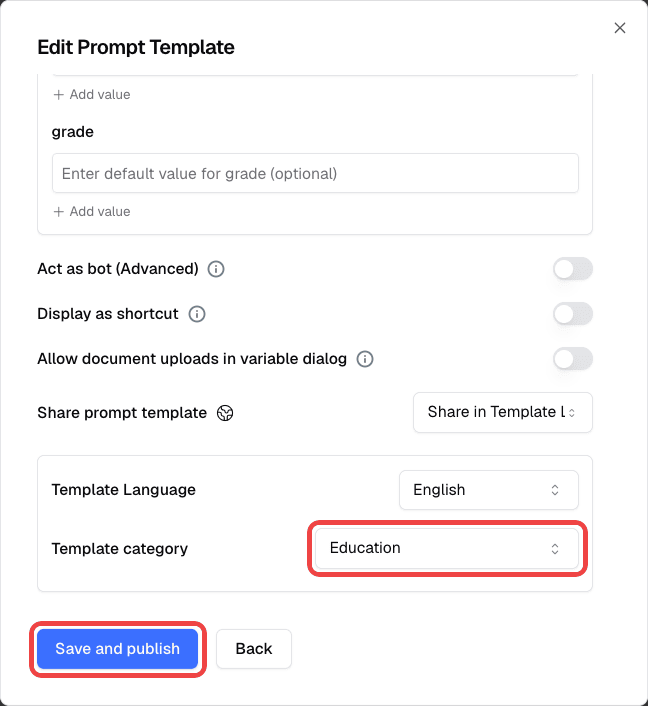
- If you chose Share in Template Library, the template now appears in the library’s search results
When you write a prompt with variables, use Variable Preview to set a default value for each variable. Add more than one value to show it as a dropdown.
Plans & Access
| Action | Signed out | Guest / Free | Paid plans (Pro, Ultra, Teacher, Student) |
|---|---|---|---|
| Browse and search | ✓ | ✓ | ✓ |
| Import templates | — | ✓ | ✓ |
| Create My Prompt Template | — | ✓ | ✓ |
| Publish or share by link | — | — | ✓ |
| Templates with file uploads | — | — | Pro and above |
Related Features
- Prompt Templates for teachers — Share templates with students in a live class session
- AI Chat
- Plans & Limits
Troubleshooting
The share options are greyed out
Only paid users can share prompt templates. Upgrade from Pricing in the profile menu. Sharing options also appear only after a template has been saved once.
”This template required file tool which is not available in your plan”
The template needs file uploads, which require Pro or above.
I can’t find a template I expected
The library shows templates in your interface language by default. Click All Languages and search again.