Teacher Portal
A dedicated dashboard for educators to run live classroom sessions, create assessments, and review student work — all in one place.
You can also use CE Board for shared classroom contributions and activities, without starting a class session.
Overview
New here? Start with Your First Class, a seven-step walkthrough from signing in to ending your first session.
The Teacher Portal is a separate section of Chat Everywhere, accessible from the sidebar, that brings together your classroom tools. It is distinct from the main AI chat interface and focuses entirely on teaching workflows. When you open it, you land on Class Sessions by default.
Use this page as a map of the portal. Each feature has its own guide, linked below.
How to Access
- Sign in with a Teacher plan account.
- Click Teacher Portal in the sidebar.
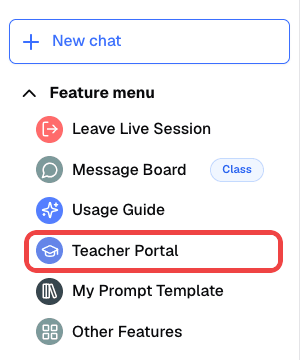
- You land on Class Sessions by default.
What’s Inside
Class Sessions Start a live class and share a one-time code with your students. While the session is live, you can monitor AI conversations in real time, publish quizzes, and share prompt templates.
In-Class Quiz Generate quizzes using AI, publish them to a session or a dedicated link, and get automatic grading and performance analytics when students submit their answers.
Quiz Results and Grading Review submitted answers and grades after students finish a quiz.
Personalized Challenge Offer optional follow-up practice after a quiz, focused on the concepts each student missed.
Pronunciation Practicer Assign spoken pronunciation exercises to students. AI scores each attempt, so you can track progress without reviewing every recording yourself.
Message Board Students send AI responses from their class chat to the Message Board. Read them, give feedback, and grade them here.
Prompt Templates Build reusable prompt templates. Turn on sharing for a template, and students in your live sessions can use it right away.
Tag Management Create tags to organize and filter student posts on the Message Board.
Student Access
When you start a session, the system generates a one-time code. Students click Sign in as student, enter a display name and the code, and join your class with temporary paid-plan access. They do not need their own account to participate.
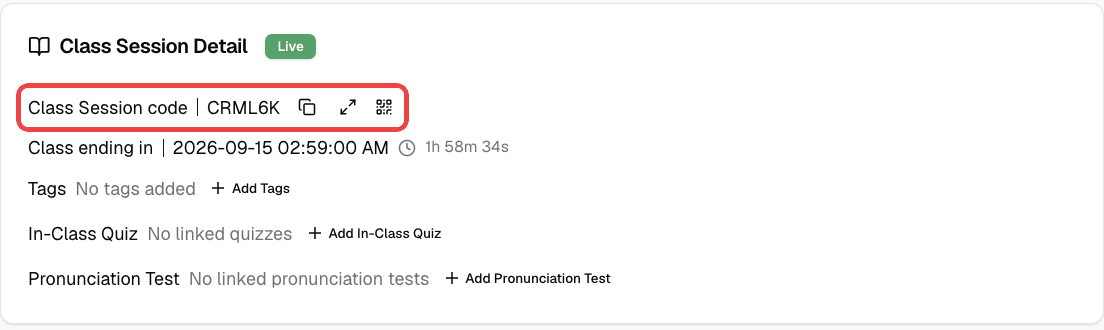
Running a Class
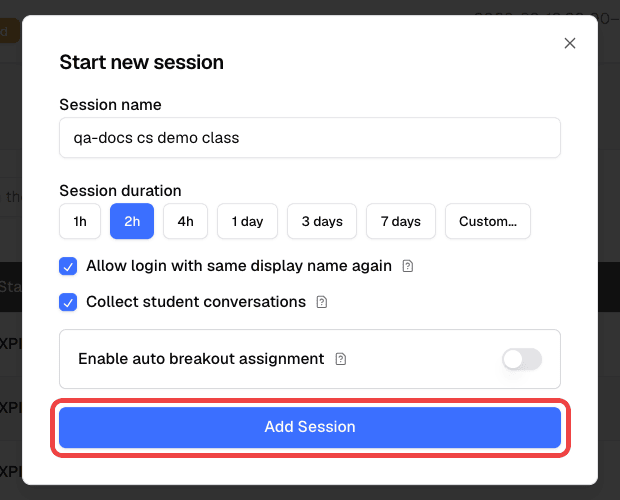
Start a live class from Class Sessions with Start new session, choosing a duration from 1 hour to 7 days. You can have up to two active sessions (live or scheduled), with one live at a time.
To co-teach or observe, click Join a live session and enter another teacher’s session code. For your first lesson, follow Your First Class. For limits, scheduling, and student data, see Class Sessions.
Who Can Use This
The Teacher Portal requires a Teacher plan subscription. Students access the portal features through session codes provided by their teacher.